Move Data Source / Folder
This page explains moving a data source or folder to a different location in the Pirivision Port module via the Move action.
The move action is used to organize data sources into folders by plant, system, or project. Both data sources and folders can be moved.
Prerequisite
There must be at least one data source or folder in the Port list. The destination folder must already exist.
1. Find the Item in the Port List
Click Port in the left menu. Find the data source or folder you want to move in the list.
2. Open the More Menu
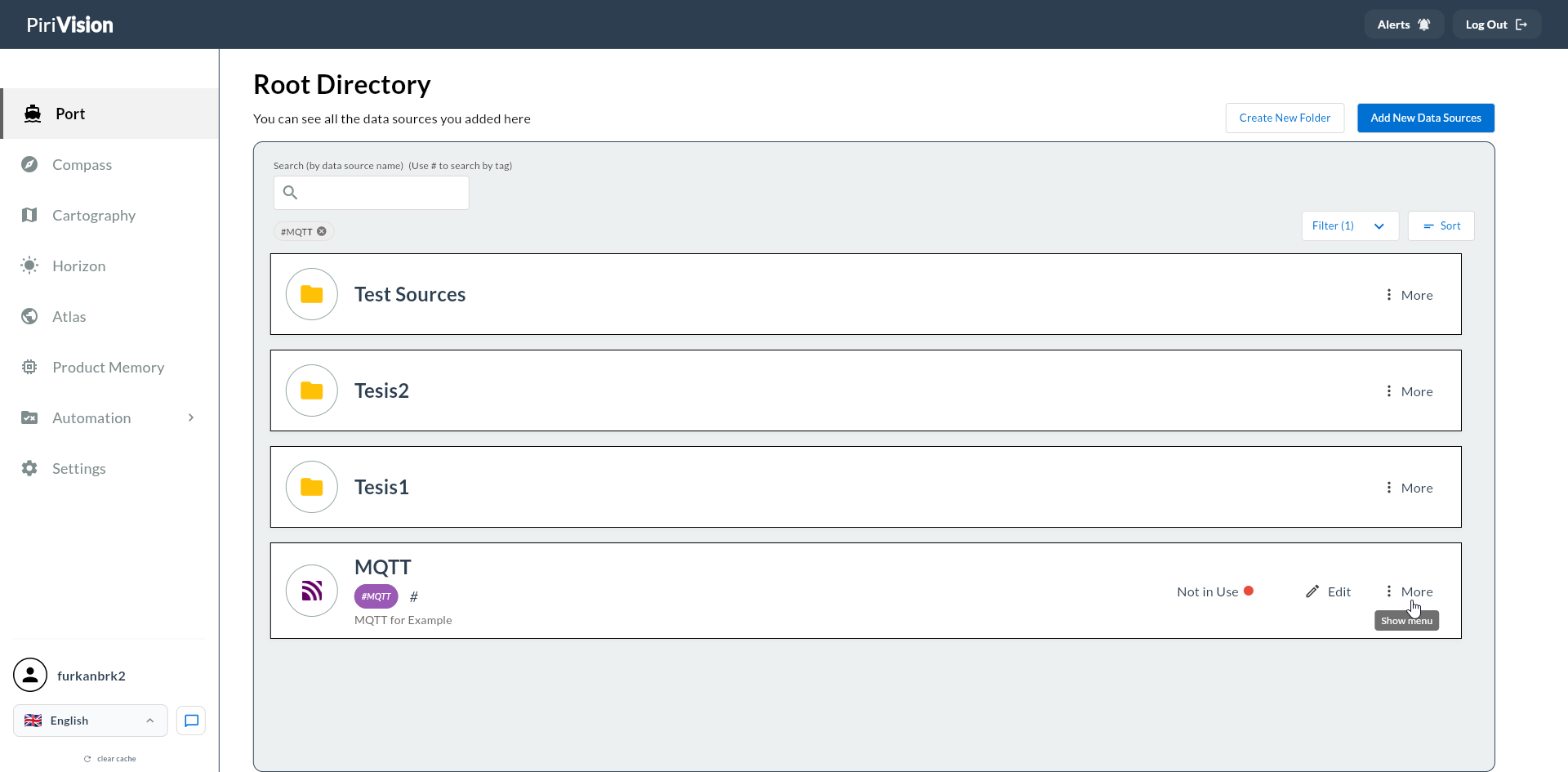
Click the More (three dots) button on the right side of the data source card.
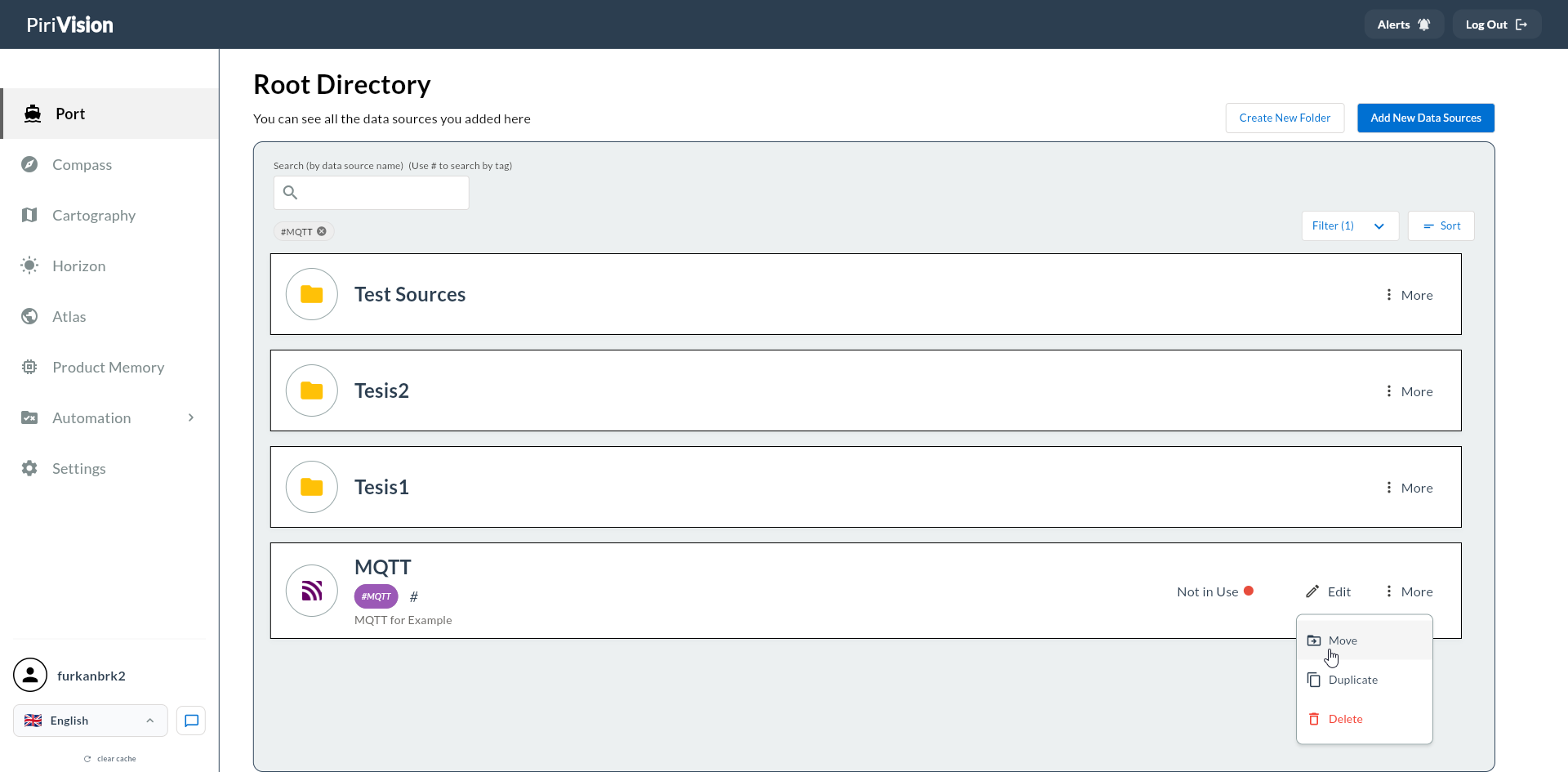
In the menu that opens, click Move.
Tip
The same More → Move flow applies to folders.
3. Select the Destination Folder
The "'[Source Name]' where to move?" dialog opens. The dialog shows the entire Port folder tree.
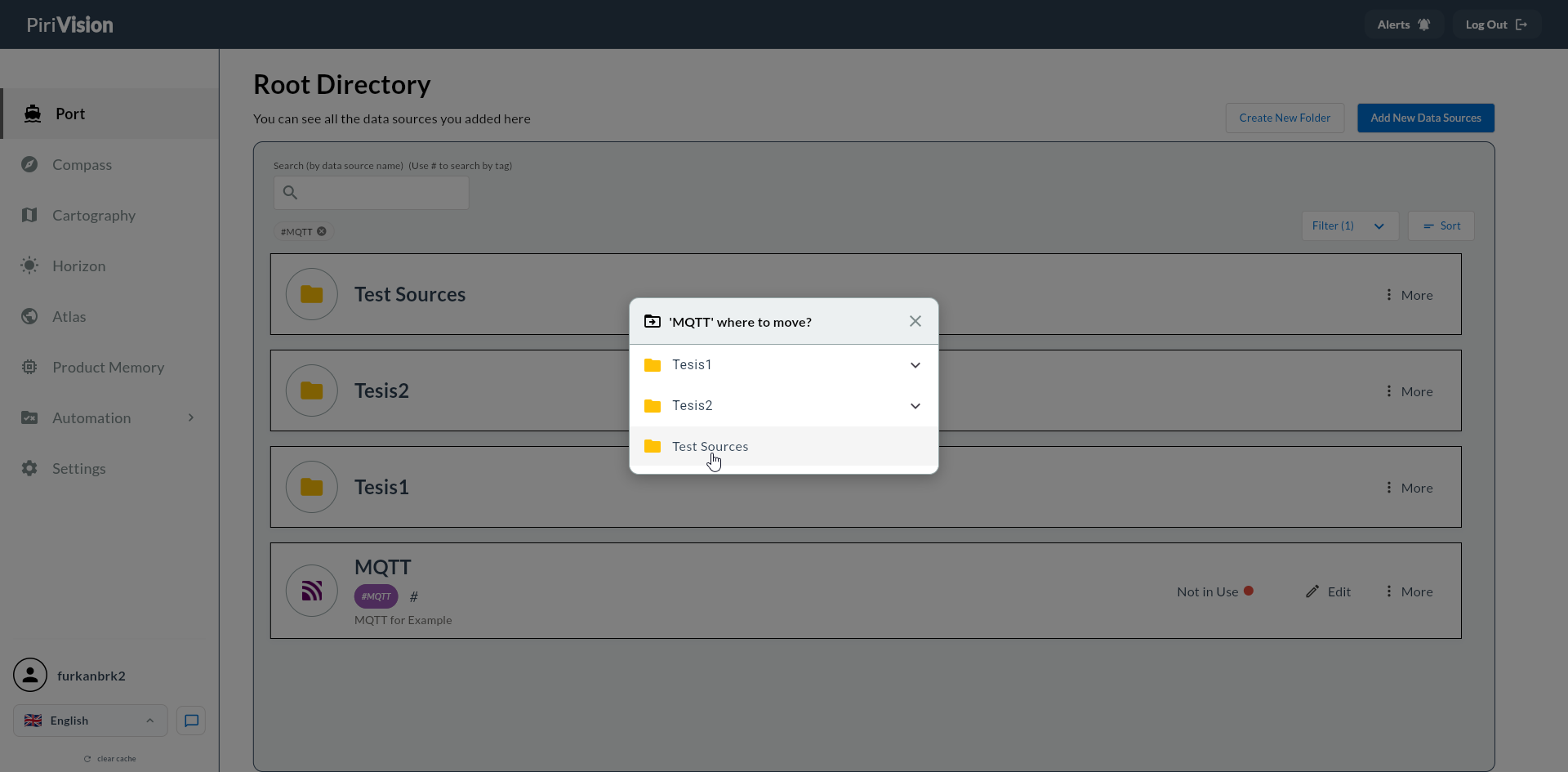
What you can do in the dialog:
| Action | Description |
|---|---|
| Click the folder | Expand / collapse the folder |
| Click the folder name | Select that folder as the destination and start the move |
4. Move Completes
Once the destination folder is picked, the move happens immediately. No confirmation dialog appears.
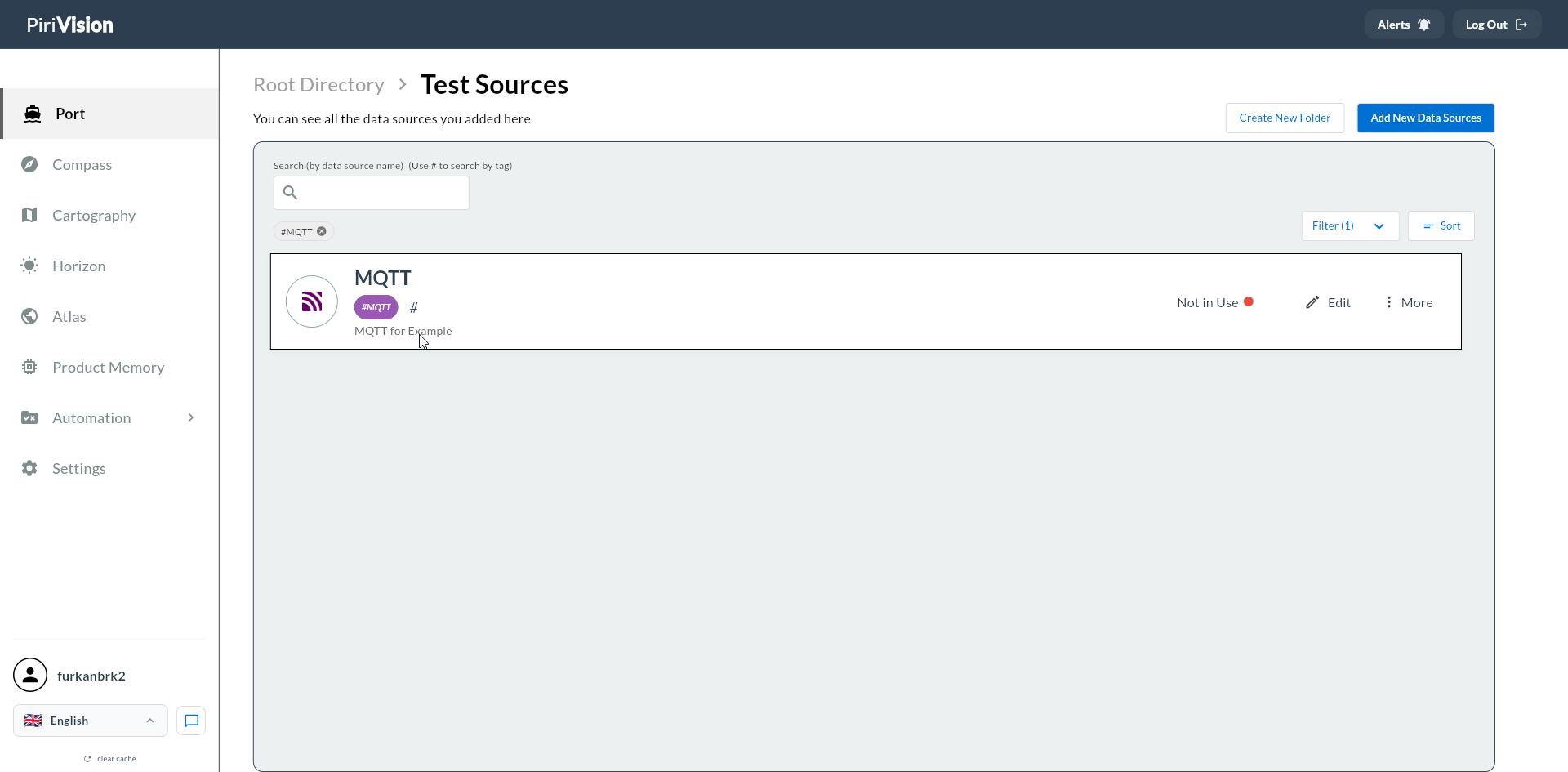
After the move the data source appears inside the destination folder:
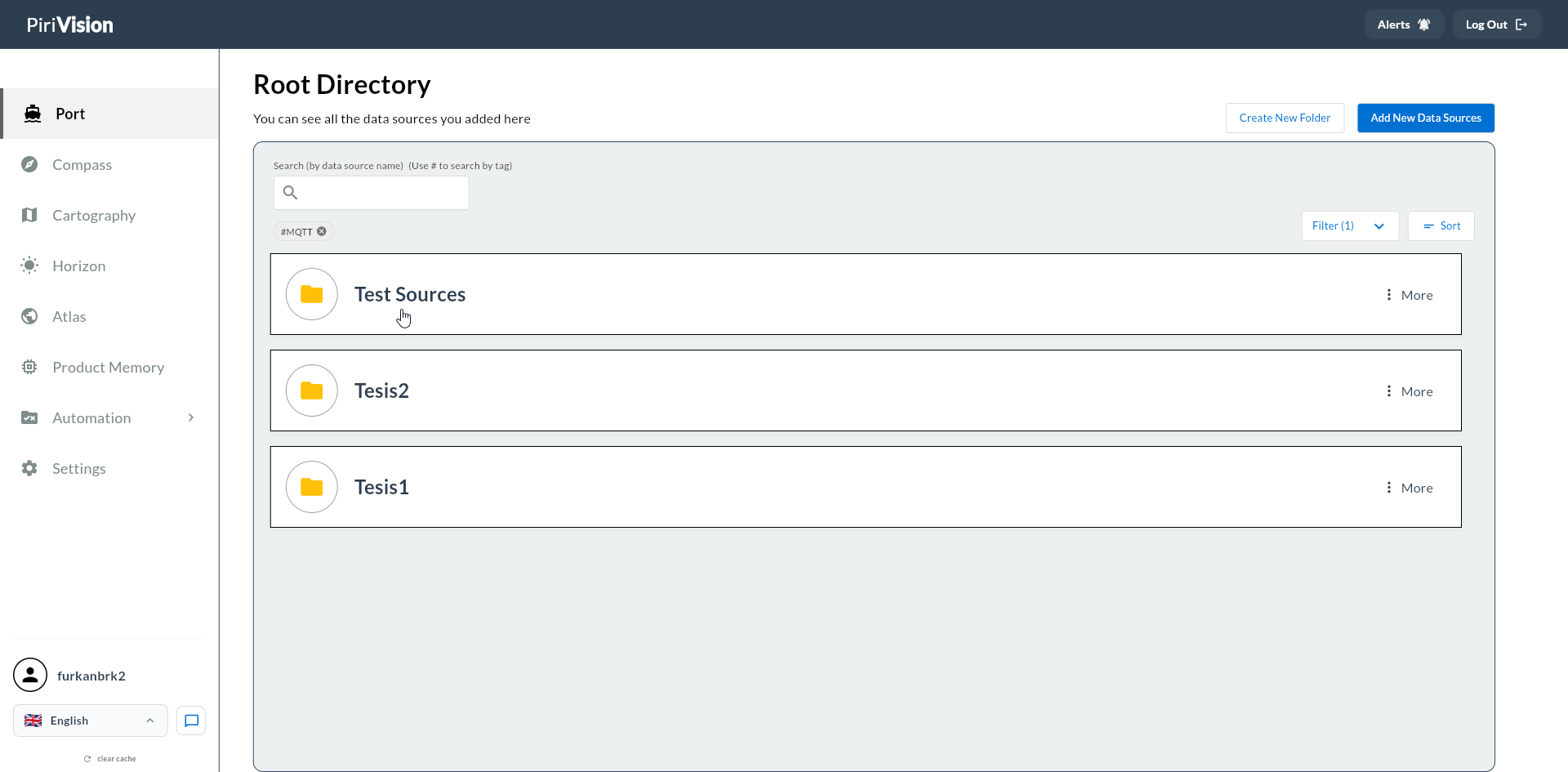
The Root Directory view no longer lists the moved item:
Success
On a successful move, the item appears immediately in the destination folder. The Port list is updated.
5. Moving to ROOT
To move a data source from a sub-folder back to the root directory (PORT), select Root Directory in the dialog.
6. Moving Folders
Folders can be moved like data sources. When a folder is moved, all the data sources inside it move along with it.
Depth Limit
The Port folder structure has a maximum depth limit enforced by the database. When this limit is exceeded, the following error is returned:
In this case move the destination folder to a higher level, or pick a different destination.
7. Common Errors
| Error / Symptom | Possible Cause | Solution |
|---|---|---|
move operation failed (depth limit may have been exceeded): ... |
The destination depth exceeds the maximum limit | Pick a less deep folder as the destination |
| Item not visible in list | After move, in a different folder | Use breadcrumb navigation to go to the destination folder |
| Dialog appears empty | No folders created | Create a folder first via Create New Folder |
8. Next Step
The move action only affects Port list organization. Compass queries, Cartography charts, and dashboards that use the data source are not affected; they continue to work.