2. Chart Type Selection — Linear Gauge
In the second step you select Linear Gauge from the 2 chart types in the Gauge group. This selection triggers the /cartography/add/lineargaugeaxisdesign route to open in Step 4, and causes Steps 5/6/7 to be skipped.
Wizard route: /cartography/add/selectchart
1. Review the Type List
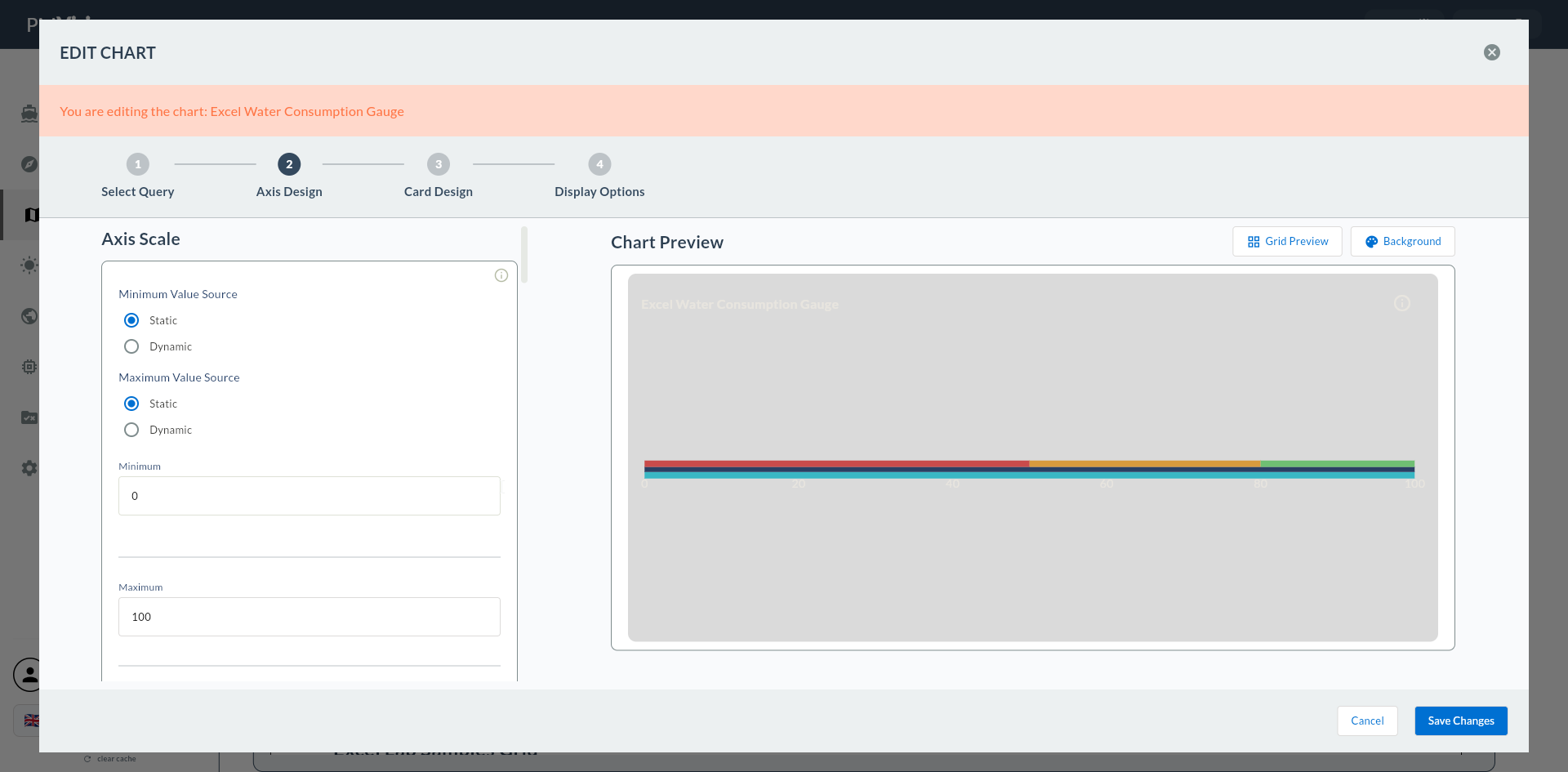
2. Gauge Types
| Chart Type | Typical Use | Step 4 Screen |
|---|---|---|
| Radial Gauge | Circular pointer gauge | Radial Gauge Axis Design |
| Linear Gauge | Horizontal/vertical progress bar | Linear Gauge Axis Design |
3. Select Linear Gauge
Click the Linear Gauge card. The card is highlighted with a bold green border.
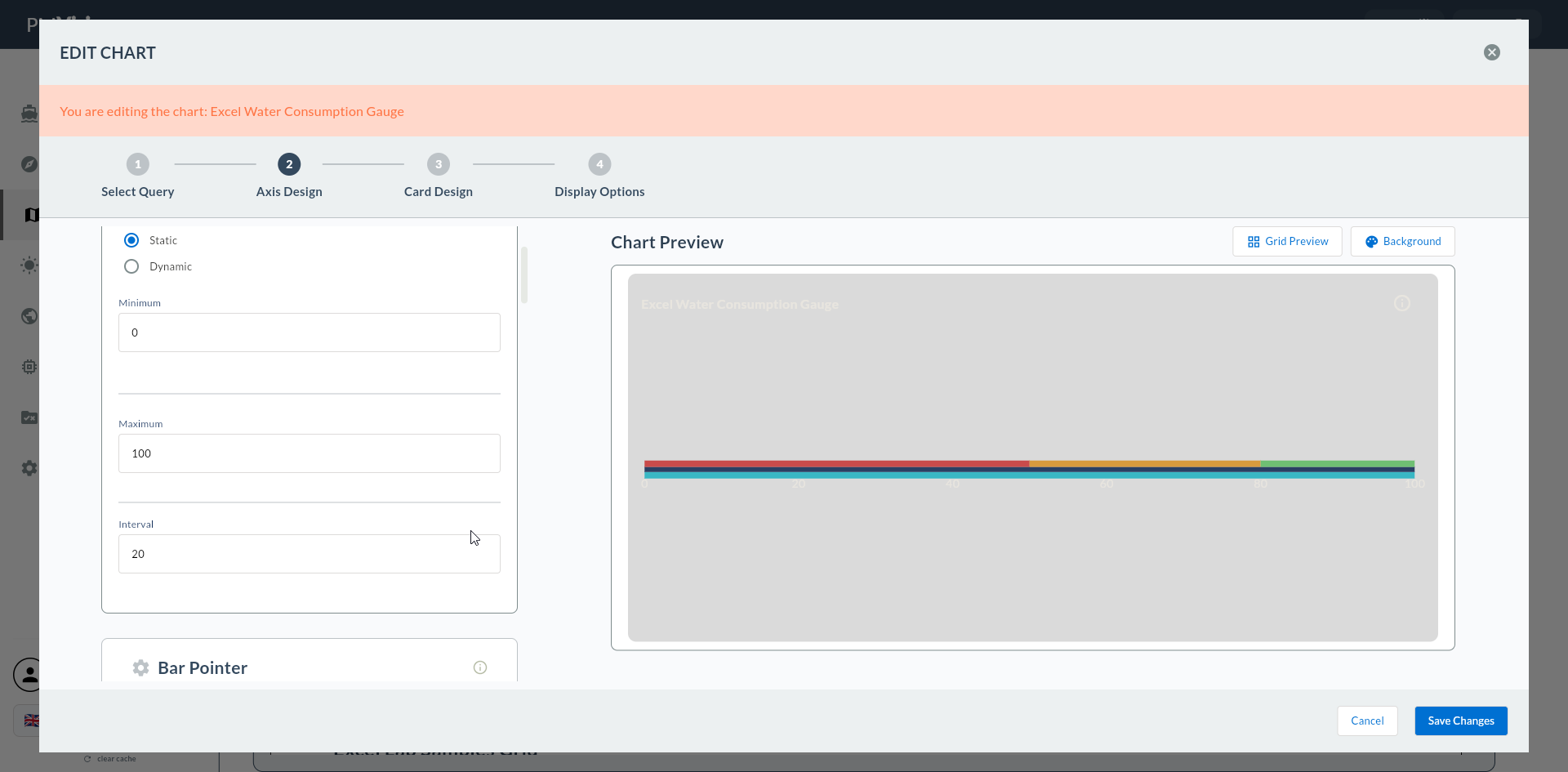
Click the Next button at the top right.
Proceeding Without Selecting a Type
If no type is selected, Next gives a warning.
Radial Gauge Is a Different Flow
For Radial Gauge → Radial Gauge Flow
Skipped Steps
When Linear Gauge is selected, 5. Series Design, 6. Add Series, and 7. General Design are skipped.