7. General Design — Two-Column List
In this step, the Two-Column List widget's visual settings are configured: Label column style, Value column style, row background, title, and border.
Wizard route: /cartography/add/generaldesign
Prerequisite
Steps 1, 2, 3, and 4 of the Two-Column List flow must be completed (5, 6 are skipped).
1. Screen Layout
The left side contains the configuration form; the right side shows a live list preview.
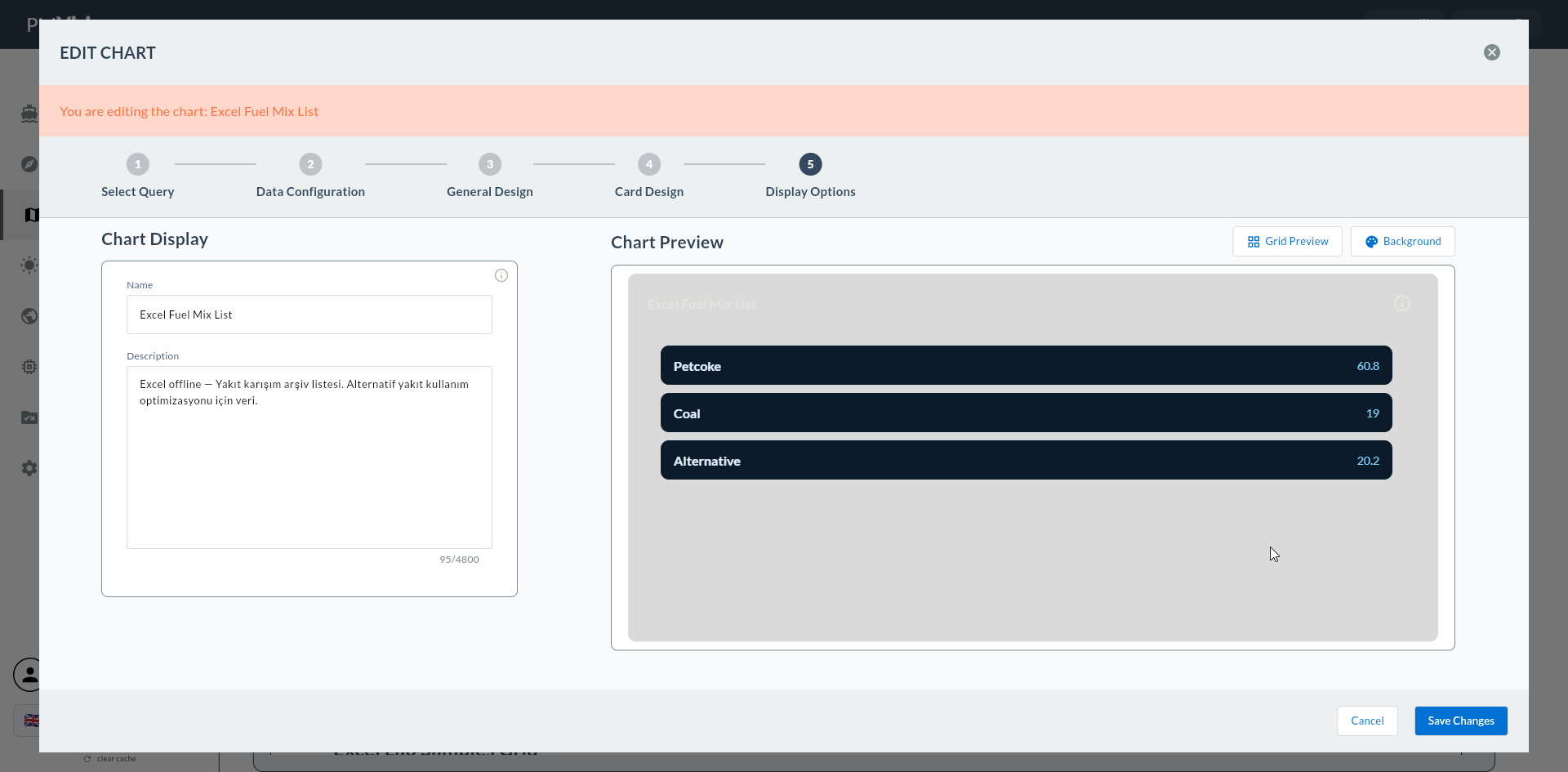
2. Chart Title
| Field | Description |
|---|---|
| Show Title | Title visibility (toggle) |
| Title Text | Title text (e.g., "Shift Summary") |
| Title Color | Text color |
| Title Font Size | Font size (px) |
| Title Font Weight | Normal / Bold / SemiBold |
| Title Background Color | Background color |
| Title Border Color | Border color |
| Title Border Width | Border thickness (px) |
| Title Alignment | Left / Center / Right |
3. Label Column Style
| Field | Description |
|---|---|
| Label Color | Label text color |
| Label Font Size | Label font size (px) |
| Label Alignment | Left / Center / Right |
| Label Font Weight | Normal / Bold / SemiBold |
Label Style
Labels are typically Bold or SemiBold; use a slightly muted color (e.g., #374151). The combination Label = Bold + Value = Normal improves readability.
4. Value Column Style
| Field | Description |
|---|---|
| Value Color | Value text color |
| Value Font Size | Value font size (px) |
| Value Alignment | Left / Center / Right |
| Value Font Weight | Normal / Bold |
Value Alignment
- For numeric values, set Value Alignment = Right (numbers align vertically).
- For text values, Left or Right can be used.
5. Row Settings
| Field | Description |
|---|---|
| Row Background Color | Row background color |
| Alternating Row Color | Different color for odd/even rows |
| Row Height | Row height (px) |
Alternating Row Color
Light grey and white alternating rows improve readability for lists with 7+ items.
6. Border (Cell Border)
| Field | Description |
|---|---|
| Border Color | Cell border color |
| Border Width | Line thickness (px) |
7. Confirmation
When you click the Next button at the top right, flow.hasGeneralDesign = true is marked.