3. Compass Record Selection — Range Column
In this step, the Compass record that the Range Column widget will use is selected. Your record must return at least three columns: X axis, Low value, and High value. Optionally, a categorical fourth column can be added for Color By.
Wizard route: /cartography/add/selectcompass
Prerequisite
Steps 1 (Cartesian) and 2 (Range Column) must be completed.
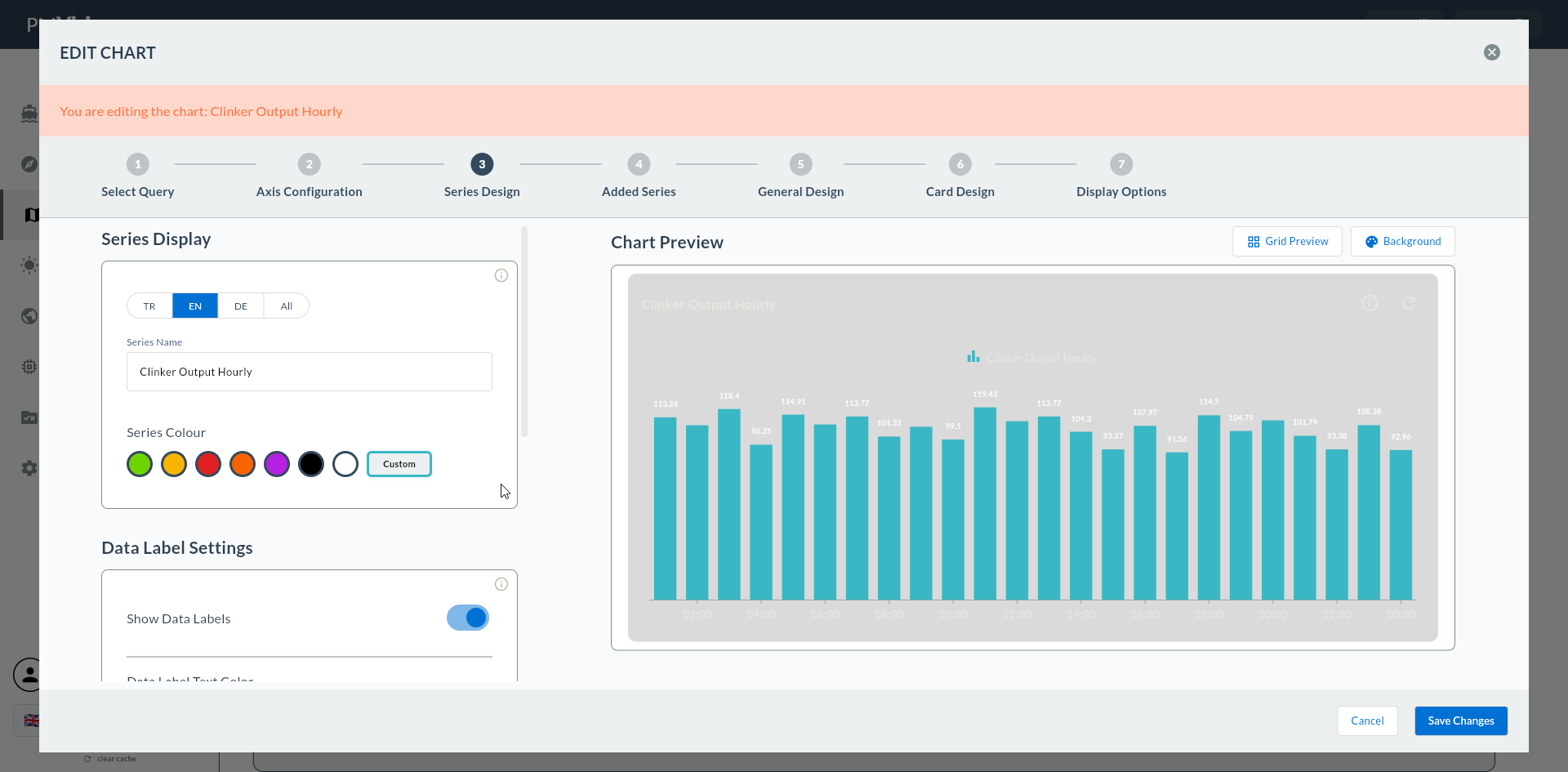
1. Compass Record List
2. Record Structure Suitable for Range Column
-- Daily min/max temperature (Color By: shift)
SELECT
    day,                              -- X axis
    MIN(temperature) AS temp_min,     -- Low Value Column
    MAX(temperature) AS temp_max,     -- High Value Column
    shift AS shift_color              -- Color By Column (optional)
FROM sensor_log
WHERE day >= CURRENT_DATE - INTERVAL '30 days'
GROUP BY day, shift
ORDER BY day;
| Column | Role in Step 4 | Type |
|---|---|---|
day |
X Axis Column (DateTimeAxis) | DATE / TIMESTAMP |
temp_min |
Low Value Column | NUMERIC |
temp_max |
High Value Column | NUMERIC |
shift_color |
Color By Column (optional) | TEXT |
Low ≤ High
Low Value must be less than High Value. Otherwise the bar renders inverted or appears empty. Use SQL LEAST / GREATEST to guarantee this:
3. Data Sources Suitable for Range Column
| Data Source | Suitability for Range Column | Notes |
|---|---|---|
| PostgreSQL / MSSQL / MySQL | ✅ Ideal | Practical with MIN/MAX aggregate |
| REST API | ✅ Suitable | JSON response with low/high keys |
| MQTT | ❌ Limited | Snapshot is a single row; producing a range is meaningless |
| Excel Offline | ✅ Suitable | Low/high columns must be in separate columns in the sheet |
4. Record Search and Tag Filter
| Action | Effect |
|---|---|
| Search box | Instant filter on record name + description |
| Tag filter | Select tags from the filter icon |
| Clear | Clear filters |
Range Tag
Use range, min-max tags in Compass for Range Column queries.
5. Confirm the Record
Click on a record to highlight the row. Proceed with the Next button at the top right.
Proceeding Without Selecting a Record
If no record is selected, Next gives a warning: "Please select a Compass query first".
6. Excel Offline Sheet Selection
If an Excel record is selected, a Sheet dropdown appears below it. Select a sheet then click Next.
7. Preview Execution
When the Next button is pressed, the record is executed and the result is kept in memory.
8. Common Errors
| Symptom | Possible Cause | Solution |
|---|---|---|
| Low/High dropdown empty in Step 4 | Query returns only one numeric column | Add MIN(...) AS low, MAX(...) AS high |
| No column in Color By dropdown | No categorical column in query | Add a TEXT column like shift, product_code |
| Bars appear inverted | Low > High | Protect with LEAST / GREATEST |