Duplicate Dashboard
The Duplicate action copies an existing Atlas dashboard with the same widget layout (V2 layout) and visual settings. The new dashboard is saved with a different ID; widget bindings reference the same Cartography widgets.
Prerequisite
At least one dashboard to duplicate must exist in the Atlas list.
1. Find the Dashboard
Click Atlas in the left menu. Find the dashboard you want to duplicate in the list.
2. More Menu → Duplicate
Click the More button on the right of the dashboard card → click Duplicate. The backend calls the duplicate_dashboard API.
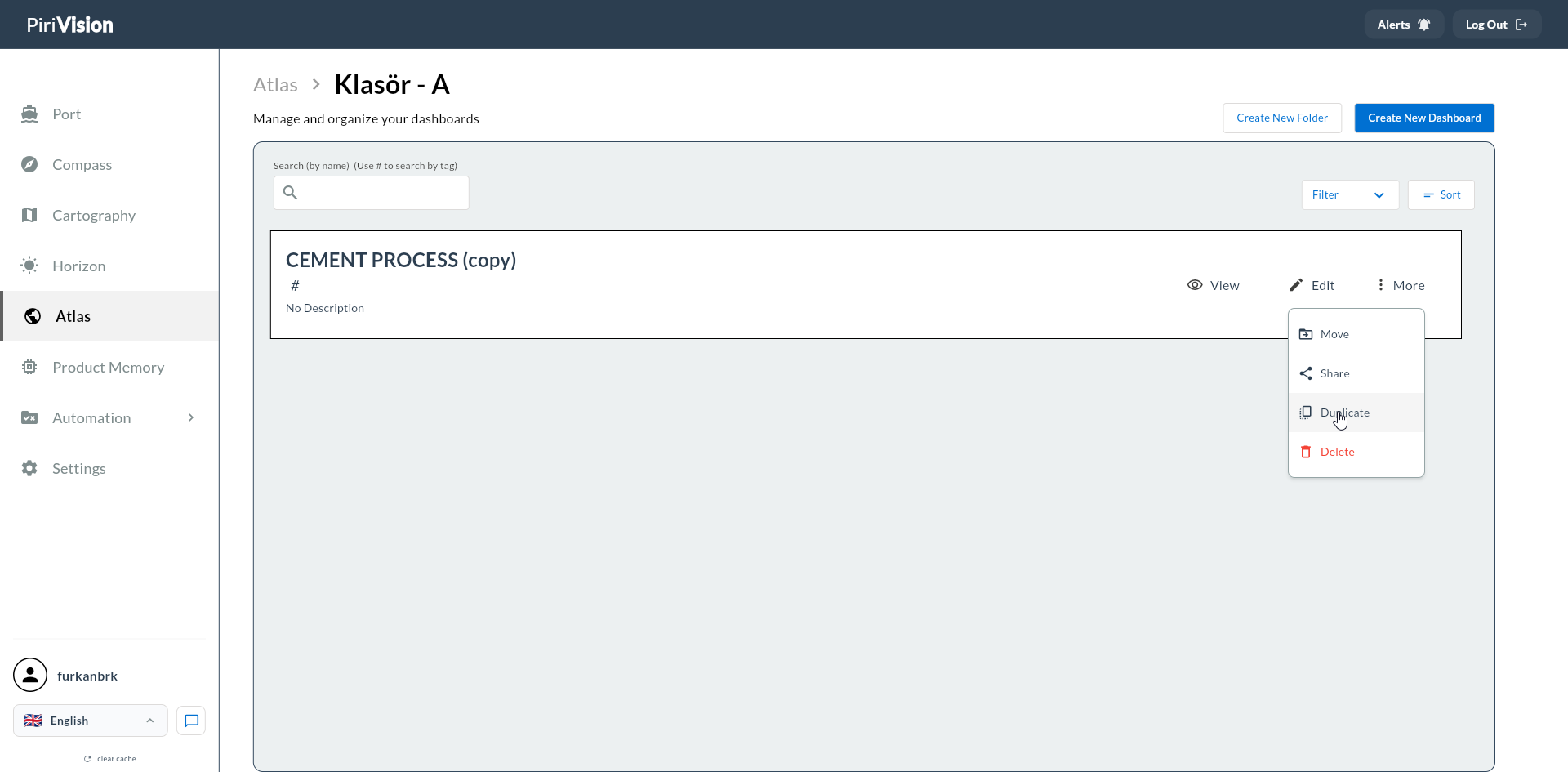
3. Duplicate Completes
The copy happens instantly. The new dashboard is listed in the same folder with a Copy of <Original Name> prefix or similar.
Success
The duplicated dashboard has the same:
- Widget layout (V2 nx/ny/nw/nh ratios)
- Title color, background
- Description, tags
- Page structure (if any)
4. Limitations
| Copied | Not Copied |
|---|---|
| Layout JSON (nx/ny/nw/nh) | Public links (regenerate for the new dashboard) |
| Title color, background | User shares |
| Tags, description | Viewing statistics |
Regenerate Public Link
The duplicated dashboard does not have its own public link; you must generate it again if needed.
5. Typical Scenarios
| Scenario | Approach |
|---|---|
| Reuse the same template for a different plant | Duplicate → swap widgets with queries from the other plant |
| Per-customer custom dashboard | Duplicate → add customer logo/colors, generate public link |
| Archive an old dashboard | Duplicate → delete the original, keep the copy |
| A/B test: compare two layouts | Duplicate → change widget placement in the second layout |
6. Editing the Duplicated Dashboard
Open the new dashboard and edit it via Edit Mode.
7. Common Errors
| Symptom | Possible Cause | Solution |
|---|---|---|
| Duplicate button is disabled | You are not the owner | Ask the authorized user to duplicate |
| Copy widgets are empty | Deleted in Cartography | Replace with a new widget |
| Backend error | Service not responding | Check the core-service status |
8. Next Step
→ Delete