Excel Sheet Selection
This page describes the process of selecting a sheet of an Excel file uploaded to Port in the Pirivision Compass module and saving it as a Compass record.
The saved Excel sheet connection is used in the Cartography module to create table, chart, or KPI widgets.
Prerequisite — Port Data Source
To make this sheet selection, an Excel Offline data source must be created in the Port module and an Excel file uploaded. If not done yet, go to Port first and upload the file.
Information Needed Before Selection
The examples on this page use the Demo Factory Excel file (Aylik_Uretim.xlsx) and the Demo Factory - Excel data source in Port. To prepare the same file in your own environment, see Synthetic Data Generation — Excel.
| Information | Description | Default | Example |
|---|---|---|---|
| Data Source | Excel file uploaded in the Port module | — | Demo Factory - Excel |
| Sheet Name | The worksheet to select | — | Ocak |
| Record Name | The name shown in the Compass list | — | excel_monthly_production |
| Target Folder | The Compass folder where the record will be placed | Root | Demo Factory / Excel |
Sheet Name Is Critical
If the sheet name is changed in the Excel file after the record is saved, the record will fail. Keep sheet names stable.
1. Open the Compass Module
Click Compass in the left menu.
2. Create a New Excel Record
Click the Add New Query button at the top right. (The UI shows "Query"; for Excel this action means adding a new sheet connection to Compass.)
3. Select an Excel Data Source
In the Select Your Data Source screen, choose the data source under the Excel Offline category.
Click Next.
4. The Excel Sheet Selection Screen Opens
After selecting the Excel data source, the sheet selection screen opens.
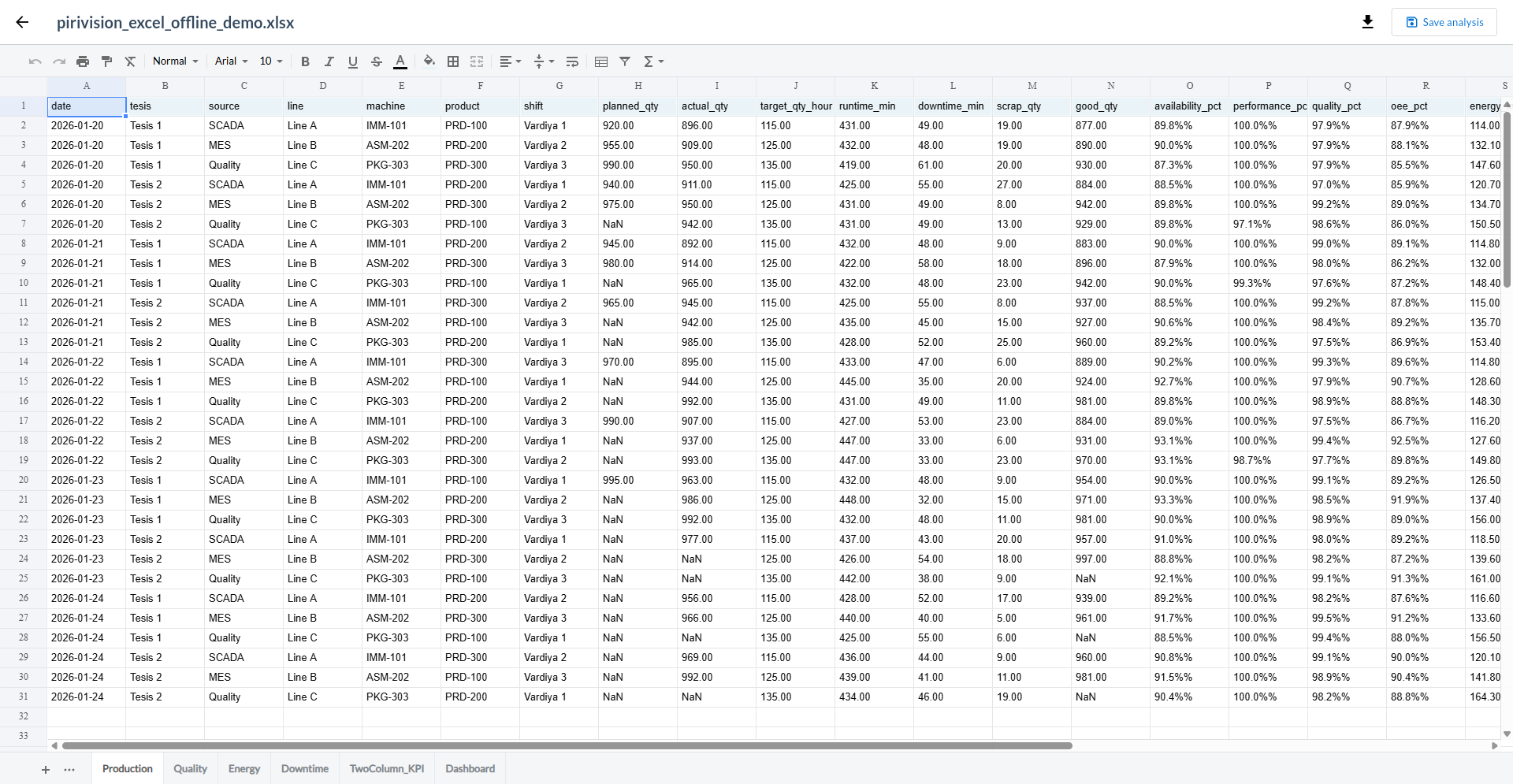
Screen layout:
| Section | Description |
|---|---|
| Sheet Tabs | All sheets in the uploaded Excel file appear as tabs |
| Data Preview | The first rows of the selected sheet appear in a table format |
| Excel Editor | Direct data editing is possible via the Univer integration |
5. Select a Sheet
Click the sheet you want to query in the tabs at the bottom.
The data of the selected sheet appears in the preview table.
Demo Factory — Aylik_Uretim.xlsx sheets
The demo file contains three sheets: Ocak (January), Subat (February), Mart (March).
Each sheet has these columns:
| Column | Type | Example |
|---|---|---|
Tarih (Date) |
Date | 2026-01-15 |
Hat (Line) |
Text | HAT-1, HAT-2 |
Vardiya (Shift) |
Text | A, B, C |
Urun_Ailesi (Product Family) |
Text | Profil, Boru |
Adet (Count) |
Number | 1240 |
For this example, click the Ocak tab.
Excel Editor
The Edit or Open Editor button in the sheet preview area opens the Univer Excel editor inside Compass. You can update the data directly in the editor; when changes are saved, dashboards reflect the new data automatically.
6. Save the Sheet Record
After selecting the sheet, click Save at the top right. The save panel opens.
7. Display Info — Name and Description
| Field | Required | Description | Default | Example |
|---|---|---|---|---|
| Name | Yes | Record name shown in the Compass list | — | excel_monthly_production |
| Description | No | Text explaining the purpose of the record | — | Aylik_Uretim.xlsx — Ocak sheet monthly shift production data |
8. Location — Target Folder
Select the folder via the Target Folder field. If not chosen, the record is saved in the root directory.
9. Click the Save Button
Click the Save button at the bottom of the panel.
10. Verify in the List
A new Excel sheet card should appear in the Compass list.
11. Common Errors
| Error / Symptom | Possible Cause | Solution |
|---|---|---|
| Sheet tabs not visible | Excel file not uploaded correctly | Open the Excel data source in Port and re-upload the file |
Ocak, Subat, Mart tabs missing |
Uploaded file does not match the Demo Factory structure | See Synthetic Data Generation — Excel |
| Empty data preview | The selected sheet is empty | Check the sheet content in the Excel file |
"you already have a query named '...'" |
A Compass record with the same name exists | Choose a different name |
| No data in Cartography | Sheet name or column structure changed | Update the Excel data source; reopen the Compass record and check the sheet |
Next Step
After the Excel sheet is saved to Compass, you can create a chart or table widget using this record in Cartography.