Create Dashboard
This page explains creating a new dashboard in the Atlas module. Atlas dashboards are set up via a single-screen flow (not a wizard). The form sets the card identity and visual theme; widget placement happens on the next screen.
1. Open the Atlas List
Click Atlas in the left menu. On the list screen click the New Dashboard button at the top right.
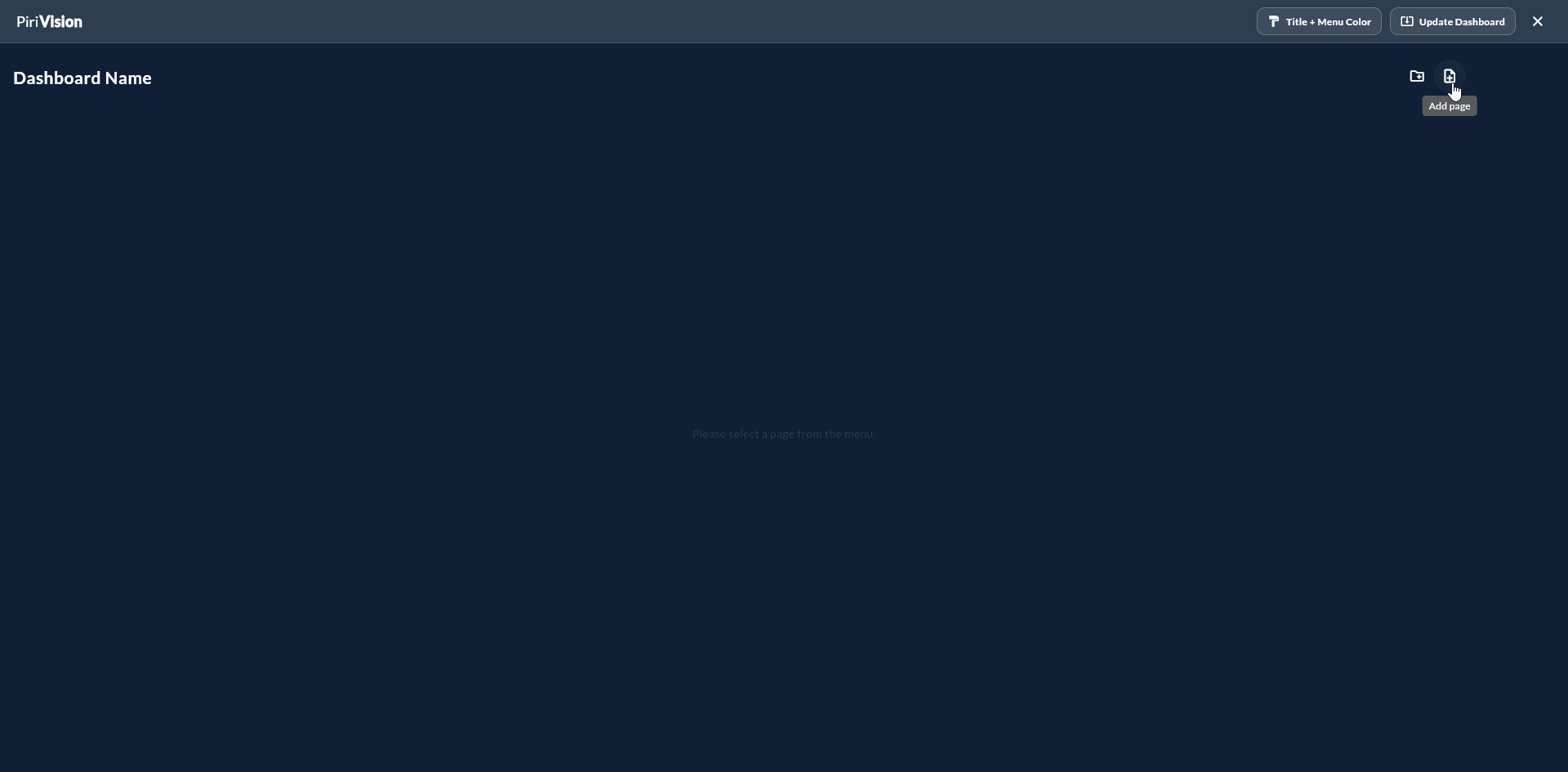
This opens the route /atlas/dashboard?mode=create and starts AtlasInsertController in new-dashboard create mode.
2. Dashboard Information
| Field | Required | Description | Example |
|---|---|---|---|
| Dashboard Title | Yes | The name shown in the list and in the dashboard header | Plant1 KPI Overview |
| Description | No | A short description | Live KPI dashboard for Plant 1 |
| Title Color | No | Title text color (hex picker) | #FFFFFF |
| Background | No | Background color or uploaded image | color / image bytes |
Background Selection
Plant logos or production line photos can be added to the background. This field is used for the dashboard's corporate look. Very bright backgrounds reduce widget readability; 30-50% opacity is recommended.
3. Empty Canvas Opens
Once the form is filled, an empty V2 grid canvas appears. The mode is isCreate=true.
| Top Bar |
|---|
| Dashboard title (left) |
| Edit Mode Toggle |
| Add Widget |
| Save Dashboard (top right, for the first save) |
| Share / Public Link / Export menu |
4. Add the First Widget
After the empty canvas, proceed to widget addition:
5. Save vs Update
| State | Button |
|---|---|
| First save (create) | Save Dashboard |
| Editing existing dashboard | Update Dashboard |
On the backend both cases use the same update_dashboard API; the layout JSON is sent.
Don't Exit Without Saving
If you added a widget or changed the layout in edit/create mode, do not close the browser without pressing Save or Update. Otherwise the latest changes are lost.
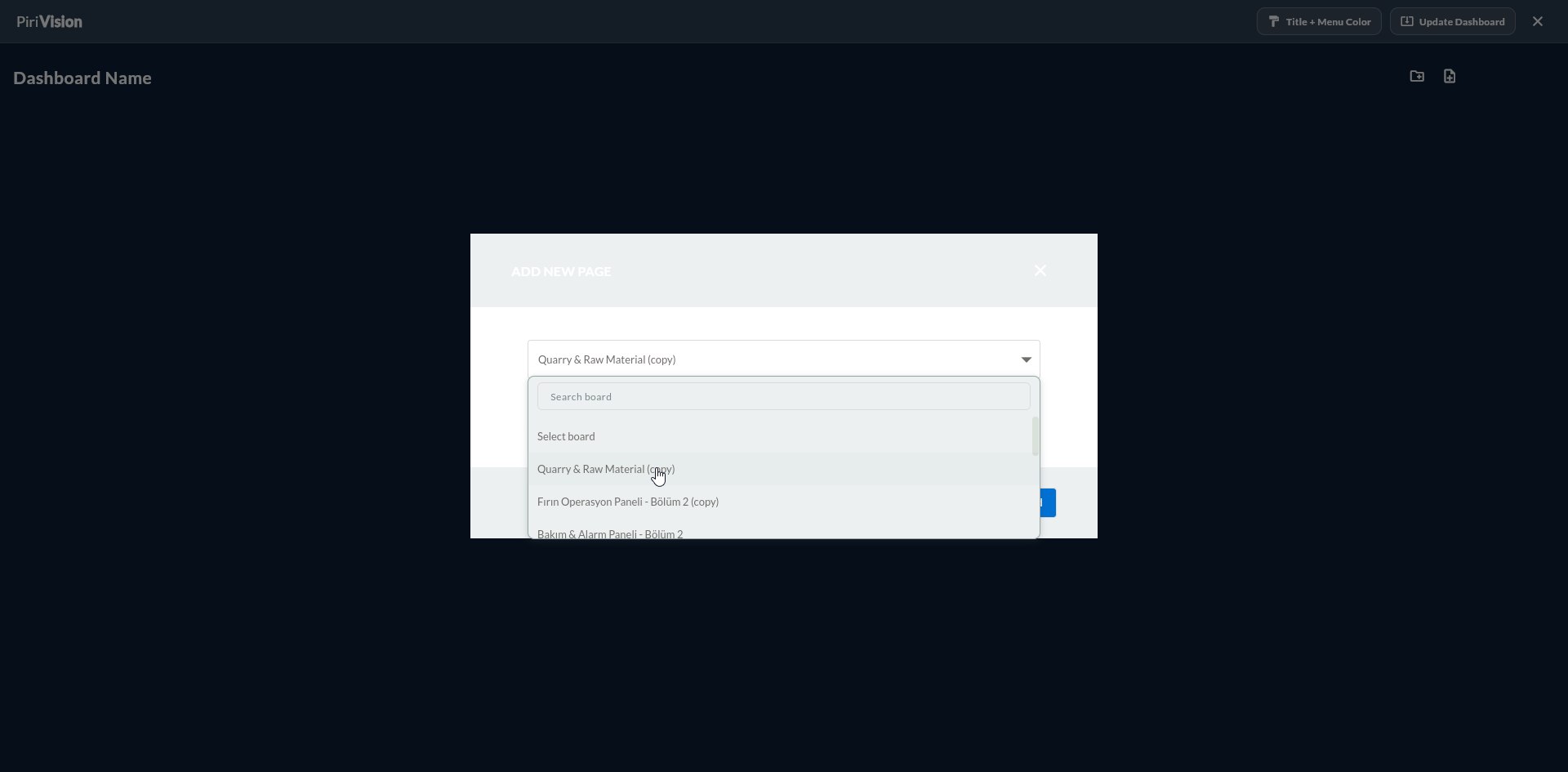
6. Multi-Page Dashboards (if available)
In some versions an Atlas dashboard can contain multiple pages (page/tab). Each page has its own widget layout. Switch between pages using the page tabs at the top.
Page Management
Add/delete/rename page options are in the top-right menu. If this feature is not enabled, the dashboard works as single-page.
7. Common Errors
| Symptom | Possible Cause | Solution |
|---|---|---|
| New Dashboard is disabled | No widgets in Cartography | Create a widget in Cartography first |
| Save fails | Backend access error | Check the core-service status |
| Dashboard with the same name exists | Name conflict | Pick a different name |