Doughnut Series
Doughnut Series is the hollow-center version of Pie Series. The center area can show a total value, a percentage, or a heading; preferred when a single KPI emphasis is needed.
Prerequisite
This chart type can only be selected in step 2 of the Cartography Widget Wizard. If you have not started widget creation, start the wizard first; an appropriate Compass record is also required.
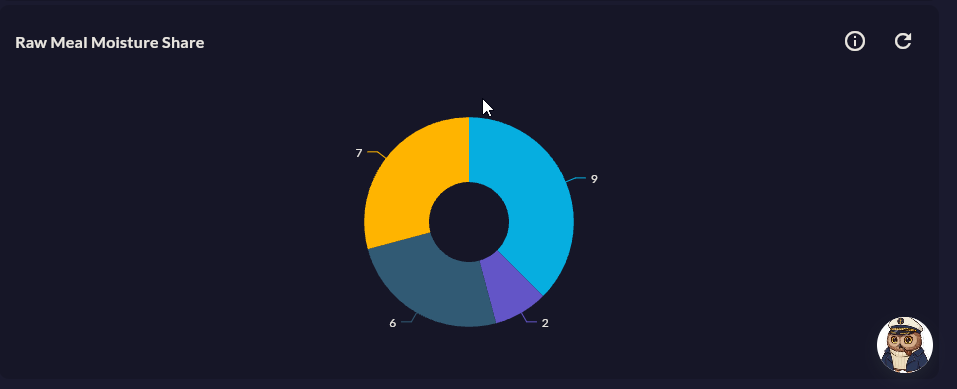
When to Use
| Scenario | What Goes in the Center |
|---|---|
| OEE components (availability / performance / quality) | 82% OEE |
| Capacity utilization | 74% Utilization |
| Production share by shift | 1,250 pcs Total |
Data Structure
Same as Pie:
| Column | Type | Example |
|---|---|---|
| X (label) column | TEXT |
oee_component |
| Y (value) column | NUMERIC |
percent |
Wizard Configuration
Step 5 — Series Design (Doughnut-specific)
| Field | Description | Default |
|---|---|---|
| Inner Radius | Center hole radius ratio (0–1) | 0.6 |
| Center Text | Text to display in the ring center | — |
| Explode | Pull a slice outward | Off |
| Label Visibility | Inside / Outside / Hidden | Outside |
Inner Radius
0.4 narrow ring (close to filled), 0.7 wide ring (more space in the center). Use 0.65+ if the center text is long.
Tips
- Doughnut is very effective for only 2 slices (target / remaining):
74% complete+ grey remainder. - If center text is long, decrease the font size or use a short format string.
9-Step Summary — For Doughnut Series
Doughnut Series uses the Circular flow.
| # | Step | Key point for Doughnut | Detail |
|---|---|---|---|
| 1 | Group Selection | Circular | → |
| 2 | Chart Type | Doughnut Series card | → |
| 3 | Compass Record | Label + value | → |
| 4 | Axis Config | X: CategoryAxis, Y: Numeric | → |
| 5 | Series Design | Pie settings + Inner Radius (0.5–0.7) | → |
| 6 | (skipped) | — | — |
| 7 | General Design | Legend, Tooltip, Data Label | → |
| 8 | Card Design | Refresh: 60-300s | → |
| 9 | Display | Name, Tags, Folder | → |