Delete Board / Folder
This page explains removing a board or folder from the Horizon list via the Delete action. Delete is irreversible; check shares and dependencies before deleting.
Irreversible Action
Once delete is confirmed, the board is removed from the database. The same board cannot be restored.
1. Find the Board
Click Horizon in the left menu. Find the board or folder you want to delete in the list.
2. In-Use Check
Usage status may appear on the board card:
| Status | Description | Deletable? |
|---|---|---|
| Not in Use | No active shares or dependencies | ✓ |
| In Use | Active share or another dependency exists | Blocked |
Deleting an In-Use Board
An attempt to delete an In Use board may be blocked or warn you. Remove shares first → Sharing.
3. More Menu → Delete
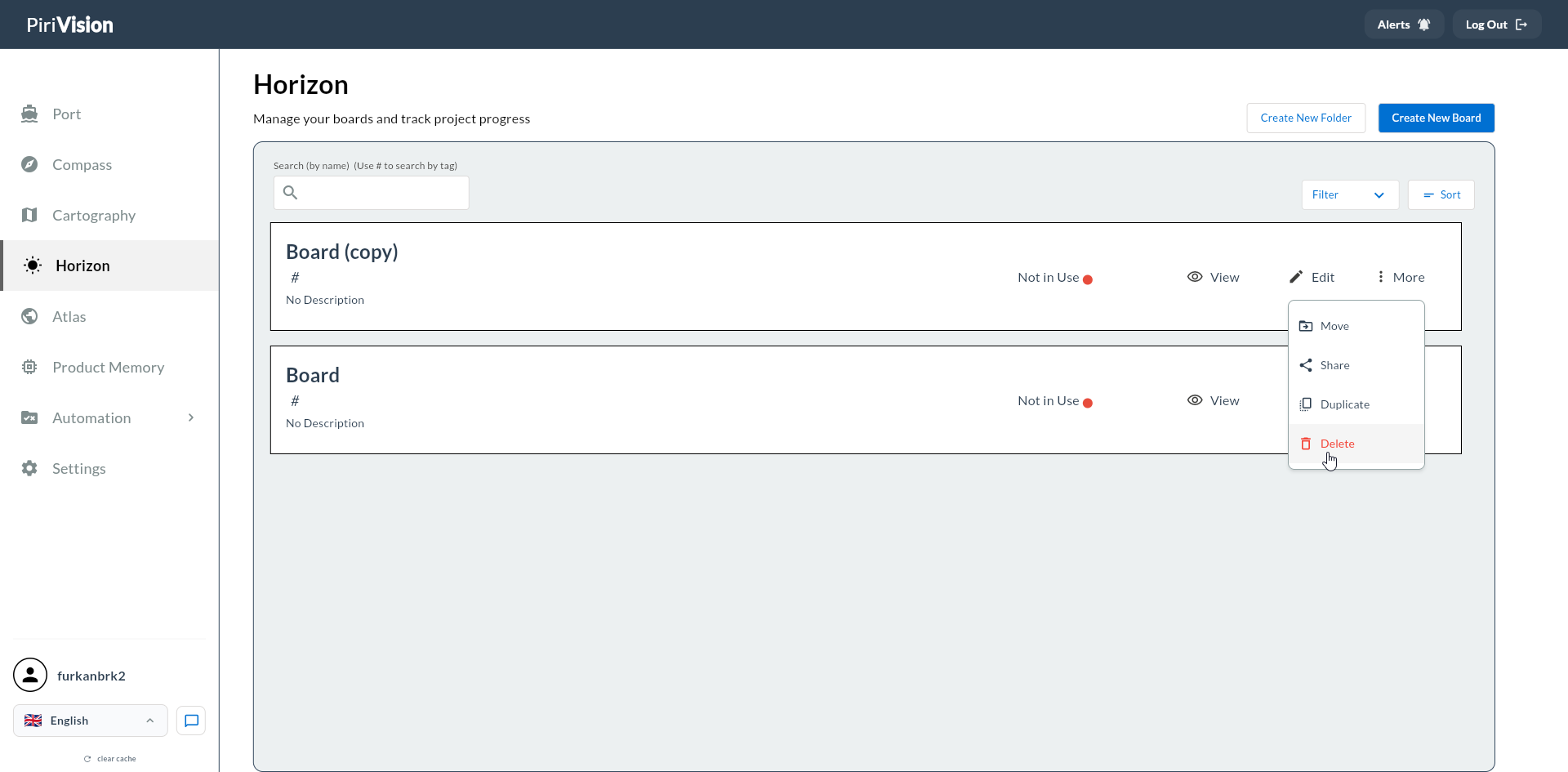
Click the More button on the right of the board card → click Delete.
4. Confirmation Dialog
Confirm the delete action in the dialog that opens.
| Option | Result |
|---|---|
| Cancel | Dialog closes, board is preserved |
| Delete | Board is removed |
Success
On successful deletion, the list updates immediately.
5. Folder Deletion
Before deleting a folder, verify the folder is empty. If it contains boards or sub-folders, deletion is blocked.
Folder Contents
Before deleting a non-empty folder, move the boards inside it to other folders → Move.
6. Effect of Deletion
| Affected | Behavior |
|---|---|
| Cartography widgets | Unaffected — they are independent records |
| Compass queries | Unaffected |
| Shares | Auto-removed; recipients no longer see the board |
| Captain AI chat | History deleted |
7. Common Errors
| Symptom | Possible Cause | Solution |
|---|---|---|
| Delete button is disabled | You are not the owner | Ask the authorized user to delete |
| "Cannot delete: board is in use" | Active shares | Remove shares first |
| Folder will not delete | Folder is not empty | Move or delete the contents |