Move Board / Folder
This page explains moving a board or folder to another folder via the Move action in the Horizon module. Use Move to organize boards by topic, role, or plant.
1. Find the Item in the List
Click Horizon in the left menu. Find the board or folder you want to move in the list.
2. More Menu → Move
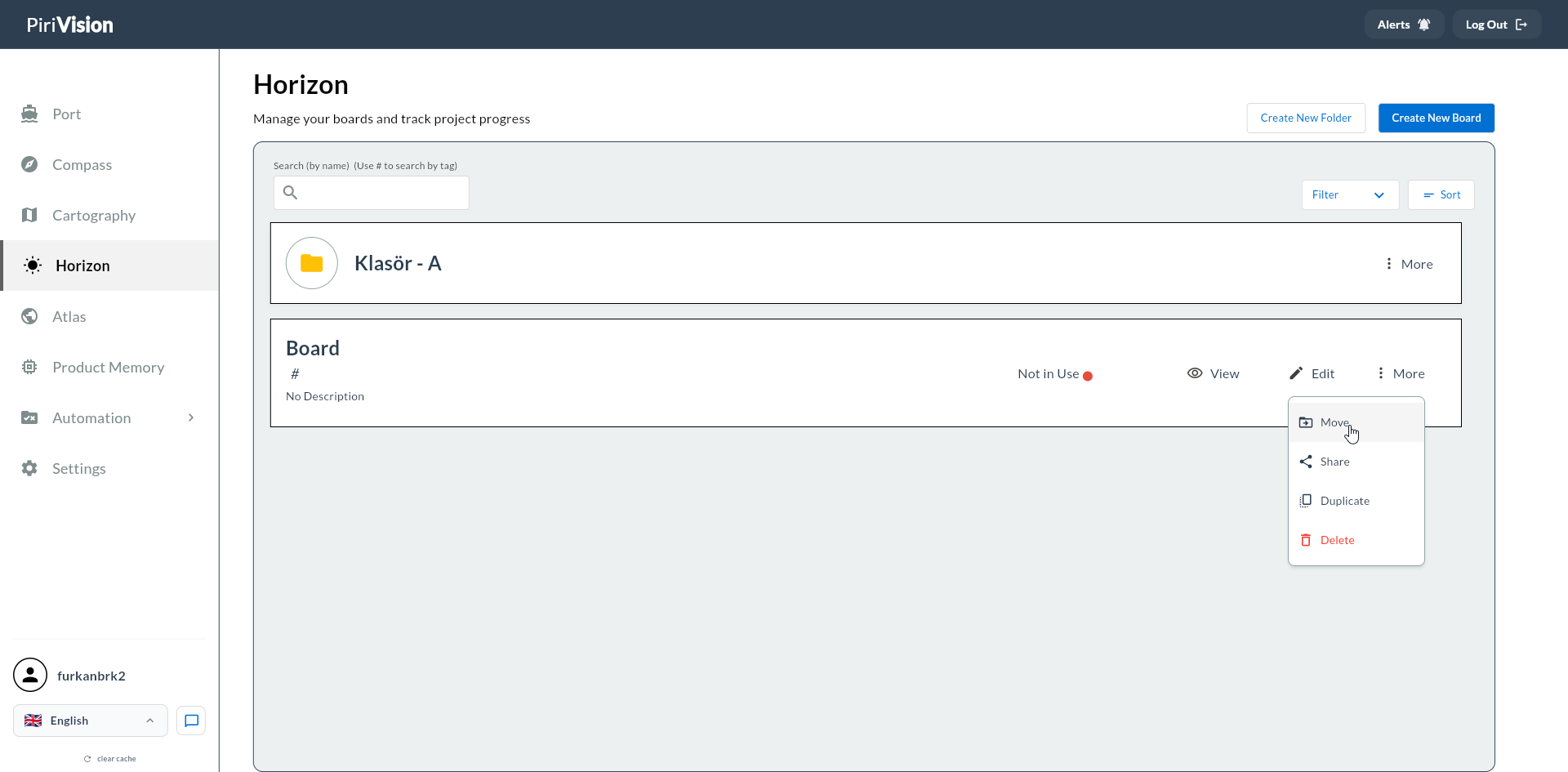
Click the More (three dots) button on the right of the board card → click Move.
Tip
The same More → Move flow applies to folders.
3. Pick the Destination Folder
In the Cascading Move Menu or folder tree dialog that opens, pick the destination:
| Action | Description |
|---|---|
| Click the folder | Sub-folders expand |
| Click the folder name | Pick that folder as destination and start the move |
| Root Directory | To move the board to the root |
4. Move Completes
Once the destination folder is picked, the move happens immediately. No confirmation dialog appears.
Success
On a successful move, the board appears immediately in the destination folder. The Horizon list updates.
5. Moving Folders
Folders can be moved like boards. When a folder is moved, all boards and sub-folders inside move along with it.
6. Effect on Shares
Note
Moving a board only changes its location. Shares (per-user) are preserved. The board's connection to widgets (via Cartography ID) is unaffected.
7. Common Errors
| Symptom | Possible Cause | Solution |
|---|---|---|
| Move button is disabled | You don't have permission (not the owner) | Only the owner can move the board |
| Destination folder is gray | Tried to move to the same folder | Pick a different destination |
| Dialog is empty | No folders created | Create a folder first |