Create MySQL Query
This page explains the process of writing and saving a query against a MySQL data source in the Pirivision Compass module.
MySQL Dialect
MySQL is close to standard SQL but has some differences: backticks (`) for identifiers, plus IFNULL(), IF(), DATE_SUB(), and GROUP_CONCAT() are MySQL-specific.
Prerequisite — Port Data Source
To create this query, a MySQL data source must be defined in the Port module. If none exists yet, go to Port and create a connection first.
Information Needed Before Creating
The examples on this page use the Demo Factory MySQL dataset's demo_vardiya_uretim table and the Demo Factory - MySQL data source in Port. To generate the same data in your own environment, see Synthetic Data Generation — MySQL.
| Information | Description | Default | Example |
|---|---|---|---|
| Data Source | A MySQL connection added in Port (database app_db) |
— | Demo Factory - MySQL |
| Query Name | The name shown in the Compass list | — | mysql_vardiya_uretim |
| SQL Statement | The MySQL query | — | SELECT * FROM demo_vardiya_uretim WHERE hat_id = {{hat_id}} ORDER BY ts DESC LIMIT 50 |
| Target Folder | Compass folder | Root | Demo Fabrika / Production |
1. Open the Compass Module
Click Compass in the left menu.
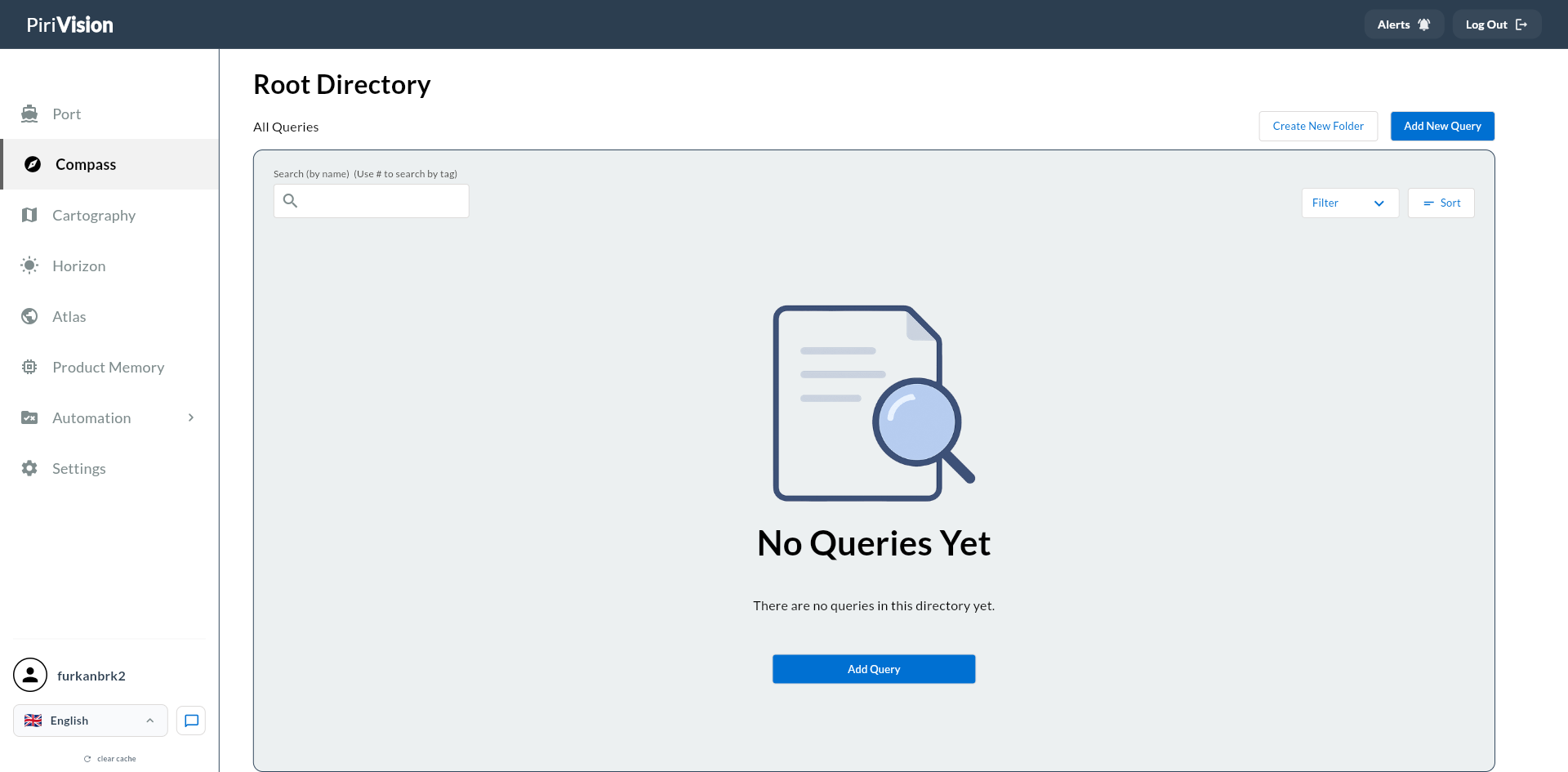
2. Create a New Query
Click the Add New Query button.
3. Pick a MySQL Data Source
On the Select Your Data Source screen, pick the data source of type MySQL. Click Next.
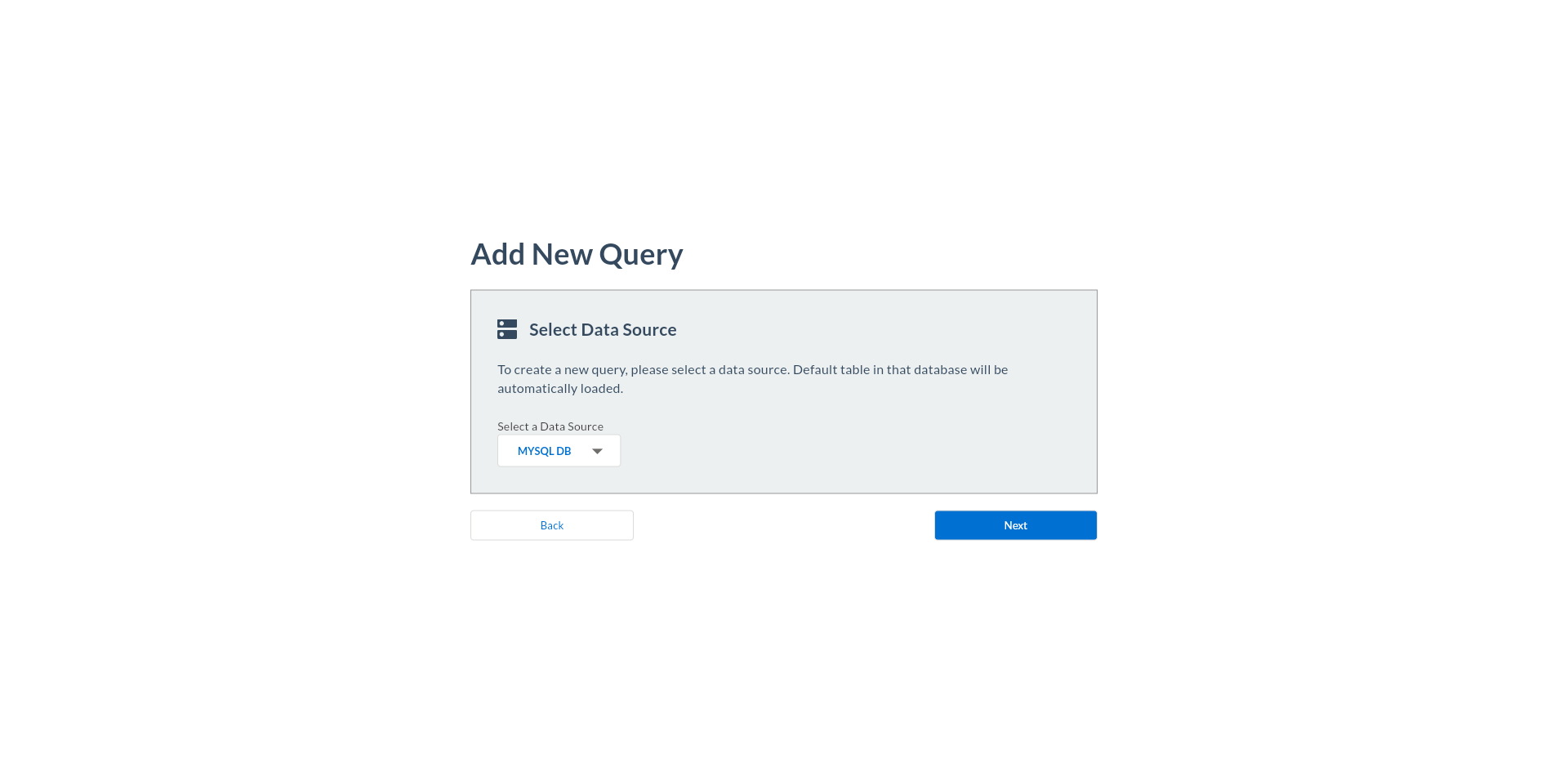
4. The SQL Editor Opens
The MySQL SQL editor opens. Tables and columns of the MySQL database are listed in the left panel.
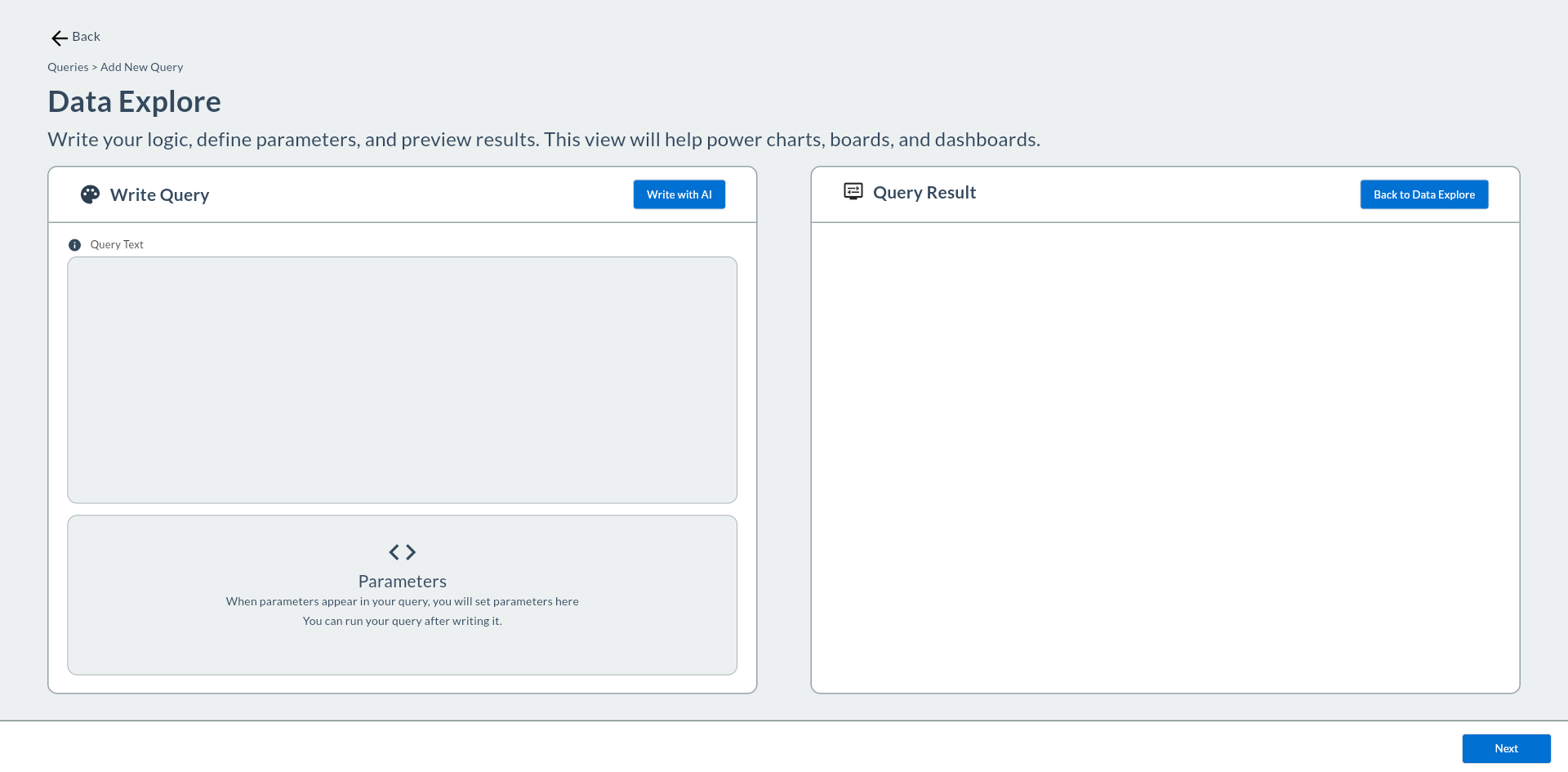
5. Write the MySQL Query
-- Last 50 production rows — Demo Factory
SELECT ts, hat_id, makine_id, vardiya, urun_ailesi, uretim_adet
FROM   demo_vardiya_uretim
WHERE  hat_id = {{hat_id}}
ORDER  BY ts DESC, hat_id
LIMIT  50;
-- Time range — parameterized
SELECT ts, hat_id, uretim_adet
FROM   `demo_vardiya_uretim`
WHERE  ts >= {{start_date}}
  AND  ts <= {{end_date}}
ORDER  BY ts;
-- Last 7 days — dynamic date with DATE_SUB
SELECT ts, hat_id, uretim_adet
FROM   demo_vardiya_uretim
WHERE  ts >= DATE_SUB(NOW(), INTERVAL {{days}} DAY)
ORDER  BY ts DESC;
-- Daily summary — GROUP BY and DATE()
SELECT DATE(ts)         AS day,
       SUM(uretim_adet) AS total,
       AVG(uretim_adet) AS average,
       MAX(uretim_adet) AS maximum,
       MIN(uretim_adet) AS minimum
FROM   demo_vardiya_uretim
WHERE  ts >= DATE_SUB(NOW(), INTERVAL {{days}} DAY)
  AND  hat_id = {{hat_id}}
GROUP  BY DATE(ts)
ORDER  BY gun;
-- Conditional values with IFNULL and IF
SELECT vardiya,
       IFNULL(SUM(uretim_adet), 0)                                 AS total,
       IF(AVG(uretim_adet) >= 350, 'Above Target', 'Below Target') AS status
FROM   demo_vardiya_uretim
WHERE  ts >= DATE_SUB(NOW(), INTERVAL {{days}} DAY)
  AND  hat_id = {{hat_id}}
GROUP  BY vardiya;
MySQL-specific notes:
- Use backticks for column/table names with spaces or reserved keywords: `demo_vardiya_uretim`
- LIMIT N works like PostgreSQL; unlike T-SQL there is no SELECT TOP N
- Use DATE_SUB(NOW(), INTERVAL X UNIT) to compute past dates
- CURDATE() = today's date (no time component); NOW() = date + time
- IFNULL(value, default) — null check
- The demo table lives inside the existing app_db database with a demo_ prefix; it does not touch the app's other tables
6. Write a Query with Makinist (AI)
What is Makinist?
Makinist is the AI assistant built into the Compass SQL editor. Select your database tables as context, describe what you need in plain language, and Makinist returns a ready-to-run MySQL query. Responses are generated via Langflow and session history is preserved.
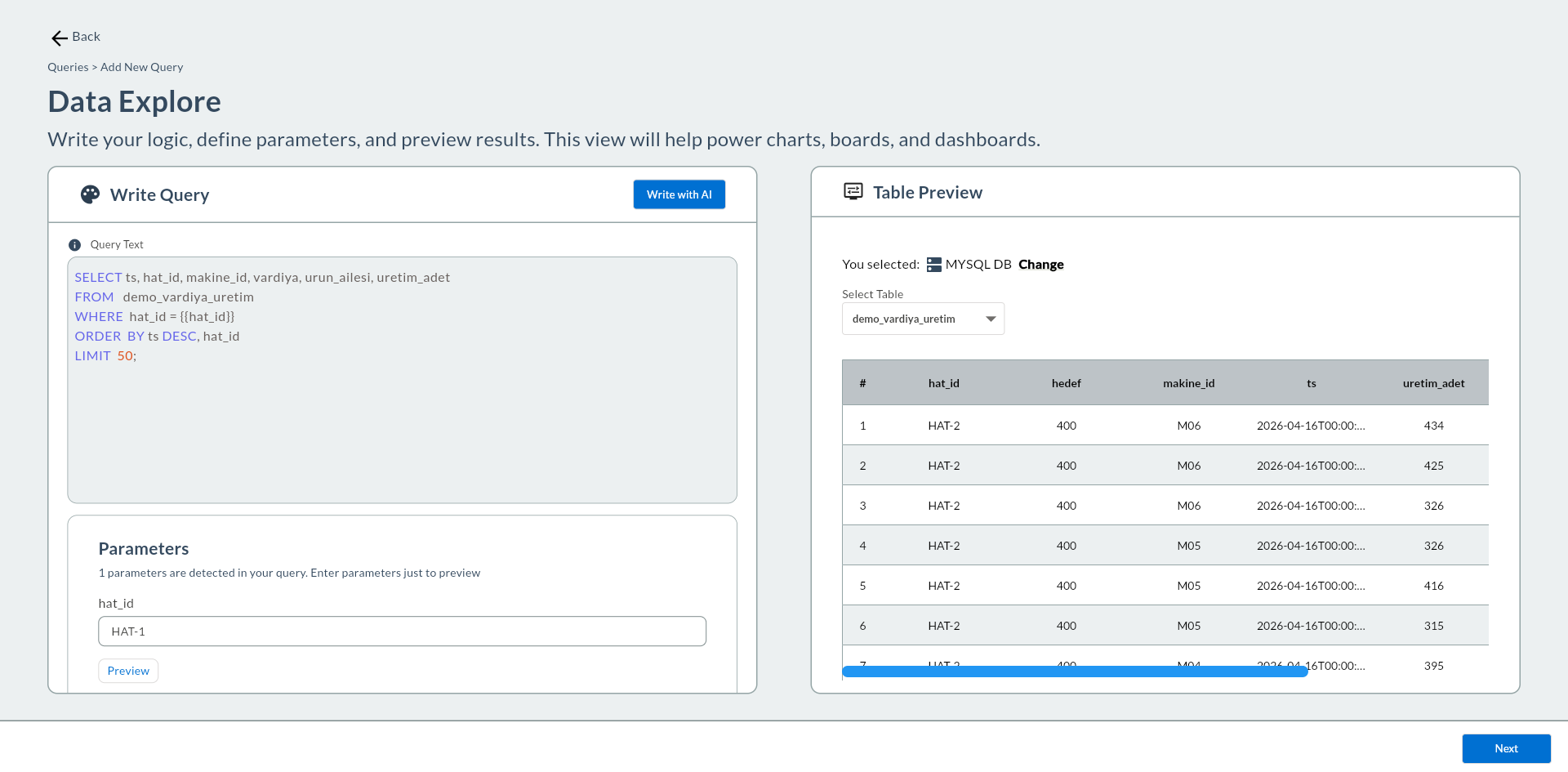
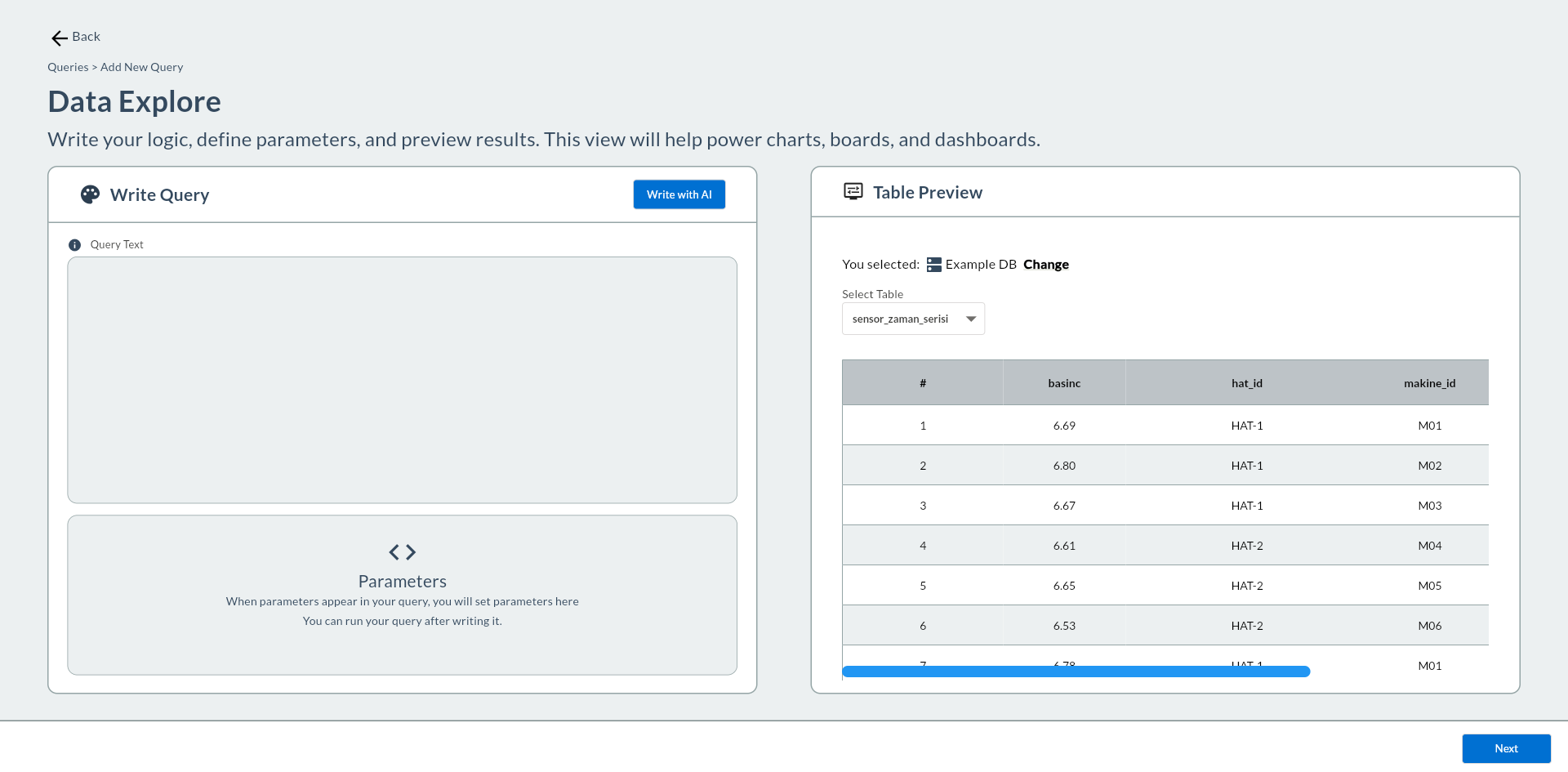
In the Data Explore screen, click the Write with AI button in the top-right corner of the Write Query panel.
The Makinist panel opens on the left; the right-side Table Preview remains active.
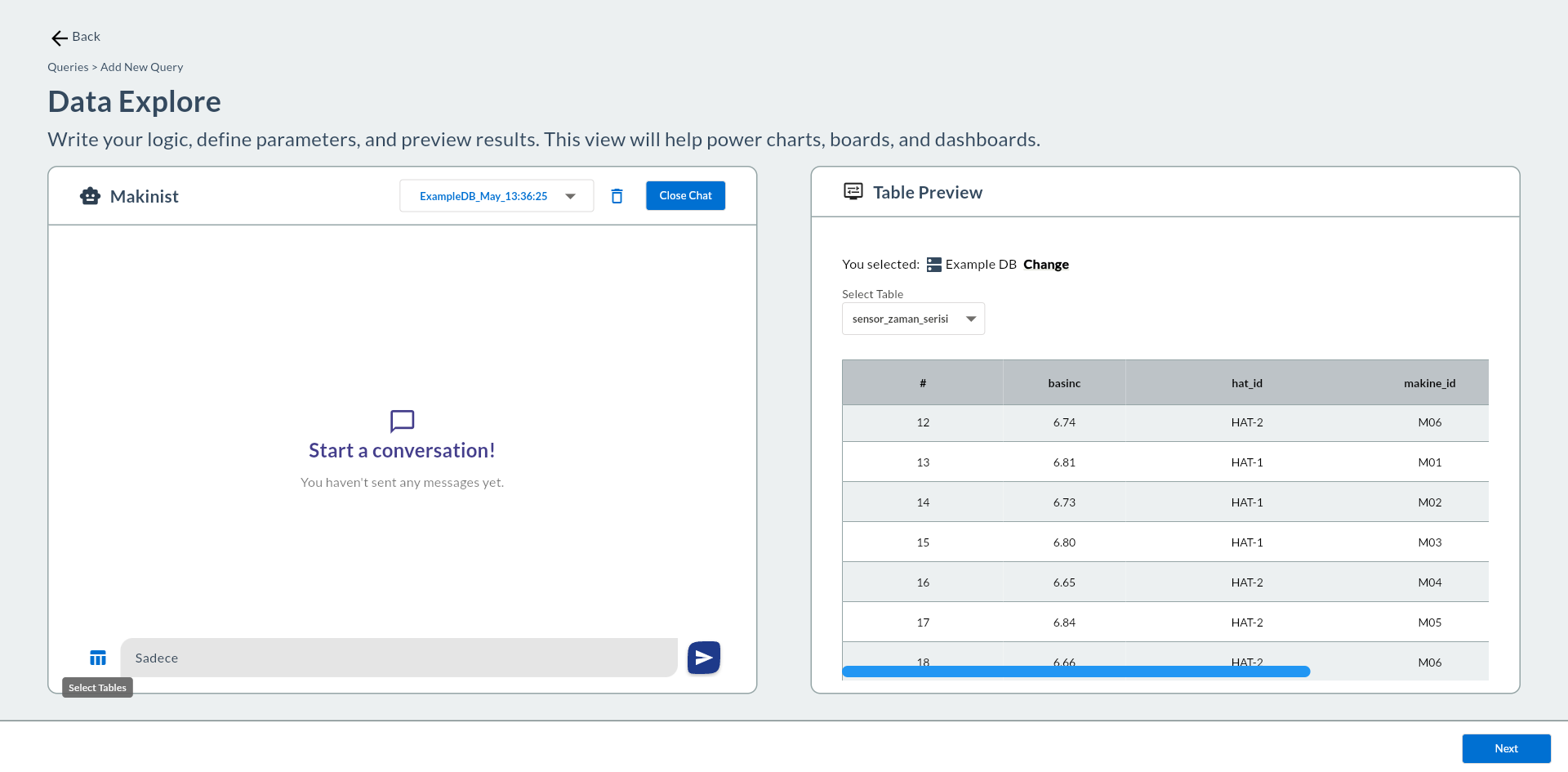
| UI Element | Description |
|---|---|
| Makinist heading + 🤖 icon | Indicates the left panel has switched to chat mode |
| Session dropdown | Switch between past sessions; format: {DataSource}_{Month}_{HH:mm:ss} |
| 🗑️ Delete icon | Deletes the active session from Langflow; opens a new empty session |
| Close Chat | Closes the Makinist panel; returns to Write Query mode |
| ≡ (Select Tables) | Opens the table selection modal — no message can be sent without a table |
| Input + ▶ | Message composition and send area |
1. Select Tables
Click the ≡ (Select Tables) icon at the bottom-left. The Select Tables modal opens listing all tables in your MySQL database as checkboxes.
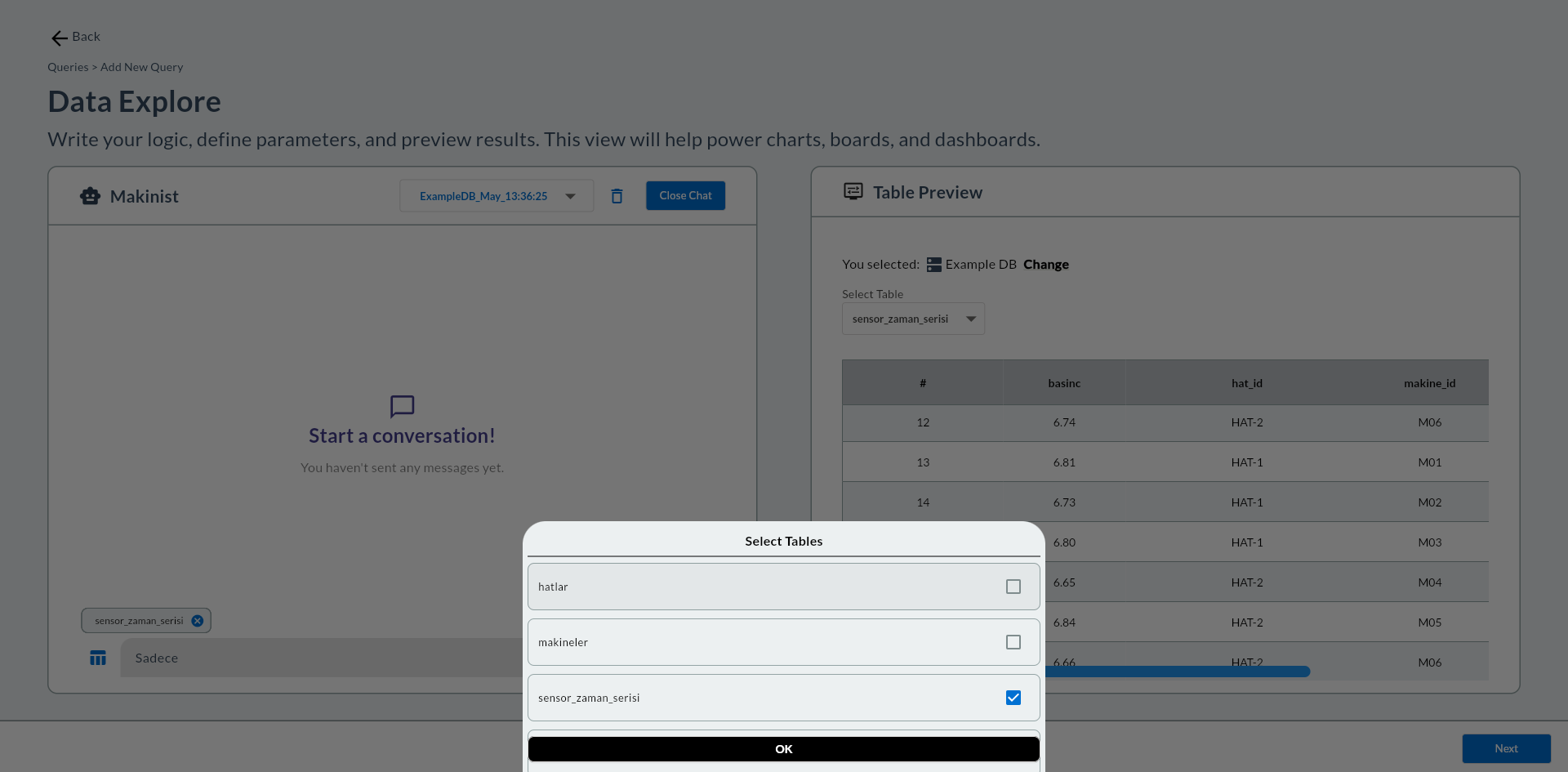
Check the table(s) you need and click OK. Selected tables appear as chips to the left of the input field; click the chip's × to remove individual tables.
Fewer tables, better results
Select only the minimum set of tables the query needs. No message can be sent without at least one table selected.
2. Type Your Request and Send
Type your request in English or Turkish and click ▶ (Send).
A typing... bubble appears while the response is being generated. Makinist's reply has two parts:
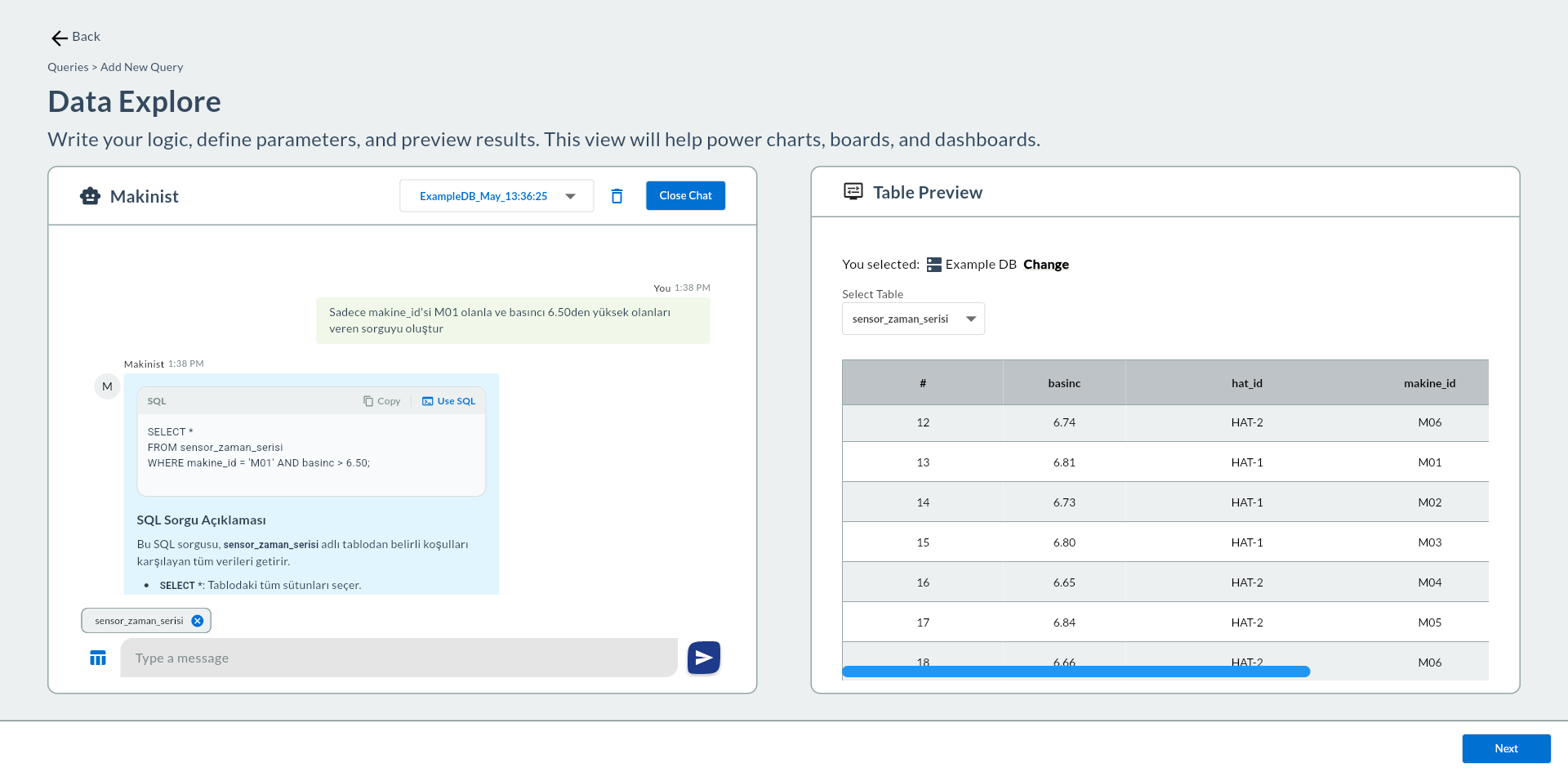
| Part | Description |
|---|---|
| User message | Shown in a greenish bubble on the right |
| SQL code block | Syntax-highlighted MySQL code; Copy and Use SQL buttons at the top-right |
| SQL Query Explanation | Text explaining what the query does — read before applying |
Specify MySQL dialect
Add notes like "use backticks" or "filter last 7 days with DATE_SUB" to help Makinist produce MySQL-compliant output.
3. Transfer SQL to the Editor
Click the Use SQL button on the SQL code block.
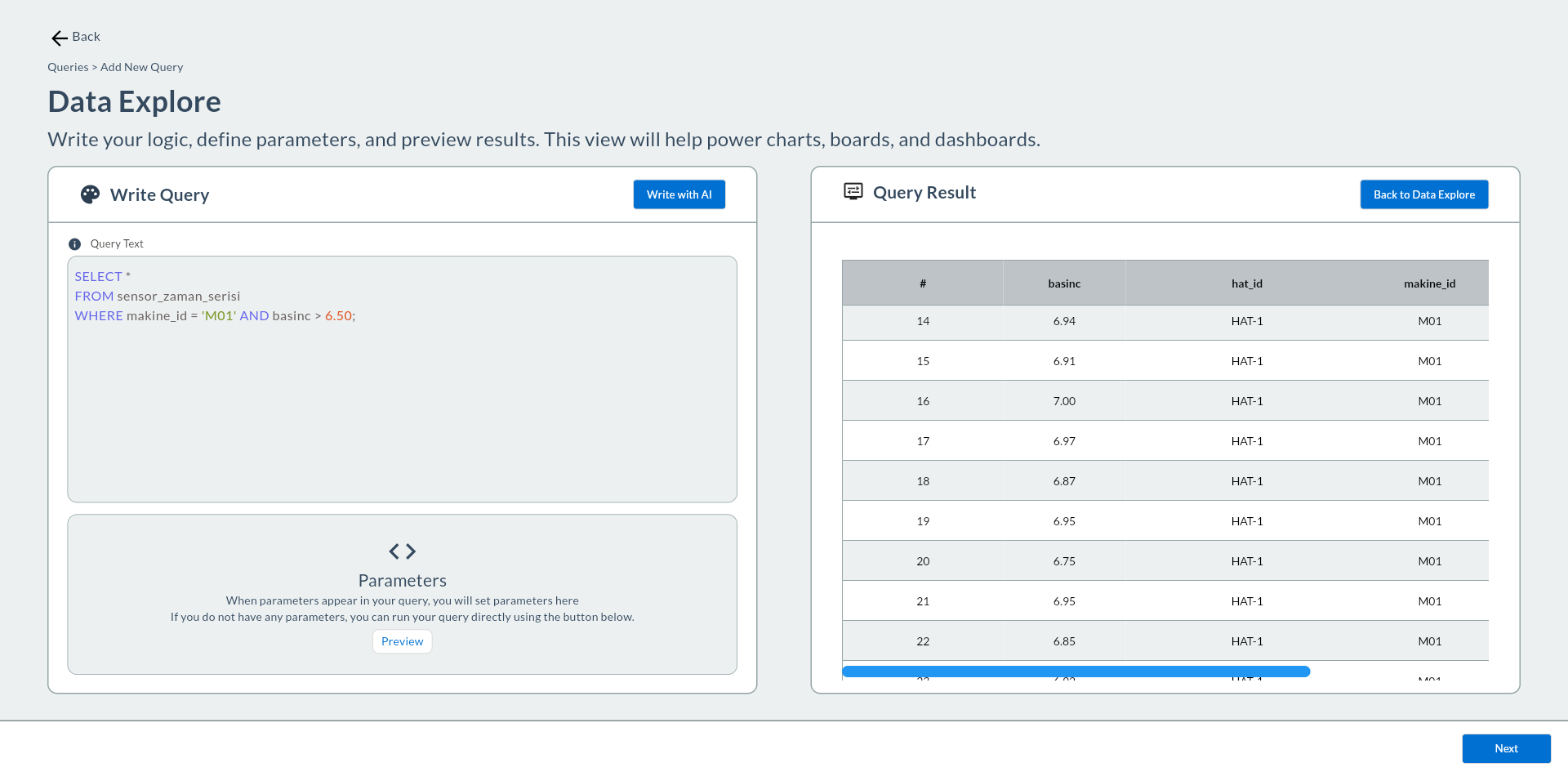
- The query is pasted into the Write Query editor with syntax highlighting.
- The right panel automatically switches to Query Result mode and runs the query.
- The Makinist panel closes; the Write with AI button reappears.
Convert hardcoded values to parameters
Use SQL transfers and runs the query as-is. If the generated SQL contains hardcoded values like 'HAT-1' or 7, replace them with {{hat_id}} / {{days}} format and set default values in the Parameters section.
7. Test the Query
Click the Run button. Results appear in tabular form.
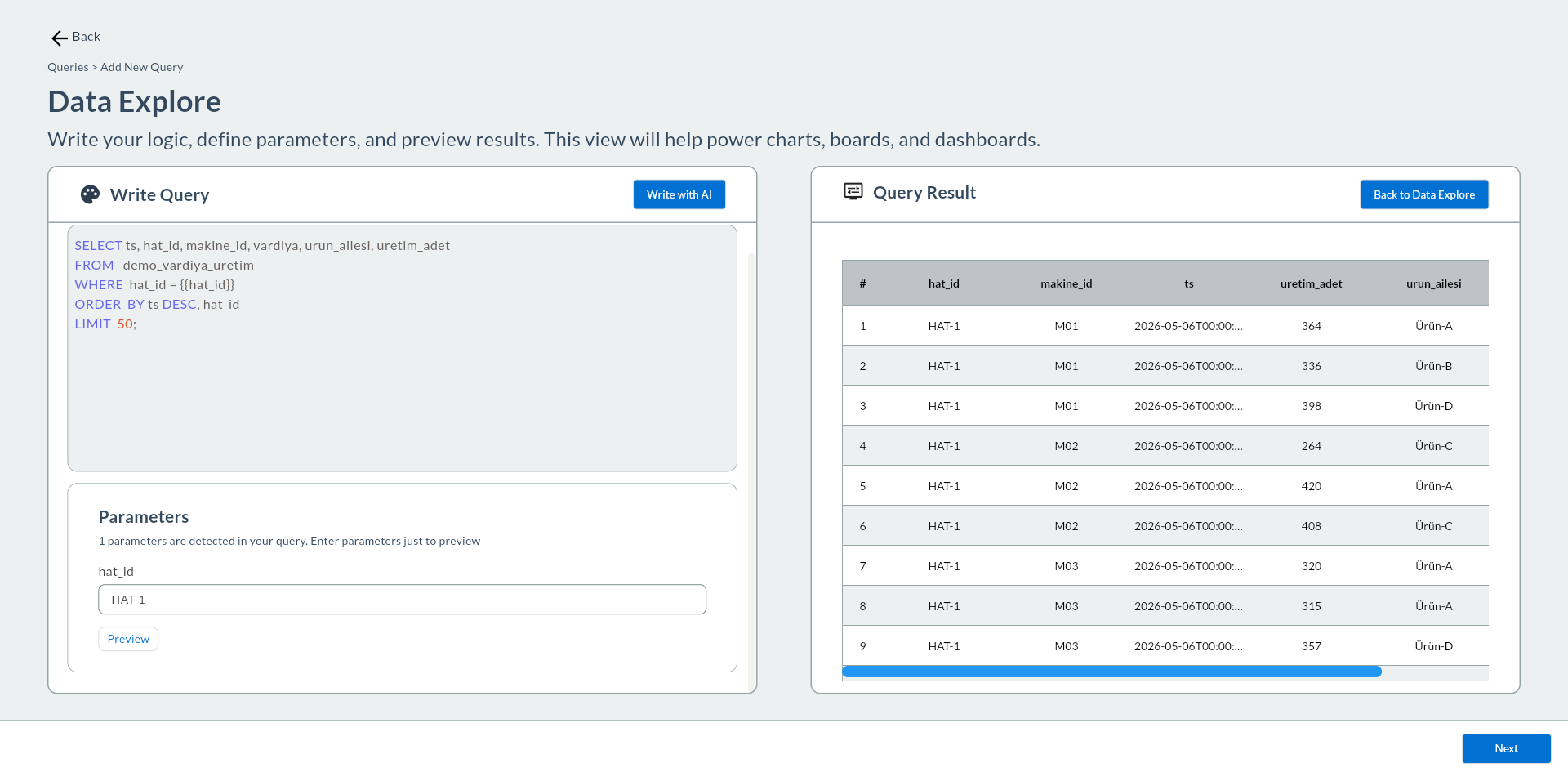
8. Save → Display Info
Click the Save button. The save panel opens.
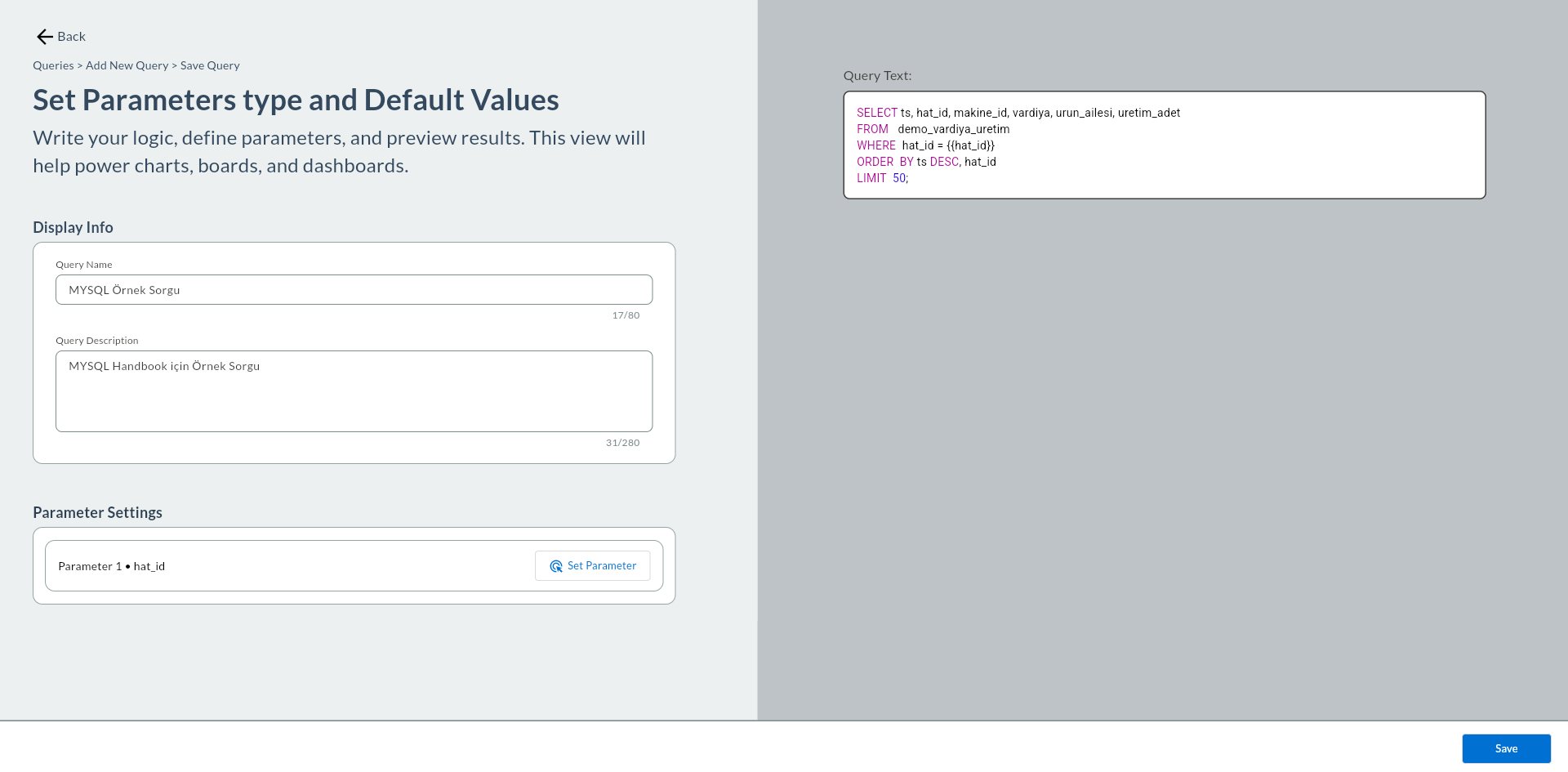
| Field | Required | Default | Example |
|---|---|---|---|
| Name | Yes | — | mysql_vardiya_uretim |
| Description | No | — | Last 50 shift production rows (MySQL) |
9. Global Variables
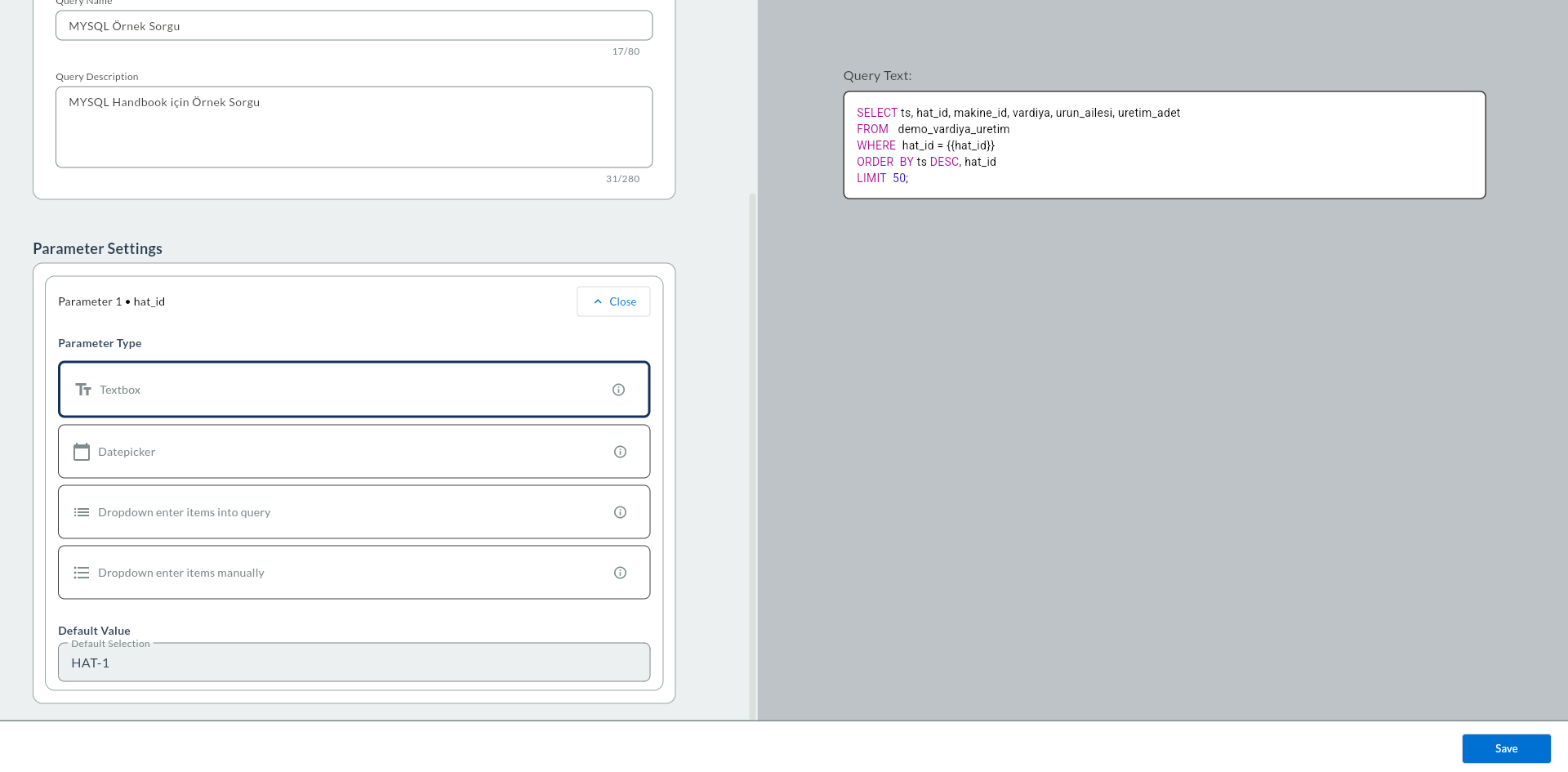
If {{parameter}} is used, define them in the left panel:
| Field | Required | Description | Default | Example |
|---|---|---|---|---|
| Variable Name | Yes | The name inside {{...}} |
— | start_date |
| Display Name | Yes | Dashboard label | — | Start Date |
| Type | Yes | Textbox / Datepicker / Dropdown | Textbox |
Datepicker |
| Default Value | No | Initial value | — | 2024-01-01 |
10. Location — Target Folder
Pick the folder from the Target Folder field.
11. Click Save
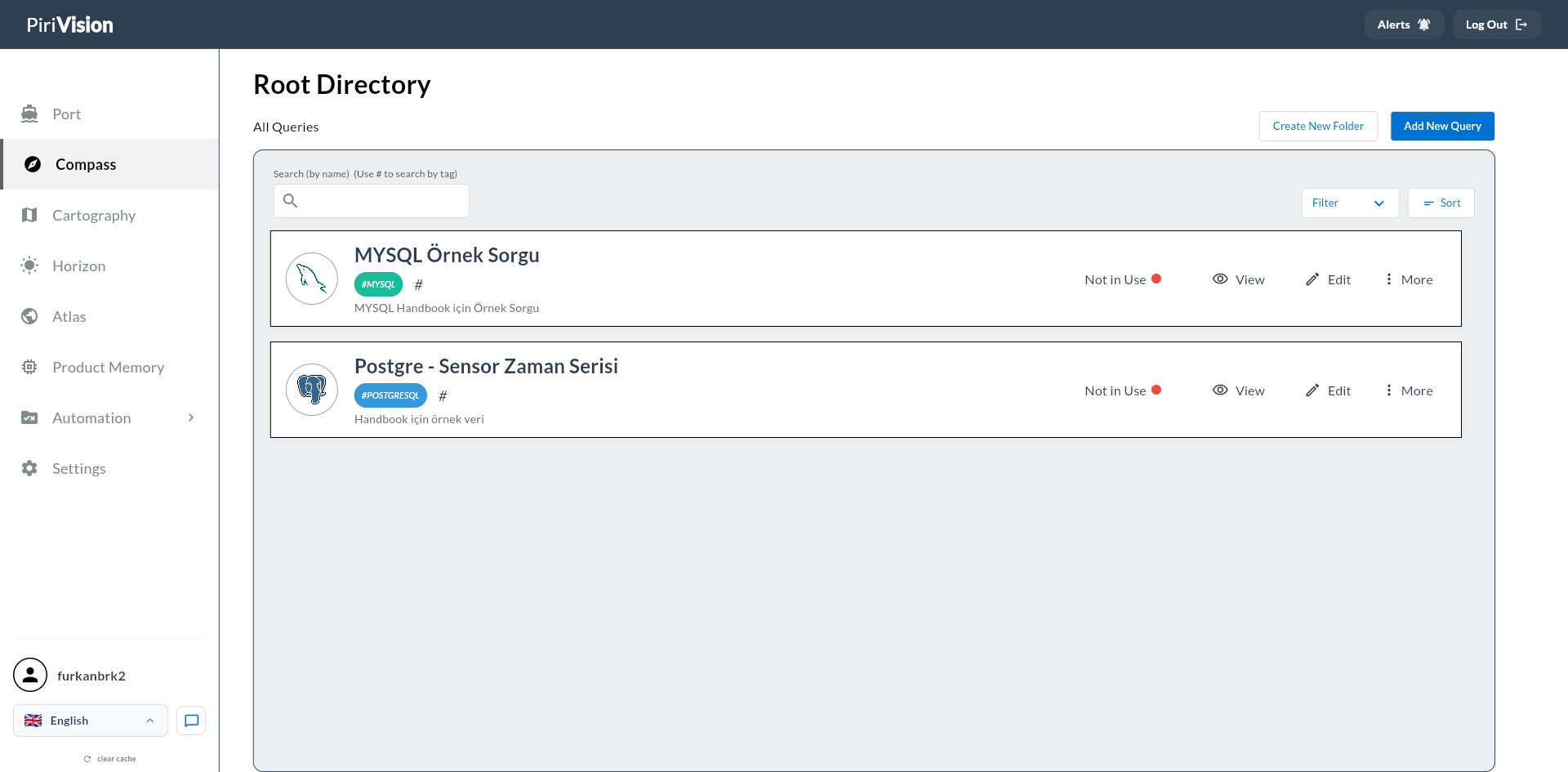
Click the Save button. The query is saved to the Compass list.
12. Common Errors
| Error / Symptom | Possible Cause | Solution |
|---|---|---|
Error 1045: Access denied for user '...'@'...' |
Wrong username or password | Update the MySQL connection in Port |
Error 1049: Unknown database '...' |
Wrong database name | Check the Database Name field in Port |
Error 2003: Can't connect to MySQL server on '...' |
MySQL server unreachable | Check Host, port, and network access |
Error 1146: Table '...' doesn't exist |
Table missing | Verify database (app_db) and table (demo_vardiya_uretim) names |
Error 1146: Table 'app_db.demo_vardiya_uretim' doesn't exist |
Demo Factory data not loaded | See Synthetic Data Generation — MySQL |
Error 1054: Unknown column '...' |
Wrong column name | Check the column name in the table browser |
Error 1064: You have an error in your SQL syntax |
SQL syntax error | Review backtick usage and syntax |
"you already have a query named '...'" |
A query with the same name exists | Enter a different name |
| Empty result | The WHERE clause matches no data | Try DATE(ts) = CURDATE() instead of CURDATE(); check the date format |