Radial Bar Series
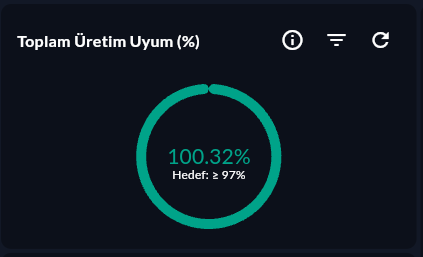
Radial Bar Series draws a separate concentric ring for each category. Each ring shows that category's progress toward a target via the arc length. Used to compare multiple KPI targets at once.
Prerequisite
This chart type can only be selected in step 2 of the Cartography Widget Wizard. If you have not started widget creation, start the wizard first; an appropriate Compass record is also required.
When to Use
| Scenario | Example Categories |
|---|---|
| OEE component comparison | Availability, Performance, Quality |
| Target completion rate by line | Line A: 82%, Line B: 67%, Line C: 91% |
| KPI score by department | Maintenance: 75%, Production: 88%, Logistics: 62% |
Data Structure
| Column | Type | Description |
|---|---|---|
| X (label) column | TEXT |
Category name (ring label) |
| Y (value) column | NUMERIC |
Progress value (0–100 or absolute) |
0–100 Normalization
If your values are not in the 0–100 range, normalize them in the Compass record: (actual / target * 100) AS progress_percent.
-- Example: daily target completion by line
SELECT line_name,
       ROUND(SUM(production_count)::numeric / MAX(target_count) * 100, 1) AS completion
FROM production_log
WHERE DATE(ts) = CURRENT_DATE
GROUP BY line_name;
Wizard Configuration
Step 5 — Series Design (Radial Bar-specific)
| Field | Description | Default |
|---|---|---|
| Track Background | Background ring color (unfilled portion) | Light grey |
| Maximum Value | The value that fills the ring to 100% | 100 |
| Corner Radius | Roundness of the arc ends | 4 |
| Label Visibility | Value label display | On |
Tips
- More than 5 categories makes rings too thin; ≤5 categories is ideal.
- A different color is auto-assigned for each ring; for override, use the series design colors.
9-Step Summary — For Radial Bar Series
Radial Bar Series uses the Circular flow. Multiple rings are rendered simultaneously.
| # | Step | Key point for Radial Bar | Detail |
|---|---|---|---|
| 1 | Group Selection | Circular | → |
| 2 | Chart Type | Radial Bar Series card | → |
| 3 | Compass Record | Multiple rows (category + value per ring) | → |
| 4 | Axis Config | X: CategoryAxis (ring label), Y: Numeric (% progress) | → |
| 5 | Series Design | Radius, Inner Radius, Track Color, Corner Style, Gap | → |
| 6 | (skipped) | — | — |
| 7 | General Design | Legend, Data Label | → |
| 8 | Card Design | Refresh: 30-60s (OEE per machine) | → |
| 9 | Display | Name, Tags, Folder | → |
Next Step
→ Pie Series → Doughnut Series → Radial Gauge — For a single value → Other Circular Charts