Create Board
This page explains creating a new board in the Horizon module. A board is the canvas where Cartography widgets are placed. The creation flow is a single-screen form (not a wizard); after the board is set up, widget addition happens on a separate screen.
Prerequisite
At least one KPI widget must exist in the Cartography module. Otherwise ModuleChainGuard redirects you to Cartography.
1. Open the Horizon List
Click Horizon in the left menu. On the list screen, click the Create New Board button at the top right.
Tip
If you are inside a folder, the board is saved directly into that folder. To save to the root directory, return to Root in the sidebar.
2. Enter Board Information
In the form that opens, enter the board's metadata.
| Field | Required | Description | Example |
|---|---|---|---|
| Board Name | Yes | The name shown in the list | Plant1 Production Summary |
| Description | No | A short note explaining the board's purpose | Live KPI summary for shift reports |
| Tags | No | Tags for filtering | production, shift |
Naming
The format <plant>_<role>_<frequency> is recommended. Example: Plant1_OperatorPanel_Hourly.
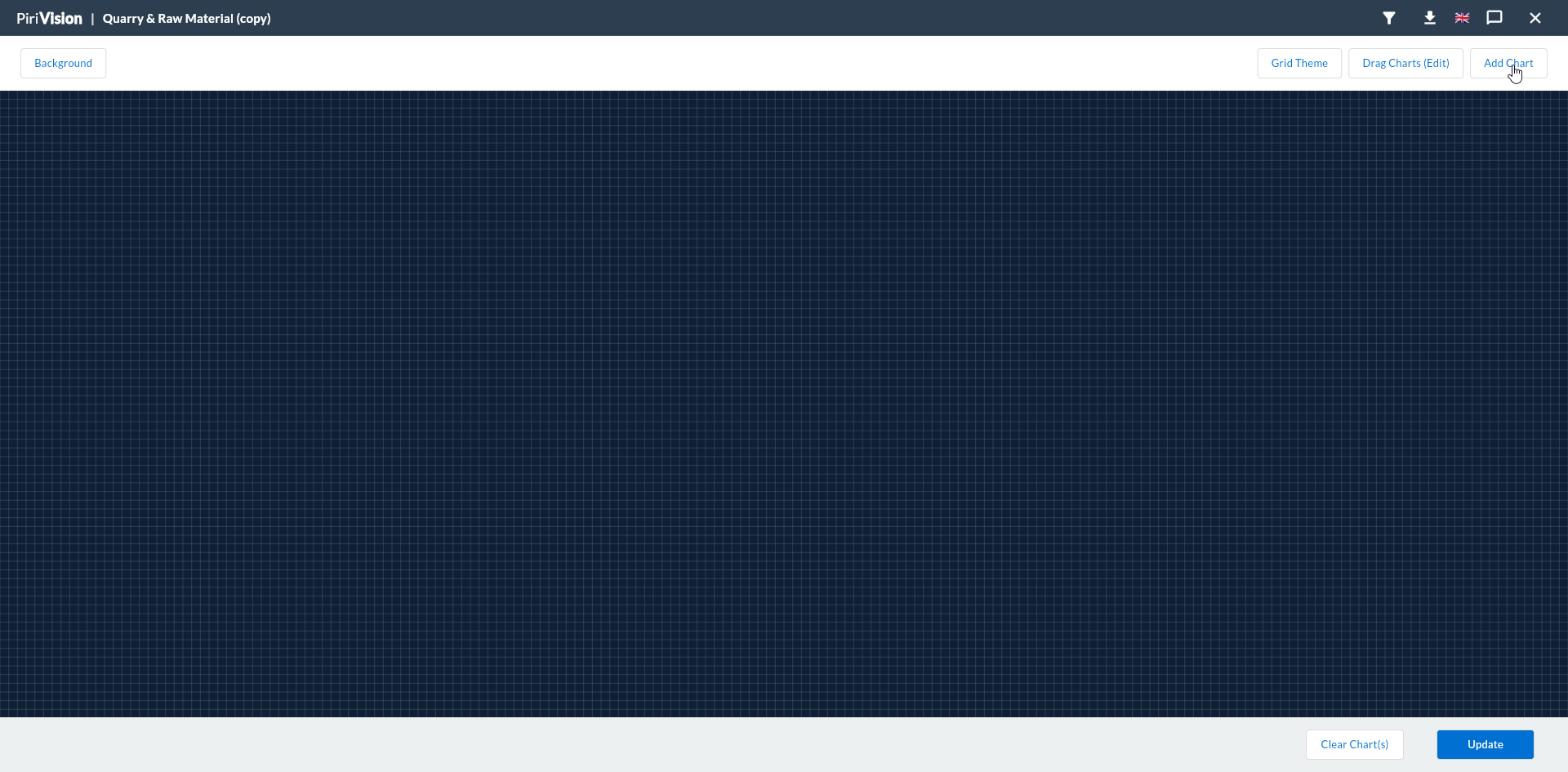
3. Empty Canvas Opens
When the form is saved you are routed to /horizon/board and an empty grid canvas opens. The mode is isCreate=true:
| Top Bar Components |
|---|
| Board Name (top left) |
| Edit Mode Toggle (enables drag/drop and resize) |
| Add Chart (widget addition dialog) |
| Global Filter (board parameter panel) |
| Refresh |
| Captain (Kaptan AI) (floating bottom-right button) |
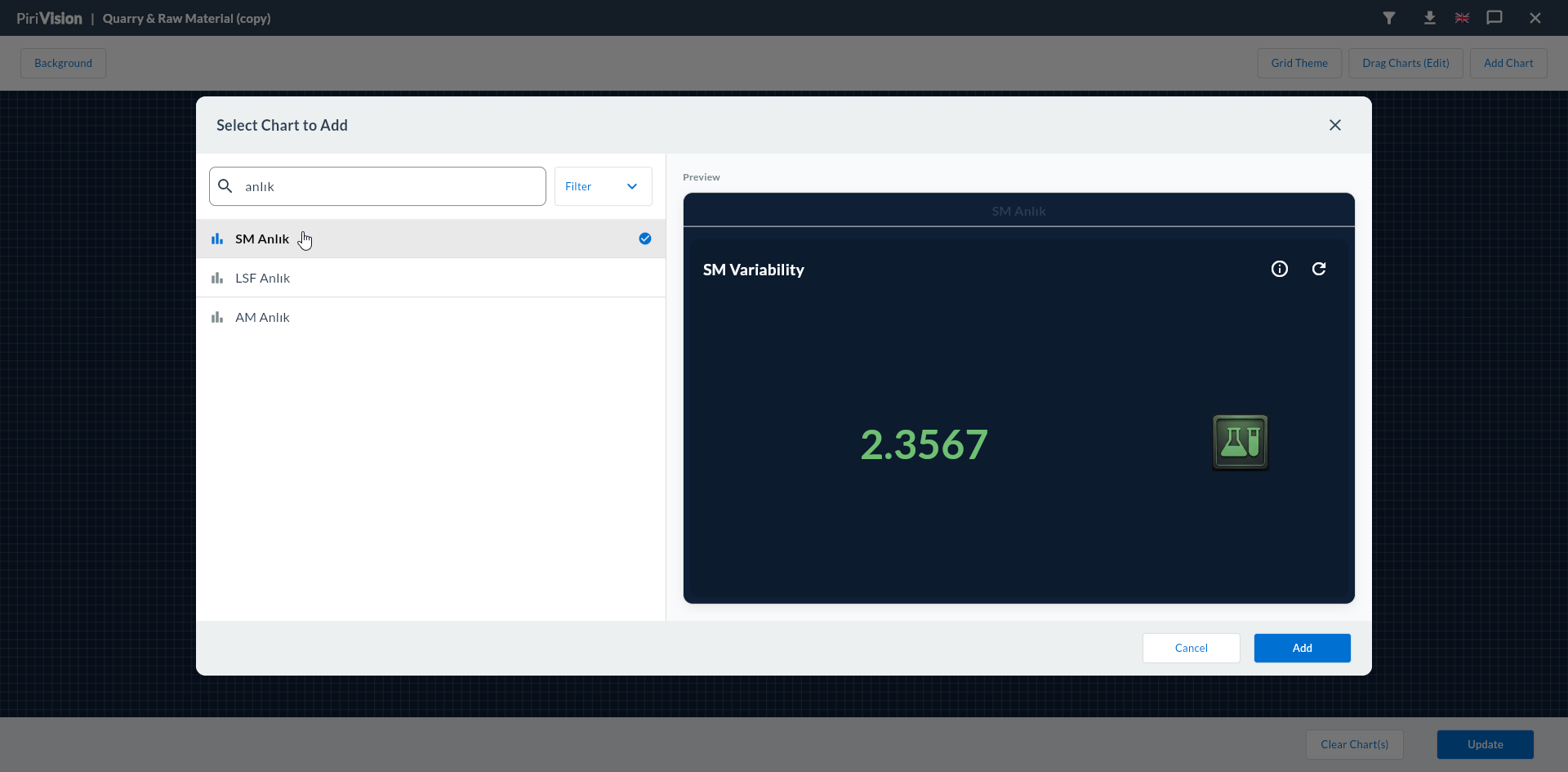
4. Add the First Widget
While the canvas is empty you can add widgets directly:
5. Board Limits
| Limit | Value |
|---|---|
| Maximum widgets per board | 20 |
| Minimum widget size | 7 cells width × 5 cells height |
| Grid column count | 180 (V1) |
20-Widget Cap
When you reach 20 widgets, Add Chart warns: "Maximum 20 charts per board". If you need more widgets:
- Split the board into separate topic boards (e.g. production / quality / energy as separate boards)
- Or move to the Atlas module (the V2 layout engine relaxes this limit)
6. First Save vs. Subsequent Saves
Layout (widget placement) changes:
| Stage | Behavior |
|---|---|
| New board first open | Empty layout, not saved yet |
| Add/place widget in edit mode | Changes happen instantly; no auto-save |
| Exit edit mode (Done) | Layout is written to backend |
| Closing the browser | Last changes are lost if you did not exit edit mode |
Don't Forget to Save
If you stay in edit mode and close the browser, your changes are lost. Exit edit mode with Done or a similar button before closing.
7. Common Errors
| Symptom | Possible Cause | Solution |
|---|---|---|
| Create New Board disabled | No widgets in Cartography yet | Create a widget first |
| Board name conflict | Same name in same folder | Pick a different name |
| List does not refresh | Cache issue | Refresh the page (F5) |