Captain AI
Captain AI (Kaptan AI) is an assistant module that sends the live view and widget data of a Horizon board to the Langflow API to enable natural-language chat. Operator questions (e.g. "what caused downtime in shift 2?", "which parameter exceeded its threshold in the last 24 hours?") can be asked directly from inside the board.
Prerequisite
To open a Captain AI chat, a Horizon board must be created and contain at least one widget.
Backend Dependency
Captain AI requires the pirivision-langflow-api service (port 7870) to be up. If unreachable, chat does not start or returns an empty response.
1. Captain Button
A floating round button with a captain icon appears at the bottom right of the Horizon board. Click it to open the Captain AI chat dialog.
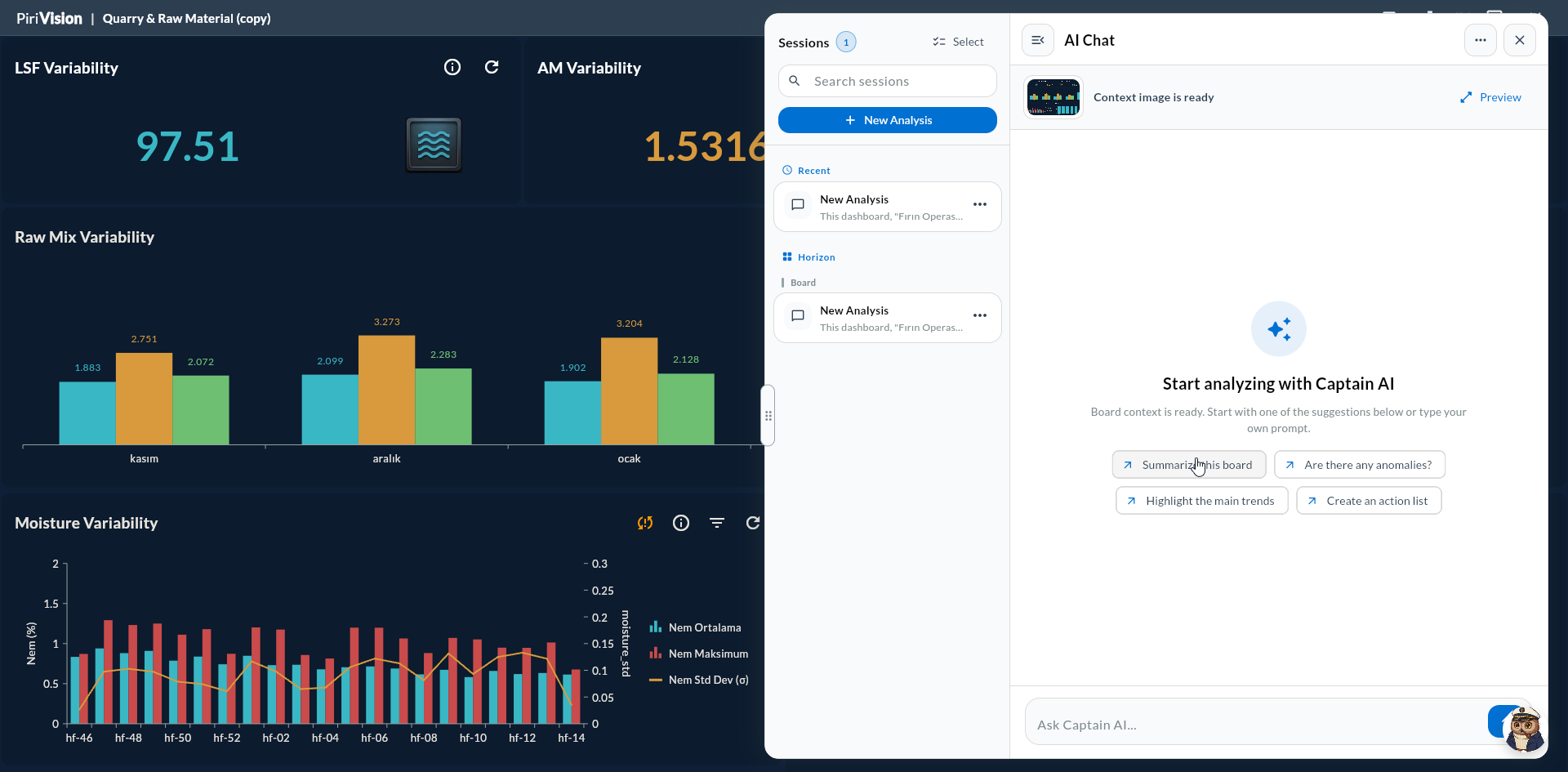
2. Chat Dialog
The dialog has the following sections:
| Section | Description |
|---|---|
| Message history | Previous chat messages (persists per session) |
| Input area | Text box where you type your query |
| Send | Sends the message; board snapshot and XLSX are automatically attached |
| New Session | Resets the message history |
3. What Happens When You Send a Message?
When you press Send, Captain AI sends the following package to the Langflow API:
| Package Component | Description |
|---|---|
| Question text | The message you typed |
| Board PNG snapshot | Board image captured via RepaintBoundary + toImage(), base64 encoded |
| Board XLSX | Data produced by all widgets via the KpiExportable interface, converted to XLSX with syncfusion_flutter_xlsio, base64 encoded |
| Session ID | For Captain session persistence |
flowchart LR
    A[User question] --> B[Take board snapshot]
    A --> C[Generate XLSX from widgets]
    B --> D[Langflow API]
    C --> D
    A --> D
    D --> E[Response]
    E --> F[Show in chat dialog]
4. XLSX Export Detail
Before sending the message, Captain AI collects data from each widget. The widget must implement the KpiExportable interface; most Cartography chart types do.
| Widget Type | Included in XLSX? |
|---|---|
| Cartesian (Line, Area, Column, Bar, etc.) | ✓ |
| Circular (Pie, Doughnut, Radial Bar) | ✓ |
| DataGrid (Table) | ✓ (all rows) |
| Two-Column List | ✓ |
| Gauge | ✓ (single value) |
| Dynamic Text | ✓ (single value) |
| Static Text | ✗ (no data) |
XLSX file name: Board_<BoardName>_<yyyyMMdd_HHmmss>.xlsx
5. Session Persistence
A separate KaptanSessionItem is kept per board. When you close and reopen the dialog, the last chat history is loaded. If the browser session is cleared, the history is lost.
6. Tips for Better Questions
| Question Type | Example |
|---|---|
| Trend explanation | "Why did production count drop in the last 4 hours?" |
| Anomaly detection | "Which parameter has a spike in the last 24 hours?" |
| Comparison | "Compare OEE values for Line 1 and Line 3" |
| Summary report | "Prepare a short summary for this shift" |
Context-aware Questions
Since Captain sees the board snapshot, you can use references like "this chart" or "the gauge above". It can interpret which widget you are referring to.
7. Limitations
- The chat is single-board; it does not access data from other boards.
- Response quality depends on the Langflow flow configuration.
- Response time on large boards (10+ widgets) may grow; XLSX preparation takes time.
- If the service does not respond, the error is silently handled; messages may stay in "loading".
Sensitive Data
Captain AI sends board data to the Langflow service. On boards with sensitive data, be aware of which parameters leave the system.