Duplicate Board
The Duplicate action copies an existing Horizon board with the same widget layout and settings. The new board is saved with a different ID; widget bindings reference the same Cartography widgets as the original.
Prerequisite
At least one board to duplicate must exist in the Horizon list.
1. Find the Board
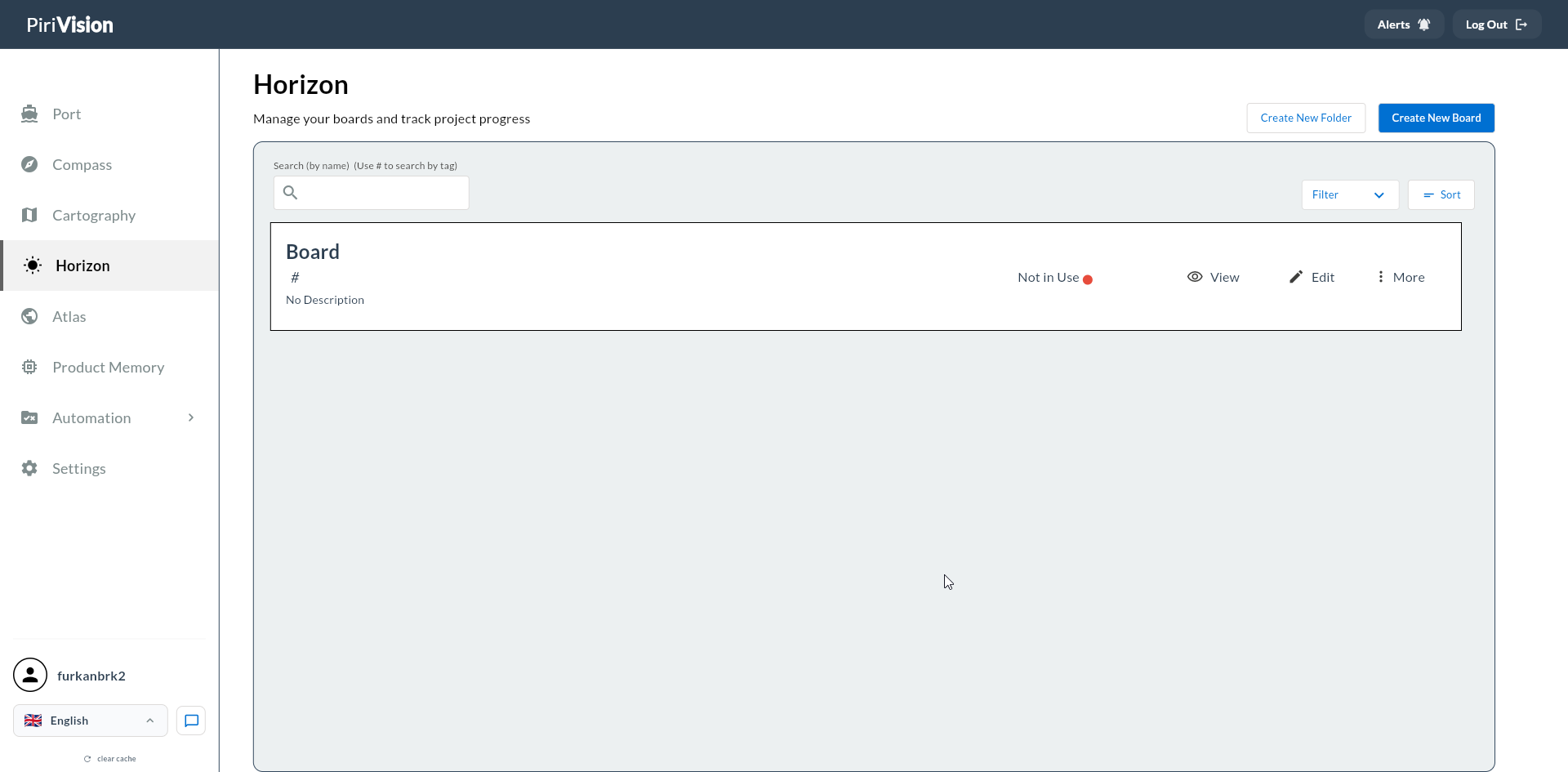
Click Horizon in the left menu. Find the board you want to duplicate in the list.
2. More Menu → Duplicate
Click the More button on the right of the board card → click Duplicate.
3. Duplicate Completes
The copy happens instantly. The new board is listed in the same folder with a Copy of <Original Name> prefix or similar.
Success
The duplicated board has the same:
- Widget layout
- Global filter definitions
- Refresh intervals
- Description and tags
4. Limitations
| Copied | Not Copied |
|---|---|
| Widget layout | Shares (owner = you) |
| Description | Captain AI chat history |
| Tags | Public link (in Atlas) |
| Global filter definitions | — |
5. Typical Scenarios
| Scenario | Approach |
|---|---|
| Reuse the same template for a different plant | Duplicate → swap widgets with queries from the other plant |
| Restart an old report template for a new period | Duplicate → update the name, set global filter to the new date |
| Convert from operator panel to manager summary | Duplicate → tailor widget selection for the manager |
6. Editing the Duplicated Board
Open the new board and edit it via Edit Mode.
7. Common Errors
| Symptom | Possible Cause | Solution |
|---|---|---|
| Duplicate button is disabled | You don't have permission | Only the owner can duplicate |
| Copy widgets show "Widget not found" | The Cartography widget was deleted in between | Replace with a new widget |
8. Next Step
→ Delete