Add MySQL Data Source
This page explains the process of adding a MySQL data source in the Pirivision Port module.
After the MySQL connection is created successfully, the data source can be used for SQL queries in the Compass module. Queries prepared in Compass are then transformed into chart / KPI formats in Cartography and used in Horizon or Atlas dashboards.
Prerequisite
Before adding a MySQL/MariaDB data source the following must be ready:
- MySQL/MariaDB host/IP and port (default: 3306)
- Database name (in MySQL, schema = database)
- Username and password
- The user must have access to the relevant database
Information Needed Before Adding
| Information | Description | Default | Example |
|---|---|---|---|
| Name | Display name given to the data source inside Pirivision | — | MES MySQL DB |
| Description | Purpose of the data source | — | MySQL type DB for MES Data |
| Database Name | Name of the database to connect to | — | mes_production |
| Host | IP address or domain of the MySQL server | — | pirivision.digitheta.dev |
| Port | MySQL connection port | 3306 |
3307 |
| Username | Database username | — | mysql |
| Password | User's password | — | mysql |
Default MySQL Port
The default port for MySQL is 3306. Custom installations may use a different port.
No Schema Field
In MySQL, tables live directly under the database; there is no separate Schema field. You can use the table name directly in queries (e.g. SELECT * FROM production_logs). To access multiple databases, use database_name.table_name notation.
1. Open the Port Module
Click Port in the left menu.
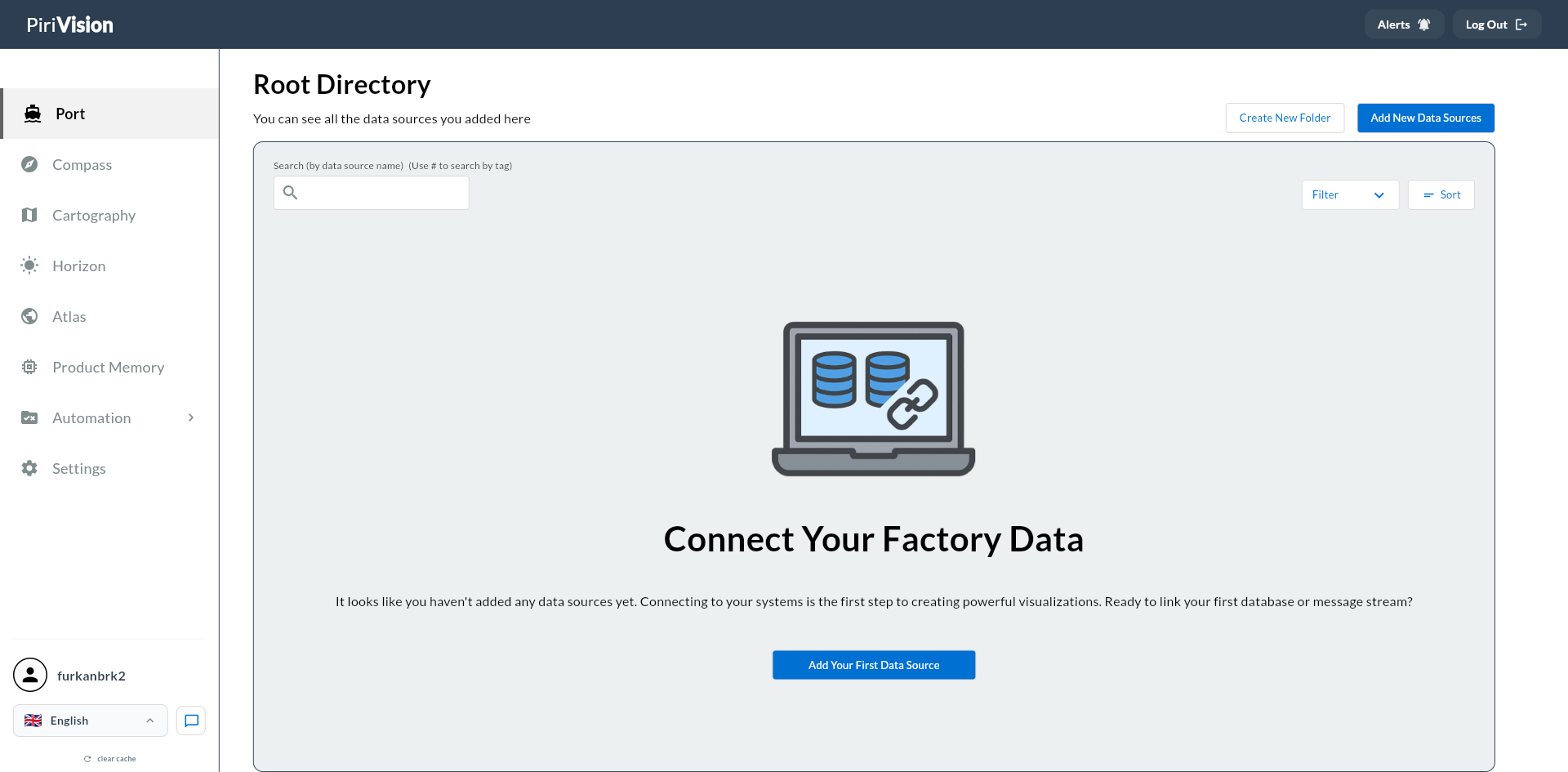
If no data source has been added before, the screen shows a Connect Your Factory Data message. Use Add New Data Sources or Add Your First Data Source.
2. Start the Add New Data Source Flow
Click Add New Data Sources at the top right.
3. Select the MySQL Data Source Type
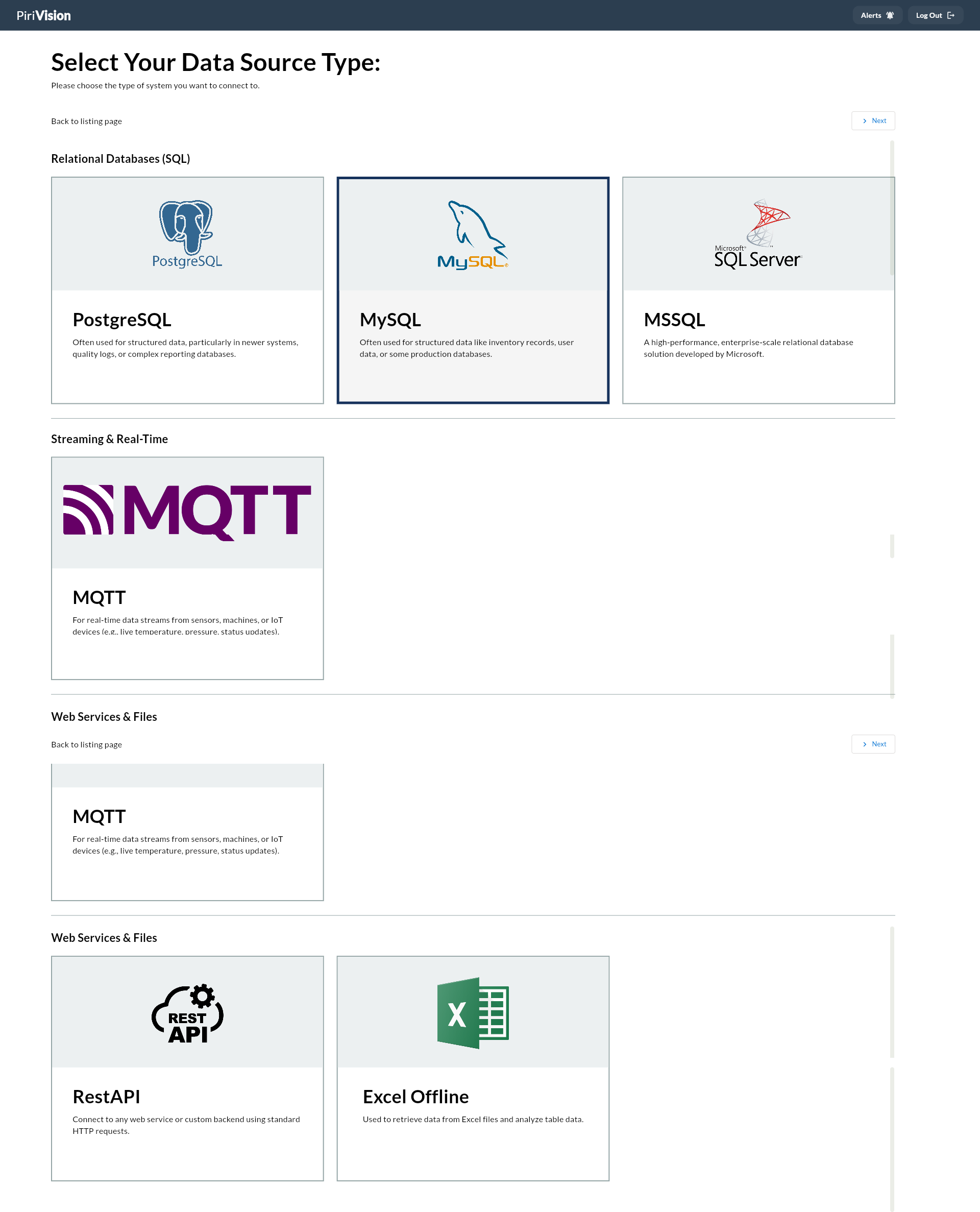
Under Select Your Data Source Type:
- Go to the Relational Databases (SQL) section.
- Pick the MySQL card.
- Click Next at the top right.
4. Fill in the MySQL Form
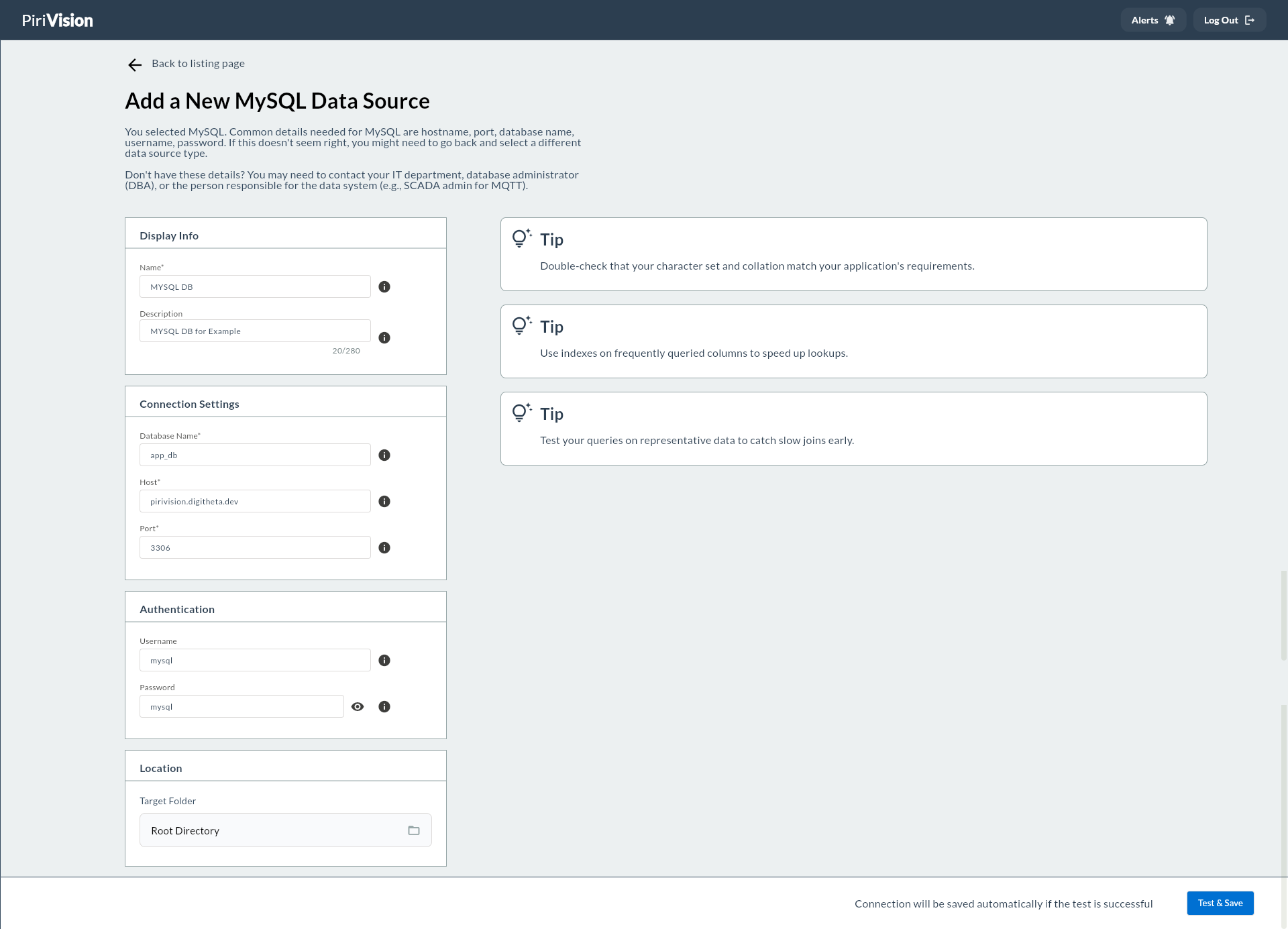
After MySQL is selected, the Add a New MySQL Data Source screen opens.
The form consists of four main sections:
- Display Info
- Connection Settings
- Authentication
- Location
5. Display Info
| Field | Required | Description |
|---|---|---|
| Name | Yes | The name used to identify the data source within Pirivision. |
| Description | No | A short note explaining what the data source is for. |
Name
Good examples:
Description
Example:
6. Connection Settings
| Field | Required | Description | Default | Example |
|---|---|---|---|---|
| Database Name | Yes | Name of the database to connect to | — | mes_production |
| Host | Yes | IP address or domain of the MySQL server | — | pirivision.digitheta.dev |
| Port | Yes | Port the MySQL server is listening on | 3306 |
3307 |
Database Name
Examples:
Host
Examples:
Warning
The Pirivision server must be able to reach the MySQL host over the network.
Port
Default value:
7. Authentication
| Field | Required | Description | Example |
|---|---|---|---|
| Username | Yes | MySQL username | mysql |
| Password | Yes | The user's password | mysql |
Permission Recommendation
For dashboard reads, it is safer to create a separate user with SELECT access only on the necessary tables. For example: pirivision_readonly.
Security
Do not display the database password in plain text in documents or shareable media.
8. Location
| Field | Description | Example |
|---|---|---|
| Target Folder | Folder where the data source is saved | PORT |
When you click the Target Folder field, the folder selection dialog opens.
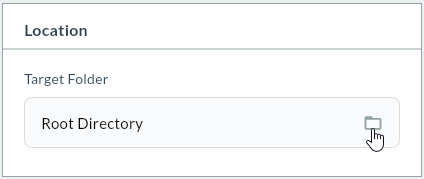
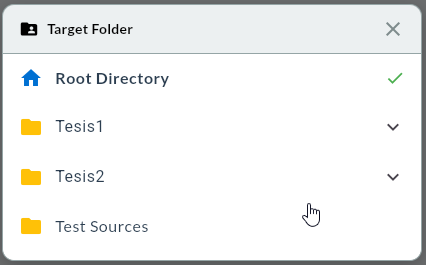
Example folder layout:
PORT/
├── Plant 1/
│   ├── SCADA/
│   ├── MES/
│   └── Quality/
├── Plant 2/
│   ├── SCADA/
│   └── Energy/
└── Test Sources/
9. Save the Connection With Test & Save
Click Test & Save at the bottom right. This works in two stages:
- The MySQL connection is tested.
- If the test succeeds, the data source is saved automatically.
Success
On success, the MySQL data source is listed on the Port screen and becomes available in Compass.
Failure
On failure, check host, port, database name, username, password, and network access info.
10. Verify the Data Source in the List
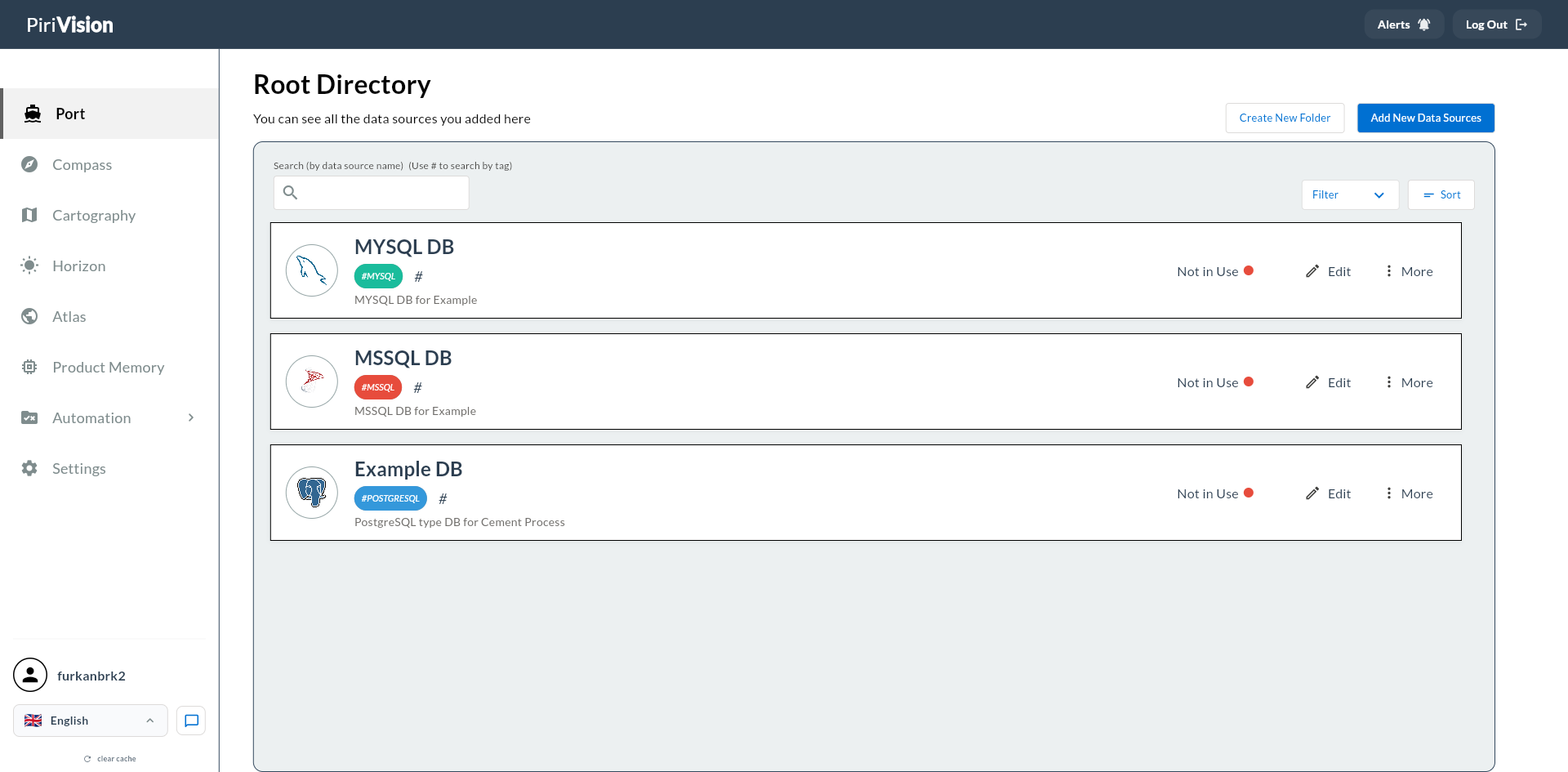
| Field / Action | Description |
|---|---|
| Data source icon | Indicates this is a MySQL data source. |
| Name | Data source name. |
| Description | Description text. |
| Usage status | In Use or Not in Use info. |
| Edit | Updates connection info. → Edit Data Source |
| More | Opens the additional actions menu. |
| ↳ Move | Moves the data source. → Move Data Source |
| ↳ Duplicate | Creates a new copy. → Duplicate Data Source |
| ↳ Delete | Removes the data source. → Delete Data Source |
11. Common Errors
| Error / Symptom | Possible Cause | Solution |
|---|---|---|
| Cannot connect | Host wrong or unreachable | Check IP/domain info and network access. |
| Timeout | Server unreachable or firewall blocked | Check firewall, VPN, security group, and network settings. |
Access denied for user |
Wrong username/password or insufficient privilege | Verify username/password info; check user privileges. |
Unknown database |
Wrong database name | Check the actual database name in MySQL. |
Can't connect to MySQL server |
MySQL service not running or port closed | Check MySQL service status and TCP port. |
host is not allowed to connect |
Remote connections not allowed | Grant via GRANT ... TO 'user'@'%' or for the relevant host. |
| Will not save | Test failed | The connection is not saved unless the test succeeds. |
12. Next Step
After the MySQL data source is created in the Port module, the process continues with Compass, Cartography, Horizon, and Atlas.
flowchart LR
    A["Port<br/>MySQL Data Source"] --> B["Compass<br/>SQL Query"]
    B --> C["Cartography<br/>Chart / KPI"]
    C --> D["Horizon<br/>Page / Board Preparation"]
    D --> E["Atlas<br/>Dashboard View"]
Summary
The MySQL data source addition process:
- Open the Port module.
- Click the Add New Data Sources button.
- Pick MySQL as the data source type.
- Fill in the Display Info fields.
- Fill in the Connection Settings fields (Database Name, Host, Port).
- Enter the Authentication info.
- Choose the Target Folder.
- Use Test & Save to test and save the connection.
- Verify the data source in the Port list.
- Create a SQL query in the Compass module.