Edit MySQL Data Source
This page explains updating an existing MySQL data source in the Pirivision Port module via the Edit action.
Use this flow when the MySQL server has moved, password rotation has occurred, the database name has changed, or you want to move the data source to a different folder.
Prerequisite
At least one MySQL data source must be saved in the Port list. If none, see Add MySQL Data Source first.
1. Find the Data Source in the Port List
Click Port in the left menu. Find the MySQL data source you want to edit in the list.
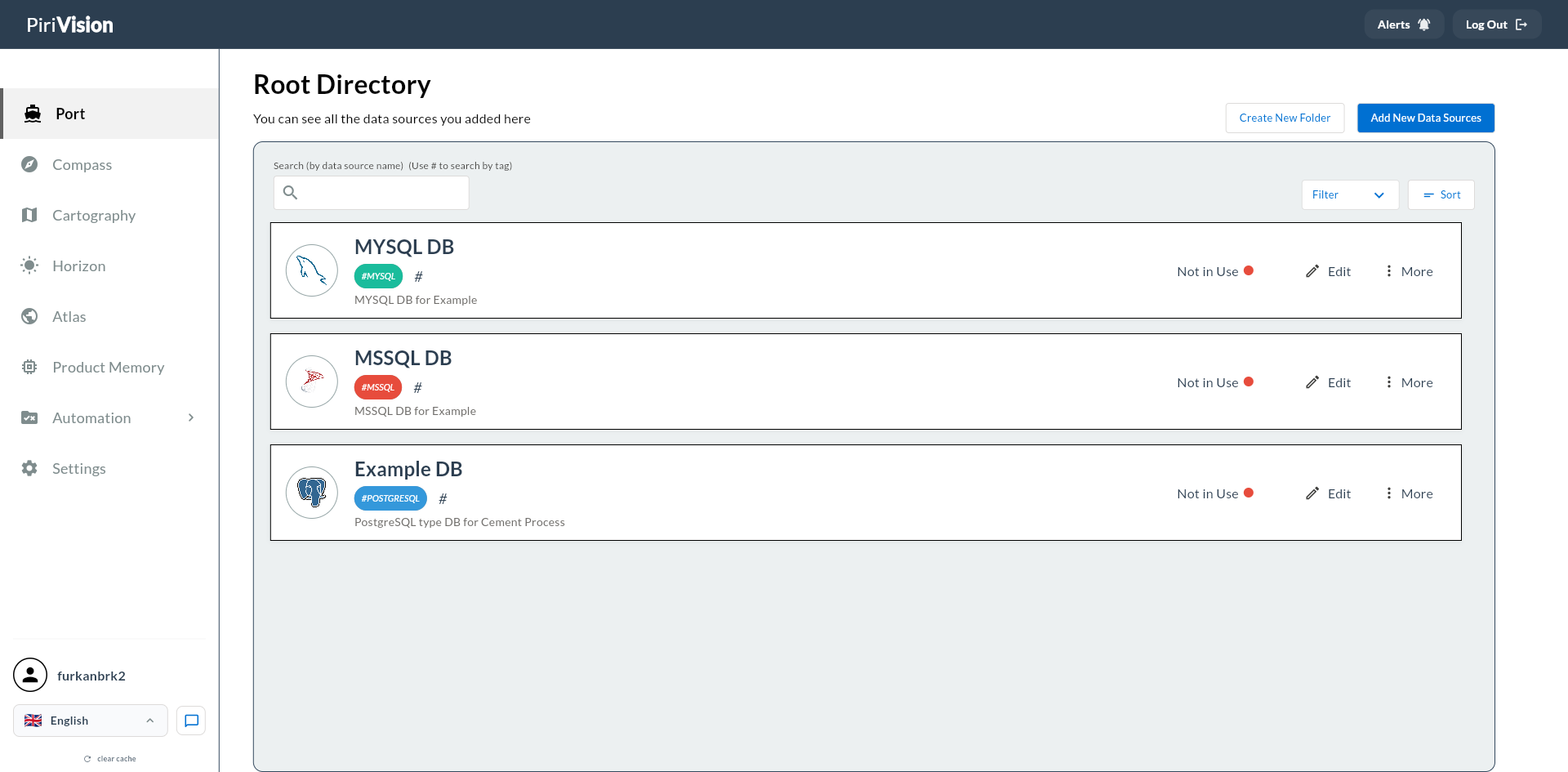
You can use the search bar in the list to filter by data source name or by #tag.
2. Click the Edit Button
The Edit button (pencil icon) is on the right side of the data source card. Click Edit.
Tip
The Edit button appears directly on the card. Access via the More menu is not required.
3. The Edit Form Opens
When Edit is clicked, the form opens with current values pre-filled. Same screen as the new data source form; the only differences are pre-filled values and the Test and Update button.
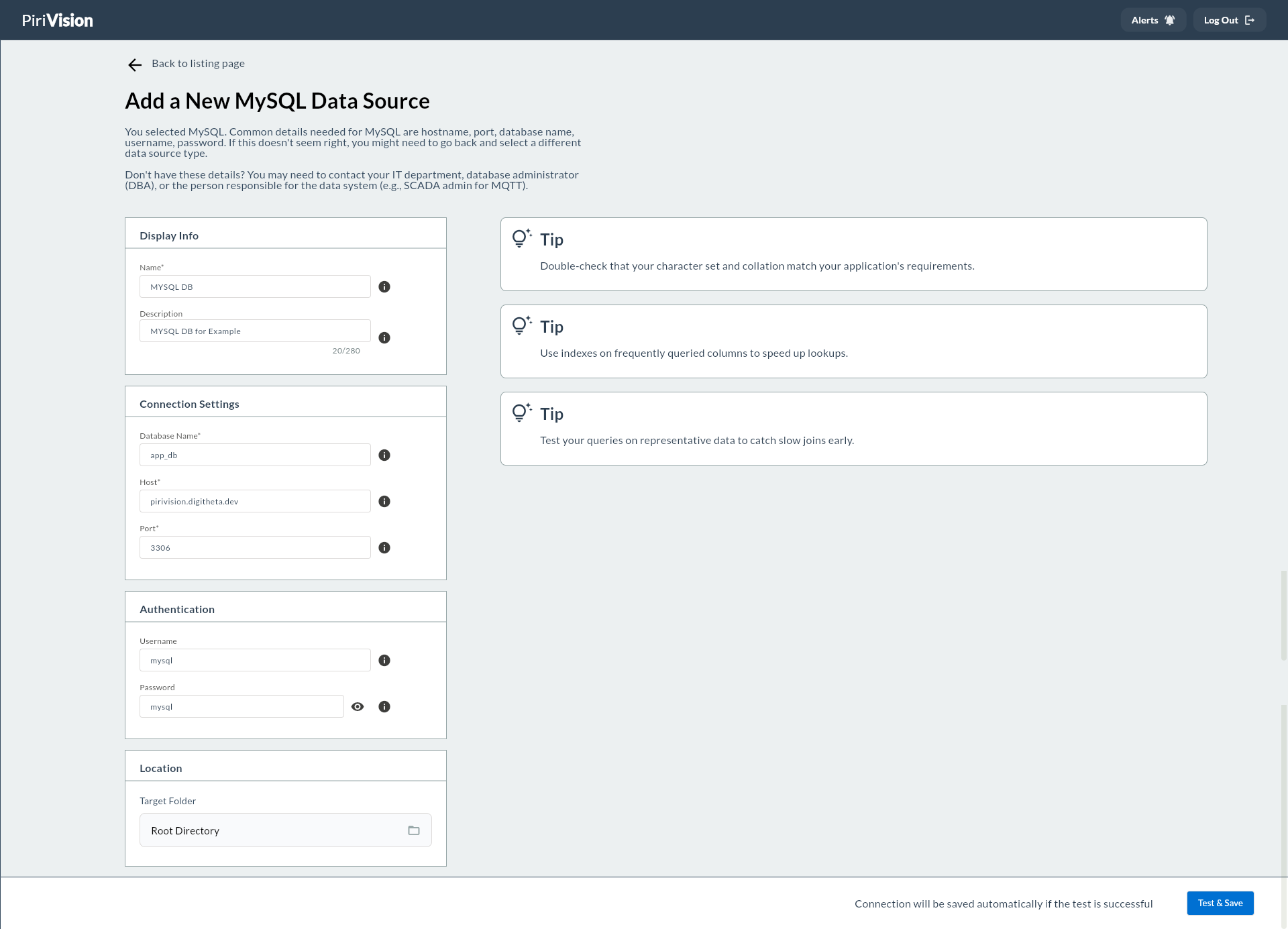
4. Editable Fields
| Section | Field | Required | Default | Description |
|---|---|---|---|---|
| Display Info | Name | Yes | — | The display name of the data source within Pirivision |
| Display Info | Description | No | — | Short description text |
| Connection Settings | Database Name | Yes | — | Name of the database to connect to |
| Connection Settings | Host | Yes | — | IP or domain of the server |
| Connection Settings | Port | Yes | 3306 |
MySQL connection port |
| Authentication | Username | Yes | — | MySQL username |
| Authentication | Password | Yes | — | User's password |
| Location | Target Folder | No | — | Location of the data source in the Port folder structure |
No Schema in MySQL
MySQL data sources have no separate Schema field like PostgreSQL. Tables live directly under the database. In Compass queries you can use the table name directly (e.g. SELECT * FROM production_logs). To access multiple databases via the same connection, use database_name.table_name notation.
Non-Editable Field
| Field | Status |
|---|---|
| Data source type | Stays fixed as MySQL; cannot be converted to PostgreSQL, MSSQL, etc. |
5. Test and Update Button
Click Test and Update at the bottom right.
- The MySQL connection is tested with the entered info.
- If the test succeeds, the updated values are saved.
Success
On success, the updated data source is redirected to the Port list. The Compass query cache is automatically invalidated.
Failure
On failure, the updated info is not saved. Check host, port, database name, username, password, and network access.
6. Common Errors
| Error / Symptom | Possible Cause | Solution |
|---|---|---|
a datasource with this name already exists, please choose a different name |
Another data source with the same name exists | Enter a different Name value |
you do not have permission to update this datasource or the datasource was not found |
Belongs to another user or was deleted | Refresh the Port list |
user not found |
Session expired | Log in again |
update failed: ... |
Connection test failed | Verify connection parameters and network access |
Access denied for user '...'@'...' |
Wrong username or password | Verify MySQL credentials |
Unknown database '...' |
Wrong Database Name | Check the actual database name on the MySQL server |
Can't connect to MySQL server on '...' |
Server unreachable | Check host, port, and network access |
host '...' is not allowed to connect |
Remote connections not allowed | Grant via GRANT ... TO 'user'@'%' in MySQL |
| Timeout | Server unreachable | Check firewall and VPN settings |
7. Next Step
After the data source is updated, Compass queries that use this source automatically use the new connection parameters.
flowchart LR
    A["Port<br/>MySQL Edited"] --> B["Compass<br/>Query Verification"]
    B --> C["Cartography<br/>Chart / KPI (no changes)"]
Summary
The MySQL data source editing process:
- Open the Port module.
- Find the MySQL data source in the list.
- Click Edit on the card.
- The form opens pre-filled with current values.
- Update the relevant fields.
- Test and save the connection with Test and Update.
- Verify the query in Compass.