Edit MQTT Topic
This page describes how to update an existing MQTT topic connection in the Pirivision Compass module via the Edit action.
Use this flow when you need to change the topic path, record name, or folder location.
Prerequisite
At least one MQTT topic record must exist in the Compass list. If none, see MQTT Topic Selection first.
1. Find the Record in the Compass List
Click Compass in the left menu. Locate the MQTT topic record you want to edit.
2. Click the Edit Button
Click the Edit button (pencil icon) on the right side of the card.
3. The MQTT Topic Screen Opens — Current Topic Selected
The MQTT topic browser opens with the currently selected topic highlighted.
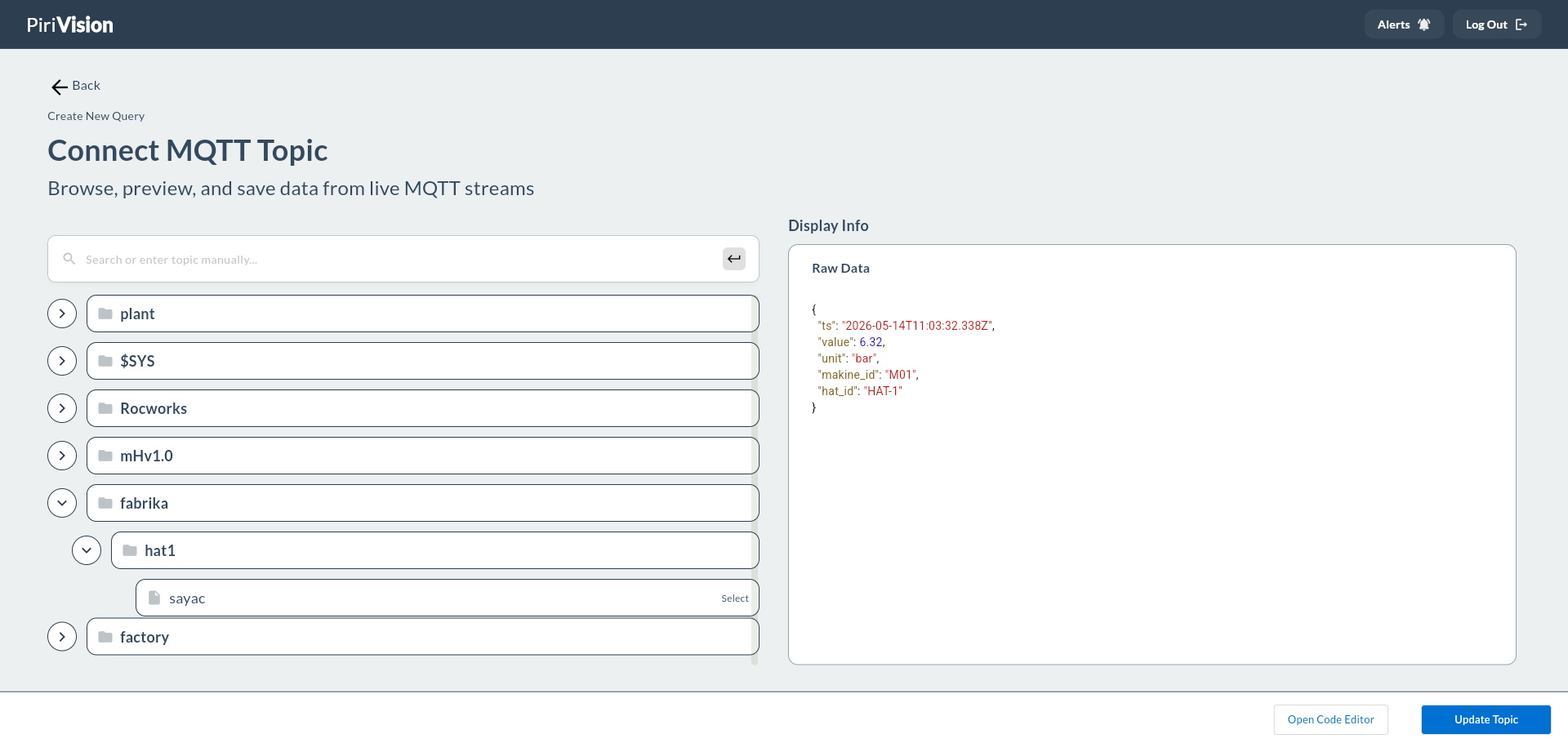
4. Editable Fields
| Field | Editable? | Notes |
|---|---|---|
| Topic Path | ✅ Yes | A different topic can be selected |
| Record Name | ✅ Yes | In the save panel |
| Description | ✅ Yes | In the save panel |
| Target Folder | ✅ Yes | A different folder can be selected |
| Data Source | ❌ No | Create a new topic record for a different MQTT broker |
5. Update the Topic (Optional)
If you want to select a different topic, click the new topic in the tree.
6. Update (Save)
Click Save at the top right. Update the necessary fields in the save panel.
Click the Save button at the bottom of the panel.
7. Common Errors
| Error / Symptom | Possible Cause | Solution |
|---|---|---|
"you already have a query named '...'" |
The new name is used by another Compass record | Choose a different name |
"update failed: no rows were affected" |
The update did not save | Refresh the page and retry |
| Cartography widget not receiving updates | Cache duration not yet expired | Re-save the widget in Cartography to reset the cache |