Delete Data Source
This page explains removing a data source via the Delete action in the Pirivision Port module.
The delete operation cannot be undone. It is important to check dependencies before deleting.
Cannot Be Undone
A deleted data source cannot be recovered. Apply the verification steps on this page before deleting.
Prerequisite
The data source you want to delete must exist in the Port list and there must be no active Compass query bound to it.
1. Find the Data Source in the Port List
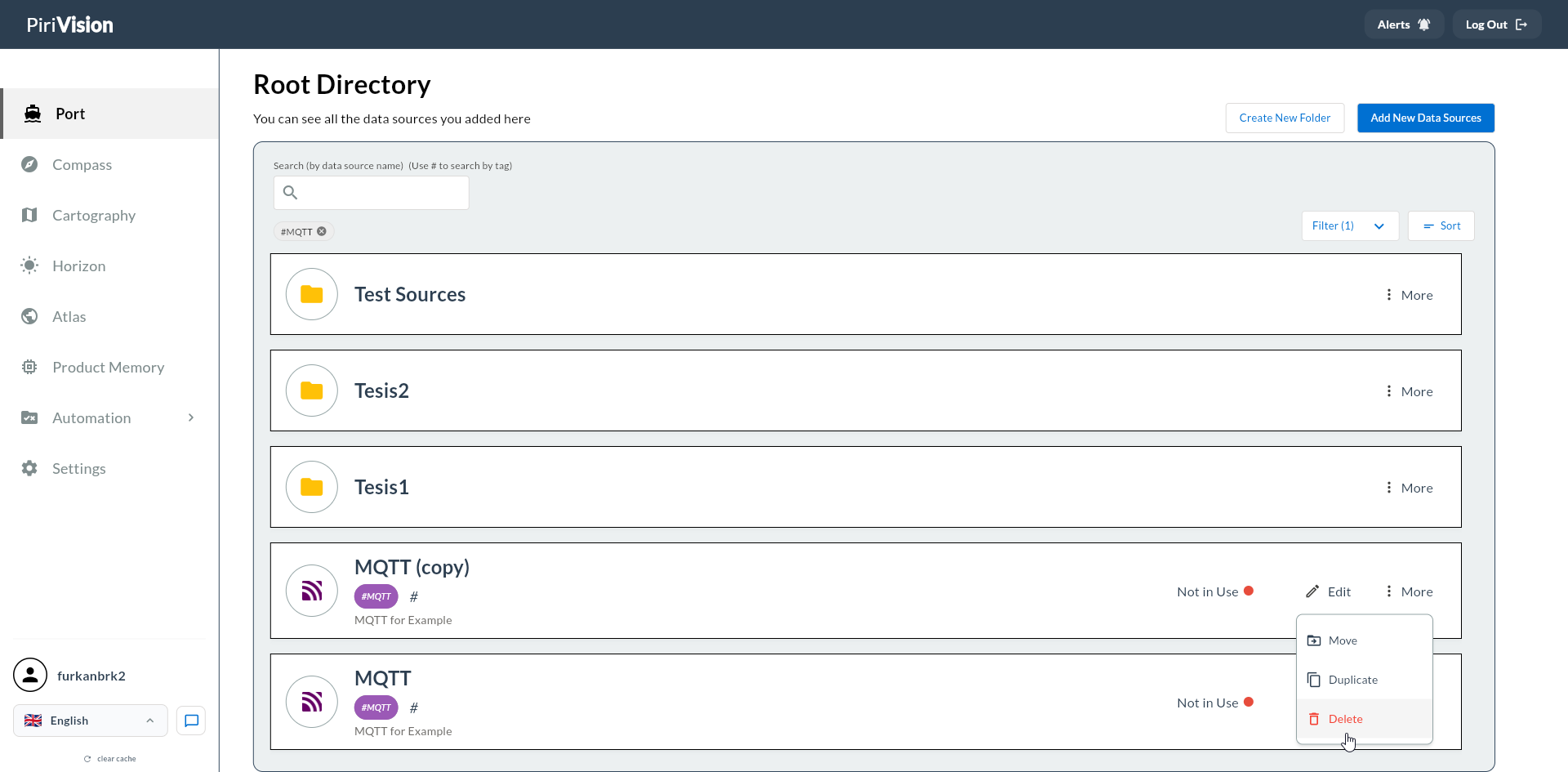
Click Port in the left menu. Find the data source you want to delete in the list.
Check the usage status indicator on the card:
| Status | Description |
|---|---|
Not in Use |
No Compass query is bound — can be deleted |
In Use |
At least one Compass query uses the data source — queries must be deleted first |
2. Check Compass Dependencies
Before deleting, remove all Compass queries that use this data source via Compass → relevant query → Delete.
Dependency Block
A data source with active Compass queries cannot be deleted. Attempting to delete shows:
This check covers only your own queries. It does not consider whether other users use the same data source.
3. Open the More Menu
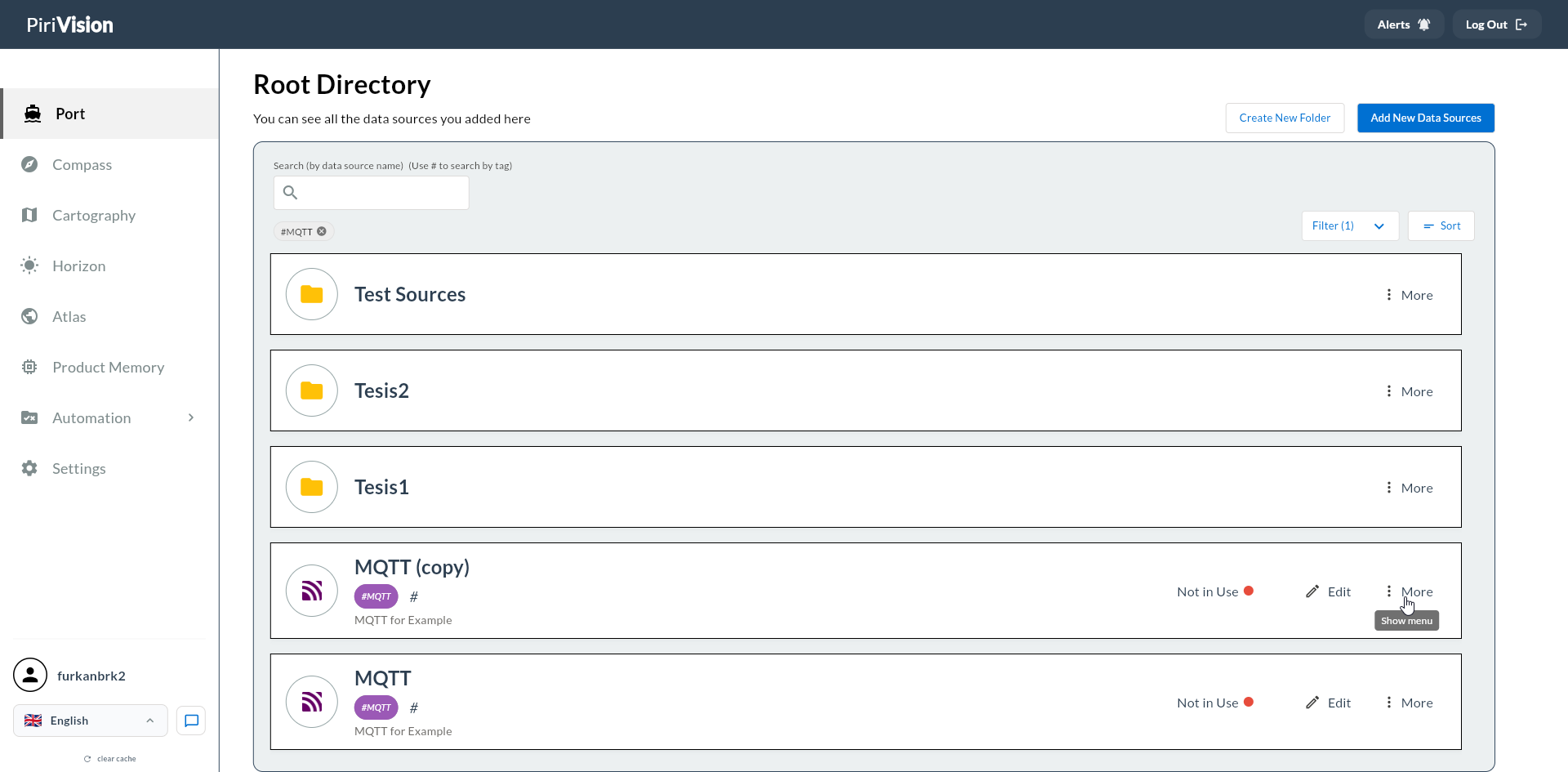
Click the More (three dots) button on the right side of the data source card.
In the menu that opens, click Delete.
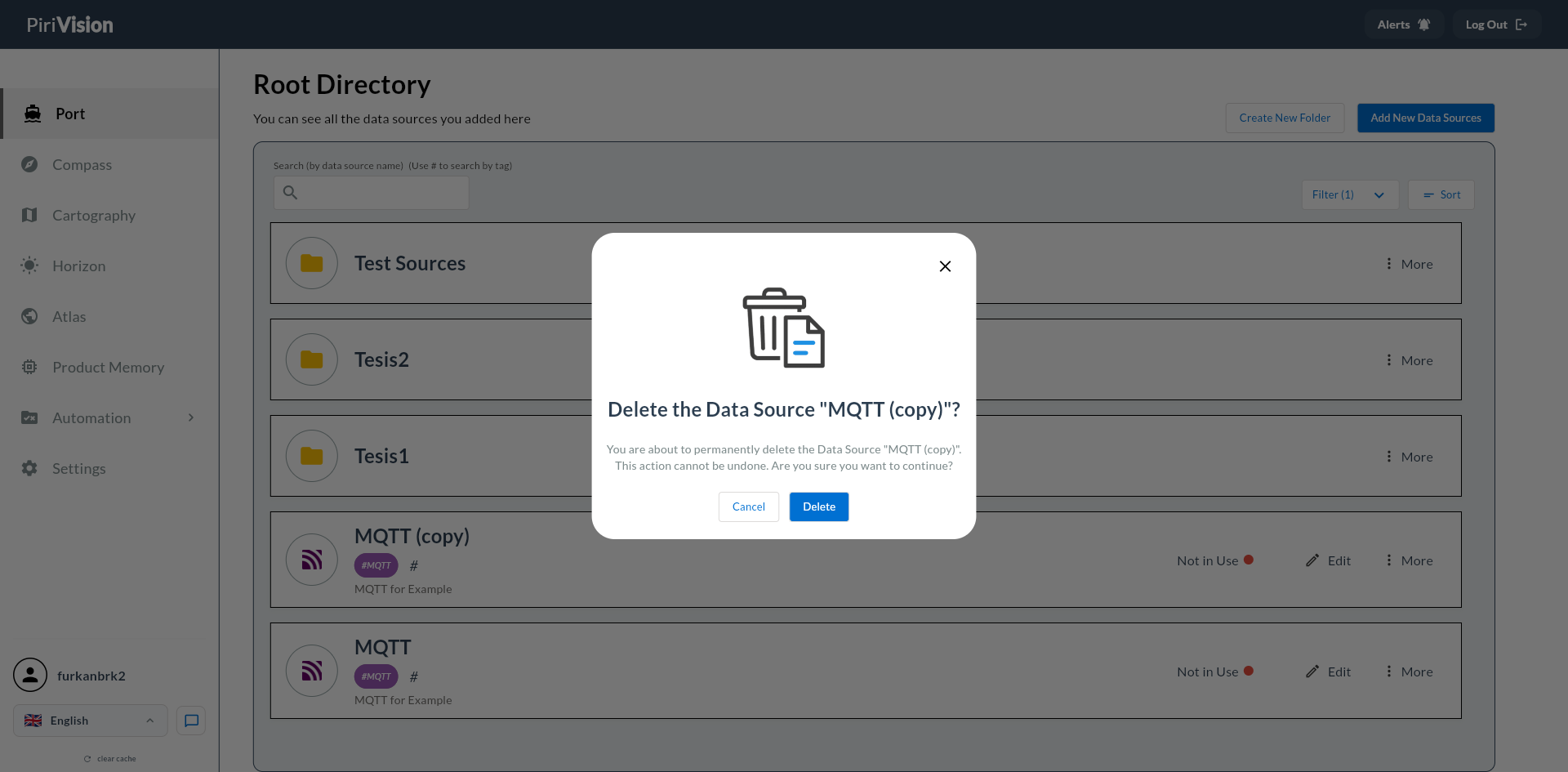
4. Confirmation Dialog
The delete confirmation dialog opens. The data source name is shown in the dialog.
Click Delete to confirm.
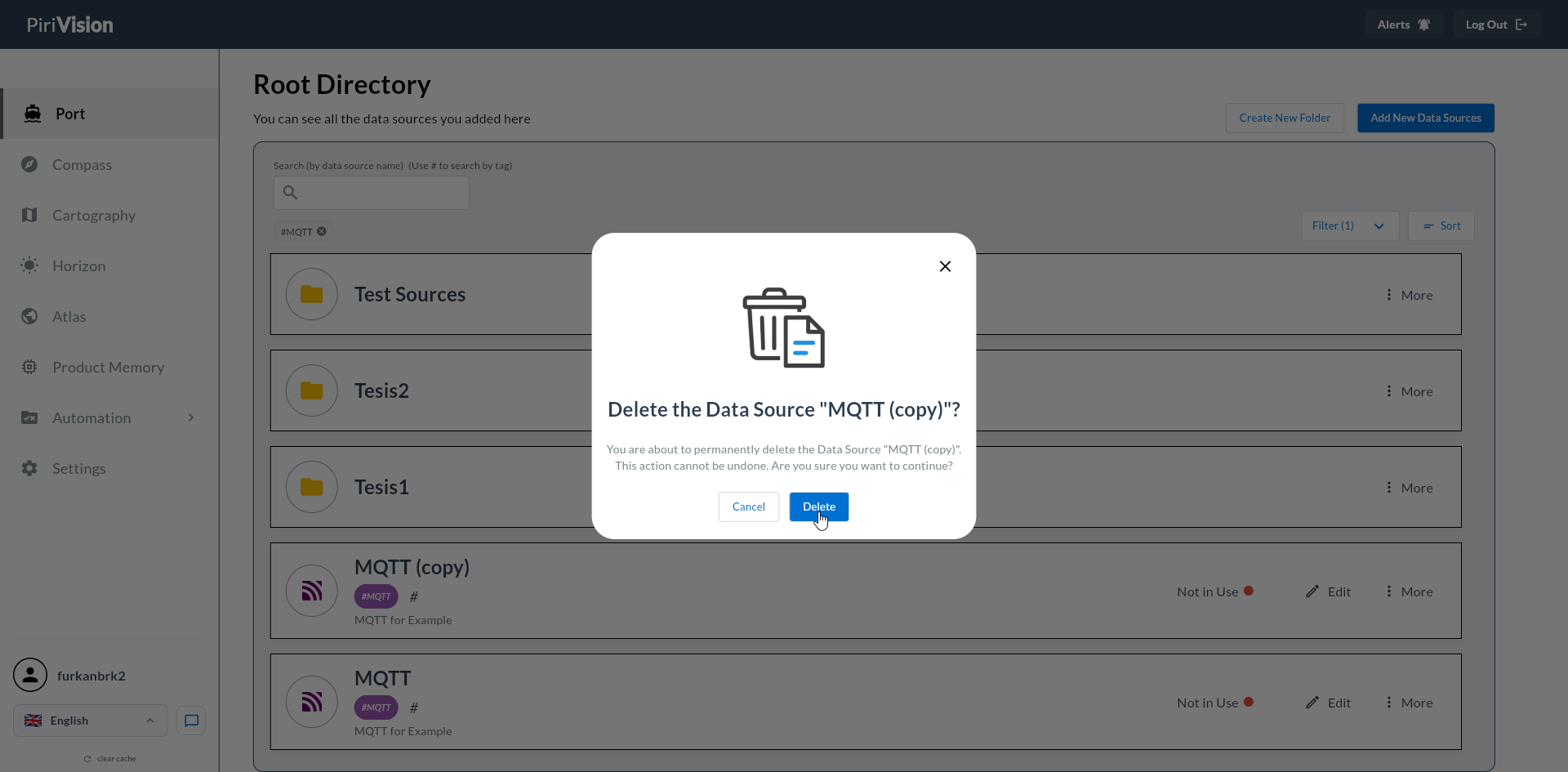
To cancel, click Cancel or close the dialog.
5. Deletion Happens
When confirmed, the backend performs the operation in this order:
- The user is detached from the data source (removed from the
datasource_userstable). - Tag relationships are cleaned up.
- If no other user is bound to this data source, the record is fully deleted from the database.
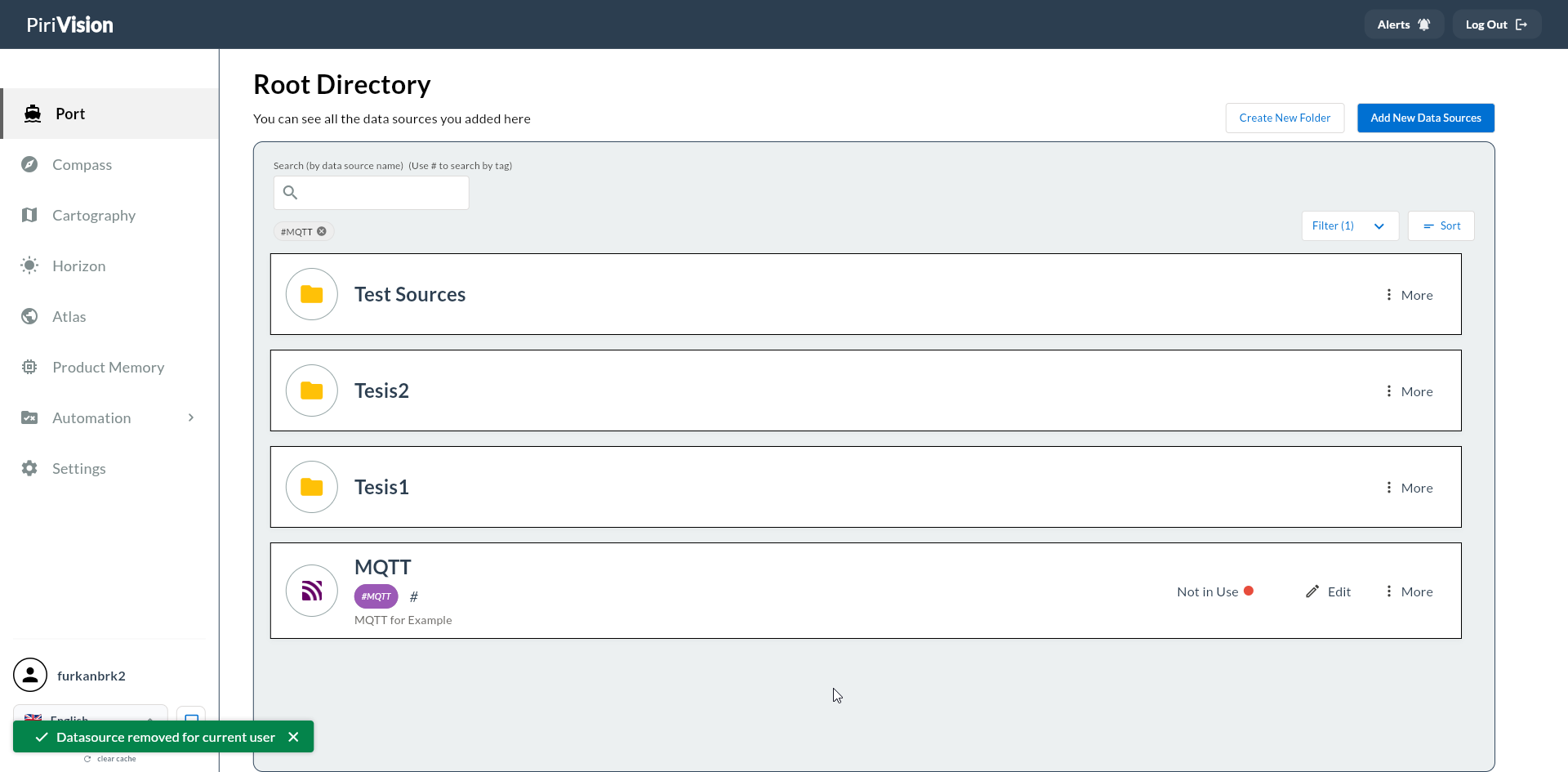
A success toast appears at the bottom of the screen and the data source disappears from the list:
Success
Once delete completes, the data source disappears from the Port list immediately.
6. Components Affected After Deletion
After the data source is deleted:
| Component | State |
|---|---|
| Compass queries | All bound queries should have been removed before deletion |
| Cartography charts | If queries bound to this data source were already deleted, charts are unaffected; charts left without a query cannot show data |
| Horizon / Atlas dashboards | The data flow is broken; charts appear empty or show an error |
7. Common Errors
| Error / Symptom | Possible Cause | Solution |
|---|---|---|
datasource is used by your Compass queries; please delete related queries first |
Compass has queries using this data source | Delete the related queries in Compass and try again |
you do not have permission to delete this datasource |
The data source belongs to another user | You can only delete data sources you added |
user not found |
Session expired | Log in again |
invalid datasource id |
System error or stale list | Refresh the page |
8. Folder Deletion
Empty folders can be deleted via More → Delete. If the folder contains data sources or sub-folders, move or delete the contents first.
Summary
The data source deletion process:
- Find the data source in the Port list.
- Check the usage status (must be
Not in Use). - Delete the queries bound to this source in Compass.
- Start the deletion via More → Delete.
- Confirm in the dialog.
- The list updates and the data source disappears.